ASUS C32N1415 96Wh Laptop Battery Replacement Guide
If your ASUS ZenBook Pro is struggling to hold a charge or showing battery warning signs, our comprehensive guide helps Australian and New Zealand users find the right replacement battery and install it safely.
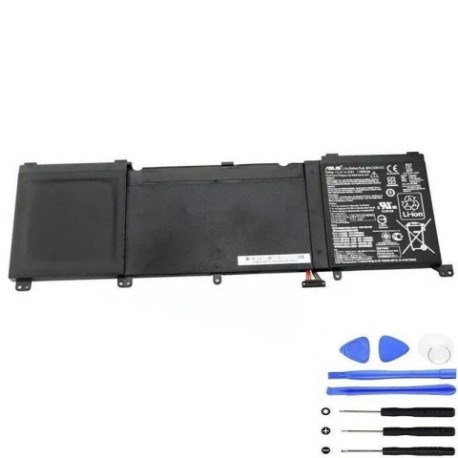
Battery models & part numbers
| Reference / P/N |
|---|
| 0B200-01250000 |
| 0B200-01250100 |
| 0B200-01250600 |
| Asus-C32N1415-96Wh |
| C23PnC5 |
| C41N1416 |
| C41PmC5 |
| G501JW |
| N501JW |
| N501VW |
| UX501 |
| UX501JW |
| UX501LW |
| UX501VW |
Compatible models
| Model |
|---|
| Asus ZenBook Pro UX501 |
| Asus ZenBook Pro UX501JW |
| Asus ZenBook Pro UX501LW |
| Asus ZenBook Pro UX501VW |
| Asus ZenBook ProUX501JW |
Introduction
The ASUS C32N1415 96Wh battery is a high-capacity power solution designed specifically for ASUS ZenBook Pro models. With proper care, these batteries typically last 2-3 years before showing significant degradation. Many Australian and New Zealand users find their ZenBook Pro’s performance drops noticeably after this period, particularly with the demanding hardware these premium laptops contain.
Common signs you need a replacement
| Symptom | Cause | Verification | Recommendation |
|---|---|---|---|
| Battery drains quickly (under 1 hour) | Cell degradation from age/cycles | Check battery health in Windows | Replace if capacity below 60% |
| Laptop shuts down unexpectedly | Voltage drops under load | Monitor during intensive tasks | Immediate replacement needed |
| Battery won’t charge past 80% | Battery management system fault | Reset battery in BIOS/Windows | Replace if reset fails |
| Battery swelling/bulging | Gas buildup from cell failure | Visual inspection, trackpad lift | Stop using immediately |
| Overheating during charging | Internal resistance increase | Temperature monitoring | Replace to prevent damage |
How to check compatibility
Finding your exact ASUS model information is crucial for battery compatibility. For ZenBook Pro users in Australia and New Zealand, here are the most reliable methods:
Method 1: Check the bottom label – Turn your laptop over and locate the white sticker. Look for “Model Name” followed by codes like UX501JW or N501VW. The C32N1415 battery fits all variations listed in our compatibility tables.
Method 2: Use System Information – Press Windows Key + R, type “msinfo32” and check System Model. This shows the precise internal designation that matches our part number list.
Method 3: ASUS Official Support – Visit the ASUS Australia support website and enter your serial number. Their compatibility checker will confirm if C32N1415 is the correct replacement.
Method 4: Physical Inspection – If you’re technically confident, carefully remove the current battery (power off first) and note the part number printed on it. Match this against our reference list.
When to replace
Timing your battery replacement correctly saves money and prevents laptop damage. Consider replacement when:
- Battery health shows less than 60% of original capacity
- Your ZenBook Pro lasts less than 45 minutes on battery
- You notice swelling or the trackpad becomes difficult to click
- The laptop randomly shuts down at 20-30% battery remaining
- Battery temperature exceeds 45°C during normal use
- Your laptop is 3+ years old with daily use
Don’t wait until complete failure – a dying battery can damage your laptop’s charging circuit and motherboard.
Installation guide
Replacing the battery in your ASUS ZenBook Pro requires care but is manageable for most users. Always work in a clean, static-free environment.
Tools needed: Phillips #00 screwdriver, plastic spudger, anti-static wrist strap (recommended)
Step 1: Preparation – Shut down your laptop completely and disconnect the power adapter. Remove any peripherals and place the laptop on a soft, clean surface.
Step 2: Remove bottom cover – Remove all visible screws from the bottom case. Some may be hidden under rubber feet. Use a plastic spudger to carefully pry open the case starting from the edges.
Step 3: Disconnect old battery – Locate the battery connector near the centre of the motherboard. Gently pull the connector straight out – never pull by the wires. Remove any screws securing the battery.
Step 4: Install new battery – Position the new C32N1415 battery exactly as the old one was oriented. Secure with screws and reconnect the battery cable firmly.
Step 5: Testing – Before replacing the bottom cover, connect power and turn on the laptop. Check that Windows recognises the new battery and it begins charging.
Step 6: Final assembly – Power off, disconnect power, and replace the bottom cover. Tighten all screws evenly.
Usage & care tips
Maximise your new ASUS battery’s lifespan with these evidence-based practices:
Optimal Charging: Keep your battery between 20-80% for daily use. Avoid frequent 0-100% cycles. Modern lithium-ion batteries prefer partial discharges.
Temperature Management: Never leave your laptop in a hot car (common in Australian summers). Ideal operating temperature is 15-25°C. High temperatures accelerate battery degradation.
Storage Guidelines: If storing your laptop long-term, charge to 50-60% and power off completely. Store in a cool, dry place away from direct sunlight.
Power Settings: Use ASUS Battery Health Charging software (available in MyASUS app) to set maximum charge limits when primarily using AC power.
Calibration: Every 2-3 months, allow your battery to discharge to about 10% then charge fully to 100% without interruption. This helps the battery gauge remain accurate.
Safety & recycling in AU/NZ
Battery safety and proper disposal are regulated in both Australia and New Zealand. Follow these guidelines:
Safety Precautions: Never puncture, crush, or expose batteries to fire or water. Damaged batteries can leak corrosive chemicals or catch fire. If your battery swells, stop using immediately and dispose of properly.
Australian Disposal: Take old batteries to any BatteryWorld, Officeworks, or ALDI store for free recycling. Many council waste facilities also accept them. Never place lithium batteries in household bins.
New Zealand Disposal: Use the Recycle-more.co.nz website to find your nearest battery recycling drop-off point. Most Noel Leeming and Harvey Norman stores accept old batteries.
Transport Regulations: When shipping batteries within AU/NZ, ensure they’re properly packaged to prevent short circuits. Some carriers have specific requirements for lithium batteries.
FAQ
How long does the C32N1415 battery typically last?
With normal use, expect 2-3 years before significant capacity loss. Heavy users might see degradation in 18-24 months. Proper care can extend this to 4+ years.
Will this battery work with my ASUS ZenBook Pro bought in Australia?
Yes, theC32N1415 battery is compatible with all regional variants of supported ZenBook Pro models sold in Australia and New Zealand. The physical connector and voltage specifications are standardised globally.
Is it safe to replace the battery myself?
Yes, with basic technical skill and proper precautions. Follow our installation guide carefully. If uncomfortable, authorised ASUS service centres in major AU/NZ cities can perform the replacement, though this costs more.
Why does my new battery not charge to 100% immediately?
This is normal. The battery management system needs several full charge cycles to calibrate. Use the laptop normally for a week, and capacity reporting should stabilise.
How do I verify my replacement battery is genuine?
Genuine C32N1415 batteries have precise labelling with clear ASUS branding, proper safety certifications, and consistent weight (approximately 350g). Purchase from reputable suppliers and check for warranty coverage.
Can I use my laptop while plugged in all the time?
Yes, but use ASUS Battery Health Charging software to limit maximum charge to 60-80% when primarily using AC power. This significantly reduces wear on the battery.
What warranty comes with this battery?
Genuine replacements typically carry 12-month warranties in Australia and New Zealand. Keep your purchase receipt and register the product if required.
My laptop still has battery issues after replacement – what’s wrong?
This could indicate motherboard charging circuit problems, not the battery itself. Consult an authorised ASUS service centre for diagnosis. The issue might require professional repair beyond battery replacement.