ASUS C21N1903 33Wh Battery Replacement Guide for Australian & New Zealand Users
If your ASUS ExpertBook is struggling to hold charge or showing battery warning signs, this comprehensive guide covers everything you need to know about the C21N1903 33Wh replacement battery. We’ll help you identify compatibility, understand when to replace, and provide expert installation guidance specifically for the Australian and New Zealand market.
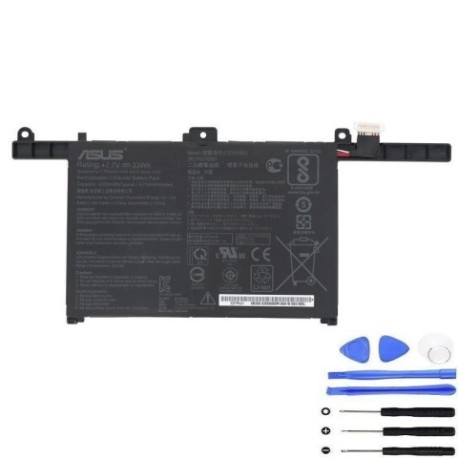
Battery models & part numbers
| Reference / P/N |
|---|
| 0B200-03560000 |
| Asus-C21N1903-33Wh |
| C21PoJ1 |
Compatible models
| Model |
|---|
| Asus B3302CEA |
| Asus B3302FEA |
| Asus ExpertBook B5 Flip B5302FEA |
| Asus ExpertBook B9 9400CEA |
| Asus ExpertBook B9 B9400CBA |
| Asus ExpertBook B9 B9400CEA |
| Asus ExpertBook B9 B9450FA |
Introduction
The ASUS C21N1903 33Wh battery is a crucial component for maintaining the performance and portability of your ExpertBook series laptop. Designed specifically for business and professional users across Australia and New Zealand, this lithium-ion battery ensures your device remains productive throughout the workday. Whether you’re working from home in Sydney, travelling between Auckland and Wellington, or running meetings in Melbourne, a reliable battery is essential for uninterrupted productivity.
Many ASUS ExpertBook users experience battery degradation after 18-24 months of regular use, particularly in our warmer Australian climate where high temperatures can accelerate battery wear. Understanding when and how to replace your battery can save you from unexpected downtime and maintain your laptop’s optimal performance.
Common signs you need a replacement
| Symptoms | Causes | Verification | Recommendation |
|---|---|---|---|
| Battery drains quickly (less than 2 hours) | Natural degradation, excessive charge cycles | Check battery health in Windows Power Report | Consider replacement if below 60% capacity |
| Laptop shuts down unexpectedly at 20-30% | Voltage regulation failure, cell imbalance | Monitor shutdown patterns, check event logs | Immediate replacement recommended |
| Battery won’t charge past 80-90% | Charging circuit issues, battery memory | Use ASUS Battery Health Charging software | Replace if persistent after calibration |
| Battery swelling or bulging | Gas buildup, internal short circuit | Visual inspection, trackpad/touchpad issues | Stop using immediately and replace |
| Overheating during charging | Internal resistance increase, faulty cells | Monitor temperature, check ventilation | Replace to prevent damage to other components |
| Windows shows “Consider replacing your battery” | Significant capacity loss detected | Check battery report for design vs full capacity | Plan replacement within 2-4 weeks |
Many Australian users notice these symptoms become more pronounced during summer months when ambient temperatures rise. The combination of heat and regular use can accelerate battery degradation, making timely replacement crucial for maintaining your device’s reliability.
How to check compatibility
Before purchasing any replacement battery for your ASUS ExpertBook, proper compatibility verification is essential. Here’s how to confirm your device matches the C21N1903 33Wh battery:
Finding your laptop model information
Locate the model number on your ASUS device by checking:
- Bottom case label: Turn your laptop over and look for the white or silver sticker showing the model number (e.g., B3302CEA, B9400CEA)
- System Information: Press Windows Key + R, type “msinfo32”, and check System Model
- Command Prompt: Open Command Prompt and type “wmic csproduct get name”
- Original packaging: Check the box your laptop came in for model details
- BIOS information: Restart your laptop and press F2 during boot to access BIOS settings
ASUS-specific compatibility tools
ASUS provides several resources for Australian and New Zealand customers:
- ASUS Support Website: Visit the official ASUS support portal and enter your serial number or model
- MyASUS App: Use the pre-installed MyASUS application to check battery health and compatible parts
- Authorised Service Centres: Contact ASUS-authorised repair centres in major cities like Sydney, Melbourne, Brisbane, Auckland, or Wellington for verification
- Part Number Cross-Reference: Verify that your current battery part number matches one of the compatible references listed above
Physical compatibility checks
Beyond model numbers, ensure physical compatibility by:
- Checking the battery connector type matches (ASUS typically uses proprietary connectors)
- Verifying physical dimensions (the C21N1903 measures approximately 210mm x 70mm x 20mm)
- Ensuring voltage and capacity specifications match your original battery
- Confirming mounting points and screw positions align with your laptop’s chassis
When to replace your ASUS battery
Timing your battery replacement correctly can save you money and prevent unexpected downtime. Consider replacement when:
Performance-based indicators
- Battery capacity drops below 60%: When your full charge capacity is significantly less than design capacity
- Frequent unexpected shutdowns: If your laptop turns off with 20-30% charge remaining
- Charging time increases dramatically: Taking more than 4-5 hours for a full charge
- Cannot complete important tasks: When battery life interferes with work requirements
Time-based considerations
- After 2-3 years of regular use: Typical lifespan for lithium-ion batteries in daily use
- Before important projects or travel: Proactive replacement prevents issues during critical periods
- Seasonal timing: Consider replacement before summer when heat accelerates degradation
- Warranty expiration: Replace before extended warranty periods end if showing early signs of failure
Safety-related replacement triggers
- Visible swelling or deformation: Immediate replacement required for safety
- Overheating during normal use: Battery temperatures exceeding 45°C during light use
- Burning smell or unusual noises: Stop using immediately and replace
- Liquid exposure: Even minor spills can damage battery management systems
Installation guide
Replacing the battery in your ASUS ExpertBook requires careful attention to detail. Follow this step-by-step guide for a successful installation:
Preparation and safety
Before beginning, ensure you have:
- Proper workspace: Clean, well-lit area with anti-static mat if possible
- Required tools: Phillips #00 screwdriver, plastic spudger, anti-static wrist strap
- Safety equipment: Safety glasses, gloves for handling the battery
- Backup: Complete backup of your important data
- Power down: Shut down computer completely and disconnect AC adapter
Step-by-step replacement process
- Disconnect power: Turn off your ExpertBook, disconnect the AC adapter, and press the power button for 10 seconds to discharge residual power
- Remove bottom cover: Locate and remove all screws from the bottom case (typically 10-15 screws depending on model). Use a plastic spudger to carefully separate the bottom cover from the chassis
- Disconnect battery: Locate the battery connector on the motherboard. Gently pull the connector straight out—avoid pulling on wires
- Remove old battery: Unscrew the mounting screws securing the battery (usually 4-6 screws). Carefully lift the battery out of the chassis
- Install new battery: Place the new C21N1903 battery in position and secure with mounting screws. Reconnect the battery connector to the motherboard
- Reassemble: Replace the bottom cover and secure all screws. Ensure all clips are properly engaged
- Initial power-up: Connect the AC adapter and power on your laptop. The system should recognise the new battery automatically
Post-installation calibration
For optimal performance with your new C21N1903 battery:
- Charge the battery to 100% without interruption
- Use the laptop on battery power until it reaches 5-10%
- Recharge to 100% again to complete the calibration cycle
- Repeat this process 2-3 times for best results
- Update BIOS and battery drivers through MyASUS orthe ASUS support website
Common installation challenges
Australian and New Zealand users sometimes encounter these issues:
- Stubborn bottom covers: Use plastic tools and work slowly around the edges to avoid damaging clips
- Tight battery connectors: Rock gently side-to-side rather than pulling straight out
- Battery not detected: Ensure connector is fully seated and try resetting EC (Embedded Controller) by holding power button for 40 seconds with AC adapter disconnected
- Error messages: Update BIOS and chipset drivers from ASUS support site
Usage & care tips
Extend the lifespan of your new ASUS C21N1903 battery with these practical tips tailored for Australian and New Zealand conditions:
Optimal charging practices
- Avoid extreme temperatures: Don’t charge in direct sunlight or in cars during hot Australian summers
- Use ASUS Battery Health Charging: Set maximum charge level to 80% in MyASUS app for long-term storage
- Partial discharges preferred: Charge between 20-80% rather than full 0-100% cycles
- Unplug when fully charged: Avoid keeping laptop at 100% charge while connected to power continuously
Environmental considerations
- Temperature management: Ideal operating range is 10°C to 35°C—avoid leaving in hot cars or direct sun
- Storage conditions: If storing long-term, charge to 50-60% and store in cool, dry place
- Travel precautions: During air travel, ensure laptop is easily accessible for security screening
- Power management: Use Windows Power Saver mode or ASUS-specific power profiles
Performance optimisation
- Background app management: Close unnecessary applications to reduce battery drain
- Display brightness: Reduce screen brightness to 60-70% for significant power savings
- Wireless connectivity: Disable Wi-Fi and Bluetooth when not needed
- Regular maintenance: Update drivers and firmware through MyASUS application
Safety & recycling in AU/NZ
Proper handling and disposal of laptop batteries is regulated in Australia and New Zealand. Follow these guidelines:
Safety precautions
- Never attempt to open or puncture batteries: Lithium-ion cells contain hazardous materials
- Avoid exposure to water: Keep batteries dry and away from moisture
- Store safely: Keep away from children and pets, store in cool locations
- Transport carefully: Protect terminals from short-circuiting during transport
Australian recycling options
- MobileMuster: Free battery and mobile device recycling program available at most post offices and phone retailers
- Officeworks: Free battery recycling available at all stores nationwide
- Council recycling centres: Most local councils offer e-waste recycling services
- Battery World: Participating stores accept old batteries for recycling
New Zealand recycling options
- eDay events: Community e-waste collection events in major centres
- Computer recycling programmes: Many retailers like Noel Leeming and Harvey Norman offer take-back schemes
- Council transfer stations: Most councils accept e-waste including laptop batteries
- RCN e-Cycle: Accredited e-waste recycler with drop-off locations
FAQ
How long does the ASUS C21N1903 battery typically last?
With normal use, expect 2-3 years of reliable performance. Heavy users might see reduced lifespan of 18-24 months, while light users may get 3-4 years. Australian summer heat can accelerate degradation, so proper storage during hot weather extends longevity.
Can I use a higher capacity battery in my ExpertBook?
No, the C21N1903 is specifically designed for your ExpertBook model. Using incompatible batteries can damage your laptop and void warranty. Always use the manufacturer-specified part numbers for safety and performance.
My new battery isn’t charging to 100% – is this normal?
Yes, initially. New batteries often require several charge cycles (3-5 full discharges/recharges) to reach maximum capacity. Also check ASUS Battery Health Charging settings in MyASUS app, as this feature may limit maximum charge to extend battery lifespan.
How do I check my battery’s health in Windows?
Generate a battery report by opening Command Prompt as administrator and typing “powercfg /batteryreport”. This creates a detailed HTML report showing design capacity, current full charge capacity, and cycle count. Capacity below 60% of design indicates replacement time.
Is it safe to replace the battery myself?
Yes, with proper precautions. Ensure you follow static electricity precautions, use correct tools, and follow the step-by-step guide. If uncomfortable, visit an ASUS-authorised service centre in Australia or New Zealand for professional installation.
Will replacing the battery void my ASUS warranty?
In Australia and New Zealand, consumer law protects your right to repair. Using genuine or compatible replacement parts typically doesn’t void warranty for unrelated issues. However, damage caused during installation isn’t covered. For peace of mind, consider authorised service centres.
How should I dispose of my old ASUS battery?
Never dispose of lithium-ion batteries in household rubbish. Use the free recycling programmes available through Officeworks (AU), MobileMuster (AU), council transfer stations (NZ), or retailer take-back schemes. Proper recycling prevents environmental contamination and fire risks.
Don’t let a failing battery disrupt your productivity. The ASUS C21N1903 33Wh replacement battery restores your ExpertBook’s mobility and performance. With proper installation and care, you’ll enjoy reliable power for your work across Australia and New Zealand.