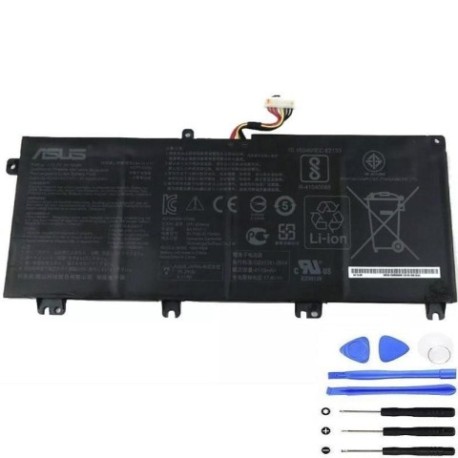
ASUS B41N1711 64Wh Long Battery Replacement Guide
Introduction
If you’re experiencing battery issues with your ASUS laptop, you’re not alone. The ASUS B41N1711 64Wh Long battery is a high-performance replacement designed specifically for various ASUS TUF Gaming and FX series models popular in Australia and New Zealand. This comprehensive guide covers everything from compatibility checking to installation and maintenance, ensuring you make an informed decision about your battery replacement needs.
Battery models & part numbers
| Reference / P/N |
|---|
| 0B200-03050000 |
| 0B200-03050100 |
| Asus-B41N1711-64Wh-Long |
| ICP596080C |
| ICP606080A1 |
Compatible models
| Model |
|---|
| Asus F705 |
| Asus F705D |
| Asus F705DT |
| Asus FX705 |
| Asus FX705D |
| Asus FX705DD |
| Asus FX705DT |
| Asus FX705DU |
| Asus FX705DY |
| Asus FX705G |
| Asus FX705GD |
| Asus FX705GE |
| Asus FX705GM |
| Asus FX705GX |
| Asus PX705 |
| Asus PX705G |
| Asus PX705GD |
| Asus PX705GM |
| Asus TUF FX705DD |
| Asus TUF FX705DT |
| Asus TUF FX705DU |
| Asus TUF FX705DY |
| Asus TUF FX705GD |
| Asus TUF FX705GE |
| Asus TUF FX705GM |
| Asus TUF705 |
| Asus TUF705D |
| Asus TUF705DD |
| Asus TUF705DT |
| Asus TUF705DU |
| Asus TUF705DY |
| Asus TUF705G |
| Asus TUF705GD |
| Asus TUF705GE |
| Asus TUF705GM |
Common signs you need a replacement
| Symptoms | Causes | Verification | Recommendation |
|---|---|---|---|
| Battery drains quickly (under 1 hour) | Ageing cells, reduced capacity | Check Windows battery report | Replace if capacity below 60% |
| Laptop won’t power on without charger | Dead battery cells | Remove charger and try to start | Immediate replacement needed |
| Battery percentage jumps erratically | Faulty battery management system | Monitor percentage changes | Replace to prevent damage |
| Battery swelling or bulging | Gas buildup from cell degradation | Visual inspection, uneven surface | Replace immediately – safety risk |
| Overheating during charging | Internal short circuits | Check temperature with hand | Replace to prevent fire hazard |
How to check compatibility
Finding your exact ASUS model number is crucial for battery compatibility. For ASUS TUF Gaming and FX series laptops, you can locate your model information in several ways:
Method 1: Check the bottom label – Turn your laptop over and look for the white sticker that shows the model number. For ASUS laptops, this is typically formatted as “ASUS [Series][Model]” such as “ASUS TUF FX705DT”.
Method 2: System Information – Press Windows Key + R, type “msinfo32” and press Enter. Look for “System Model” in the system summary. This will display your exact laptop model.
Method 3: Command Prompt – Open Command Prompt and type “wmic csproduct get name” to retrieve your model information.
Method 4: ASUS Support Website – Visit the official ASUS support website and use their compatibility checker tool by entering your serial number or model name.
Once you have your model number, cross-reference it with our compatibility table above. The ASUS B41N1711 battery is specifically designed for the TUF Gaming and FX series models listed, ensuring perfect fit and performance.
When to replace your battery
Lithium-ion batteries typically last 2-3 years with regular use. For gaming laptops like the ASUS TUF series, the high power demands can accelerate battery degradation. Consider replacement when:
- Battery capacity drops below 70% of original
- You experience sudden shutdowns at 20-30% charge
- The battery takes significantly longer to charge
- Your laptop becomes a “desktop PC” – only works when plugged in
- Visible swelling or deformation of the battery compartment
Regular battery health checks through Windows Battery Report (powercfg /batteryreport) can help monitor degradation and plan replacements proactively.
Installation guide
Replacing the battery in your ASUS TUF or FX series laptop is straightforward with the right tools and precautions. You’ll need a Phillips screwdriver, plastic spudger, and an anti-static wrist strap.
Step 1: Safety first – Power off your laptop completely and disconnect the AC adapter. Remove any peripherals and place the laptop on a clean, static-free surface.
Step 2: Remove the bottom cover – Turn the laptop over and remove all visible screws from the bottom panel. Some models may have screws hidden under rubber feet. Use a plastic spudger to carefully pry open the bottom cover starting from the corners.
Step 3: Disconnect the old battery – Locate the battery connector on the motherboard. It’s typically a white or black connector with multiple wires. Gently pull the connector straight out – avoid pulling on the wires themselves.
Step 4: Remove the old battery – Unscrew the mounting screws securing the battery to the chassis. Carefully lift the battery out, noting its orientation for the replacement.
Step 5: Install the new B41N1711 battery – Place the new battery in the same position as the old one. Secure it with the mounting screws and reconnect the battery connector to the motherboard until it clicks into place.
Step 6: Reassemble and test – Replace the bottom cover and all screws. Connect the AC adapter and power on the laptop. Check that the battery is recognised in Windows and begins charging.
Professional tip: For ASUS TUF Gaming models, the battery is often located near the cooling fans. Take extra care not to damage the fan cables during removal.
Usage & care tips
Proper battery maintenance can extend the life of your new ASUS B41N1711 battery significantly:
- Avoid extreme temperatures – Keep your laptop between 10°C and 35°C for optimal battery health
- Partial discharges are better – Unlike older batteries, lithium-ion prefers partial rather than full discharges
- Store at 40-60% charge – If not using for extended periods, store with partial charge
- Update BIOS regularly – ASUS frequently releases updates that improve battery management
- Use balanced power plans -Avoid high-performance mode for everyday tasks
- Clean battery contacts annually – Use isopropyl alcohol to maintain good connectivity
Safety & recycling in AU/NZ
Battery safety is paramount, especially with high-capacity lithium-ion batteries used in gaming laptops. In Australia and New Zealand, follow these guidelines:
Safety precautions:
- Never puncture or crush batteries – this can cause thermal runaway and fire
- Only use authorised replacement batteries from reputable suppliers
- Dispose of damaged or swollen batteries immediately at designated centres
- Keep batteries away from water and extreme heat (never leave in cars)
- Use only the original ASUS charger or certified replacements
Recycling information: In Australia, you can recycle old laptop batteries through Battery World, Officeworks, or council e-waste programmes. In New Zealand, most transfer stations and electronic retailers offer free battery recycling. Never dispose of lithium-ion batteries in household rubbish – they pose fire risks in landfill.
FAQ
How long does the ASUS B41N1711 battery last on a single charge?
Under normal usage conditions, the 64Wh battery provides 4-6 hours for general computing and 1.5-2 hours for gaming. Actual runtime depends on screen brightness, applications running, and power settings.
Is this battery genuine ASUS or compatible?
This is a high-quality compatible battery manufactured to meet or exceed ASUS specifications. It uses grade A lithium-ion cells and includes all necessary safety circuits.
Will replacing the battery void my ASUS warranty?
In Australia and New Zealand, replacing the battery yourself typically doesn’t void the overall laptop warranty, but any damage caused during installation wouldn’t be covered. If your laptop is still under warranty, consider having the replacement done by an authorised service centre.
How do I calibrate the new battery?
After installation, charge to 100%, then use until it shuts down (about 5-10% remaining). Charge uninterrupted to 100% again. This helps the battery management system accurately report charge levels.
What’s the difference between the various part numbers listed?
The different part numbers (0B200-03050000, ICP596080C, etc.) are ASUS’s internal references for the same physical battery across different regions and production batches. They’re all compatible with your laptop if it’s in the model list.
Can I use this battery if my original had different specifications?
Only if your laptop model appears in our compatibility list. The physical dimensions, connector type, and voltage must match exactly. Never force a battery that doesn’t fit perfectly.
How should I dispose of my old ASUS battery safely?
Take it to any battery recycling point in Australia or New Zealand. Many electronics retailers accept them free of charge. Tape the terminals before disposal to prevent short circuits.
Replacing your ASUS laptop battery doesn’t have to be stressful. With the right compatible battery and proper installation, you can restore your laptop’s mobility and performance. The ASUS B41N1711 64Wh Long battery offers reliable power for your TUF Gaming or FX series laptop, giving you back the freedom to work or game wherever you choose.