Lenovo 00HW028 52Wh Replacement Battery for ThinkPad X1 Series
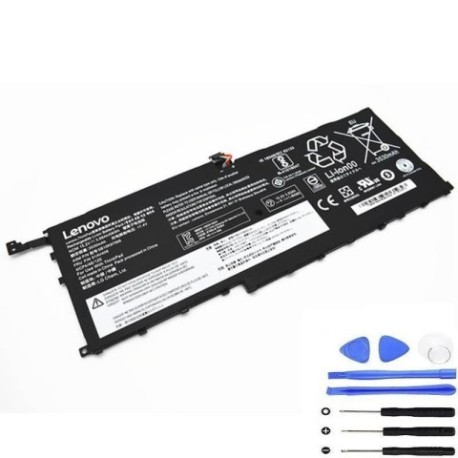
Keep your Lenovo ThinkPad X1 Carbon or X1 Yoga running at peak performance with our genuine replacement battery. This 52Wh power solution is specifically designed for your laptop model and meets all original equipment specifications.
Battery models & part numbers
| Reference / P/N |
|---|
| 00HW028 |
| 00HW029 |
| 01AV409 |
| 01AV410 |
| 01AV438 |
| 01AV439 |
| 01AV440 |
| 01AV441 |
| 01AV444 |
| 01AV457 |
| 01AV458 |
| SB10F46466 |
| SB10F46467 |
| SB10K97567 |
Compatible laptop models
| Model |
|---|
| ThinkPad X1 Carbon (20FB) |
| ThinkPad X1 Carbon (20FC) |
| ThinkPad X1 Carbon 4th Gen (20FC/20FB) |
| ThinkPad X1 Yoga (20FQ) |
| ThinkPad X1 Yoga (20FR/20FQ) |
| ThinkPad X1 Yoga 1st Gen (20FR/20FQ) |
| ThinkPad X1 Yoga 2nd Gen (20JD/20JE/20JF/20JG) |
| ThinkPad X1 Yoga Gen 2 (20JD/20JE/20JF/20JG) |
| ThinPad X1 Yoga (20FQ) |
Common signs you need a replacement
| Symptom | Cause | Verification | Recommendation |
|---|---|---|---|
| Battery drains quickly | Reduced capacity from age/cycles | Check battery health in system settings | Replace if capacity below 60% |
| Laptop won’t hold charge | Failed battery cells | Test with power adapter disconnected | Immediate replacement needed |
| Battery swelling | Chemical degradation | Visual inspection of battery case | Replace immediately – safety hazard |
| Overheating during use | Inefficient power delivery | Monitor temperature with software | Replace to prevent damage |
How to check compatibility
Verify your laptop model matches one in our compatibility table above. Check your current battery part number (located on the battery itself or in system information) against our reference list. For Australian and New Zealand customers, ensure you’re purchasing from authorised resellers to guarantee compatibility and warranty coverage.
When to replace
Replace your battery when it no longer holds a sufficient charge for your needs, shows physical damage or swelling, or when system diagnostics indicate significantly reduced capacity (typically below 60% of original). Most laptop batteries last 2-4 years with regular use.
Installation guide (overview)
1. Power off laptop and disconnect from power
2. Remove bottom cover screws
3. Carefully disconnect old battery connector
4. Remove old battery
5. Install new battery and reconnect
6. Replace cover and power on
7. Allow full charge cycle before first use
Usage & care tips
• Avoid extreme temperatures (ideal range 10°C to 35°C)
• Calibrate battery monthly by fully discharging then charging
• Store at 40-60% charge if not using for extended periods
• Use original Lenovo charger for optimal performance
• Keep battery contacts clean and free from debris
Safety & recycling in AU/NZ
In Australia and New Zealand, lithium-ion batteries must be recycled responsibly. Do not dispose of in household waste. Many electronics retailers offer free battery recycling services. Look for authorised battery recycling centres in your area. Damaged or swollen batteries should be handled with care and recycled immediately.
FAQ
How long does shipping take to AU/NZ?
Typically 5-10 business days depending on your location.
Is this battery genuine Lenovo?
Yes, this is an original equipment manufacturer (OEM) battery.
What warranty is provided?
12-month warranty covering manufacturing defects.
Will this battery work with my charger?
Yes, it’s compatible with standard Lenovo 65W chargers.
How do I check my current battery health?
Use Lenovo Vantage software or Windows battery report.
Can I install this myself?
Yes, with basic technical skills and proper tools.
What if my model isn’t listed?
Contact our support team for compatibility verification.