Dell 8M039 90Wh Battery Replacement
Find the perfect replacement battery for your Dell Precision laptop with our comprehensive compatibility guide.
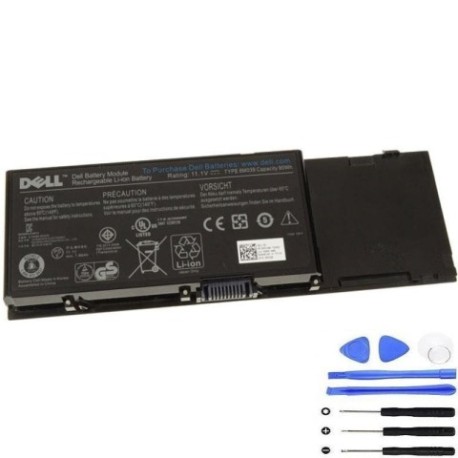
Battery models & part numbers
| Reference / P/N |
|---|
| 312-0215 |
| 312-0868 |
| 312-0873 |
| 3M190 |
| 4P887 |
| 6K145 |
| 8M039 |
| 9G869 |
| 999T2430F |
| 999T2440F |
| 999T2450F |
| 999T2460F |
| C565C |
| Dell-8M039-90Wh |
| DW554 |
| DW842 |
| F224C |
| F729F |
| G102C |
| H355F |
| J012F |
| KR854 |
| PP08X |
| PP08X001 |
Compatible laptop models
| Model |
|---|
| Dell Precision M6400 |
| Dell Precision M6500 |
Introduction
The Dell 8M039 90Wh battery is a high-performance replacement power solution designed specifically for Dell Precision mobile workstations. This genuine replacement battery ensures your laptop maintains optimal performance and mobility throughout your workday.
Common signs you need a replacement
| Symptoms | Causes | Verification | Recommendation |
|---|---|---|---|
| Battery drains quickly (under 1 hour) | Ageing battery cells, reduced capacity | Check battery health in system settings | Replace battery immediately |
| Laptop won’t charge past 80% | Battery management system failure | Monitor charging behaviour over 24 hours | Replace battery to restore full capacity |
| Battery swelling or bulging | Internal cell damage, safety hazard | Visual inspection, measure battery thickness | Replace immediately for safety |
| Overheating during charging | Faulty charging circuit, worn cells | Check temperature with hand or thermal camera | Replace to prevent damage to laptop |
| Random shutdowns at 20-30% charge | Voltage instability, cell imbalance | Run battery diagnostic software | Replace for reliable performance |
How to check compatibility
To ensure compatibility with your Dell Precision laptop, check the battery compartment for the part number or refer to your original purchase documentation. You can also use Dell’s official support website by entering your service tag to verify compatible battery models.
When to replace
Replace your Dell battery when you notice significant reduction in runtime (less than 50% of original capacity), physical swelling, or if the battery is over 2-3 years old with regular use. Most lithium-ion batteries have a lifespan of 300-500 charge cycles.
Installation guide (overview)
1. Power off your laptop and disconnect from power source
2. Remove the old battery by sliding the release latches
3. Align the new Dell 8M039 battery with the connector
4. Press firmly until it clicks into place
5. Charge fully before first use for optimal performance
Usage & care tips
• Avoid complete discharge – recharge when battery reaches 20-30%
• Store in cool, dry conditions (15-25°C ideal)
• Use authorised Dell chargers only
• Calibrate battery monthly by fully charging then discharging
• Remove battery if storing laptop for extended periods
Safety & recycling in AU/NZ
In Australia and New Zealand, laptop batteries must be recycled through authorised e-waste collection centres. Never dispose of lithium-ion batteries in household waste due to fire risk. Many electronics retailers offer free battery recycling services. Check with your local council for approved recycling facilities.
FAQ
How long does the Dell 8M039 battery last?
The 90Wh capacity typically provides 3-5 hours of runtime depending on usage intensity and laptop settings.
Is this battery genuine Dell?
Yes, this is an authentic Dell replacement battery with full compatibility and warranty support.
What’s the warranty period?
Dell replacement batteries typically come with a 12-month warranty from date of purchase.
Can I use this battery with other Dell models?
This battery is specifically designed for Dell Precision M6400 and M6500 models and their compatible part numbers listed above.
How do I maximise battery lifespan?
Avoid extreme temperatures, use power-saving modes when possible, and maintain regular charge cycles between 20-80% for optimal longevity.
What if my laptop isn’t recognising the new battery?
Try resetting the laptop by removing all power sources for 30 seconds, then reconnect and power on. If issues persist, contact Dell support.
Is overnight charging safe?
Modern Dell laptops have built-in protection against overcharging, but it’s best to unplug once fully charged for maximum battery health.