Complete Guide to ASUS C31N1528 54Wh Battery Replacement for ZenBook UX360 Models
If you’re experiencing battery issues with your ASUS ZenBook UX360 series laptop, you’ve come to the right place. This comprehensive guide covers everything Australian and New Zealand consumers need to know about replacing their laptop battery with the genuine ASUS C31N1528 54Wh model.
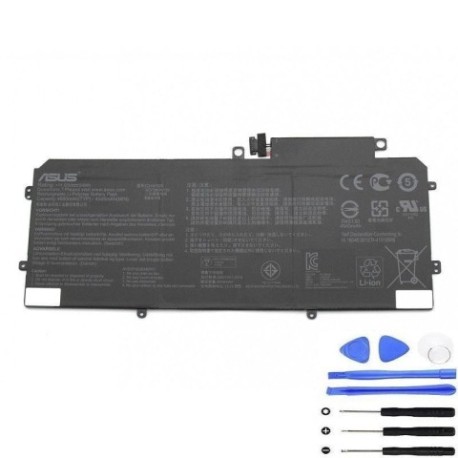
Battery models & part numbers
| Reference / P/N |
|---|
| 0B200-00730200 |
| Asus-C31N1528-54Wh |
Compatible models
| Model |
|---|
| Asus ZenBook Flip UX360CA |
| Asus ZenBook UX360 UX360C |
Introduction
Your ASUS ZenBook UX360 is designed for mobility and productivity, but like all lithium-ion batteries, its power source has a limited lifespan. Typically lasting 2-3 years with regular use, battery performance naturally degrades over time. Understanding when and how to replace your battery can save you from unexpected shutdowns and maintain your laptop’s optimal performance.
Common signs you need a replacement
| Symptom | Cause | Verification | Recommendation |
|---|---|---|---|
| Battery drains quickly | Reduced capacity from chemical aging | Check battery health in Windows Power Report | Replace if capacity below 60% of original |
| Laptop shuts down unexpectedly | Voltage drops under load | Monitor battery percentage during use | Immediate replacement recommended |
| Battery won’t charge fully | Charging circuit or cell failure | Leave charging for 4+ hours | Replace battery if issue persists |
| Laptop feels hot near battery | Internal resistance increase | Check temperature with hand or app | Replace immediately for safety |
| Battery swelling | Gas buildup from chemical breakdown | Visual inspection of battery compartment | Stop using and replace urgently |
How to check compatibility
Before purchasing any replacement battery, it’s crucial to verify compatibility with your specific ASUS ZenBook model. For UX360 series laptops, you can find your model information in several ways:
Finding Your Model Number: Check the bottom casing of your laptop for a sticker containing the model number. For UX360 models, this is typically located near the serial number and regulatory information. You can also find this information in Windows by pressing Windows Key + R, typing “msinfo32”, and looking under “System Model”.
ASUS Official Tools: Visit the ASUS Australia support website and use their product identification tool. Enter your serial number or let the system automatically detect your device. The official ASUS MyASUS app also provides detailed system information including compatible replacement parts.
Physical Verification: If you’re replacing an existing battery, carefully remove it (following proper safety procedures) and compare the part number printed on the battery itself. The ASUS C31N1528-54Wh battery should have clear markings matching this exact specification.
When to replace
Timing your battery replacement correctly can save you from data loss and inconvenience. Consider replacement when:
- Your battery lasts less than 2 hours with normal usage
- Windows shows “Consider replacing your battery” warnings
- The battery health report indicates less than 60% of original capacity
- You notice physical swelling or deformation
- The laptop frequently shuts down at 20-30% charge
- You’ve owned the device for over 2 years with daily use
For Australian and New Zealand consumers, it’s worth noting that extreme temperatures common in our climate can accelerate battery degradation. If you frequently use your laptop in hot conditions or leave it in cars, consider replacing your battery sooner rather than later.
Installation guide
Replacing the battery in your ASUS ZenBook UX360 requires care and the right tools. Here’s a step-by-step guide:
Tools Required: Phillips #00 screwdriver, plastic spudger or guitar pick, anti-static wrist strap (recommended), clean workspace
Step 1 – Preparation: Shut down your laptop completely and disconnect all cables. Place the laptop on a clean, flat surface with the bottom facing up.
Step 2 – Remove Bottom Cover: Remove all visible screws from the bottom casing. Some UX360 models have screws hidden under rubber feet, so check carefully. Use a plastic tool to gently pry open the bottom cover, starting from the corners.
Step 3 – Disconnect Battery: Locate the battery connector on the motherboard. It’s usually a white or black connector near the centre of the board. Gently pull the connector straight up to disconnect it.
Step 4 – Remove Old Battery: The battery is typically held in place by several screws. Remove these and carefully lift the battery out. Be gentle to avoid damaging surrounding components.
Step 5 – Install New Battery: Place the new ASUS C31N1528-54Wh battery in position and secure with screws. Reconnect the battery connector to the motherboard, ensuring it clicks into place.
Step 6 – Reassembly: Replace the bottom cover and secure all screws. Don’t overtighten – snug is sufficient.
Step 7 – Initial Charge: Connect your charger and let the battery charge completely before first use. This helps calibrate the new battery.
Usage & care tips
Maximise your new battery’s lifespan with these Australian-tested tips:
- Avoid Extreme Temperatures: Don’t leave your laptop in cars or direct sunlight. Ideal operating temperature is 10°C to 35°C
- Partial Charging: For daily use, keep battery between 20-80% rather than always charging to 100%
- Storage: If storing for extended periods, charge to 50-60% and store in cool, dry place
- Calibration: Fully discharge and recharge your battery every 2-3 months to maintain accurate percentage readings
- Power Settings: Use ASUS Battery Health Charging in MyASUS app to optimise charging patterns
- Avoid Deep Discharges: Don’t let your battery completely drain regularly – recharge before it reaches 10%
Safety & recycling in AU/NZ
Battery safety and proper disposal are particularly important in Australia and New Zealand:
Safety Precautions: Never attempt to open or puncture a lithium-ion battery. If you notice swelling, overheating, or strange odours, stop using immediately and contact a professional. Always use genuine ASUS replacement batteries to ensure safety standards are met.
Australian Recycling: In Australia, you can recycle old laptop batteries through Battery World stores, Officeworks, or your local council’s e-waste program. Many computer retailers also accept old batteries for recycling.
New Zealand Recycling: In New Zealand, take old batteries to authorised collection points at retailers like Noel Leeming, JB Hi-Fi, or your local transfer station. The Ministry for the Environment provides information on proper e-waste disposal.
Legal Requirements: Both countries have strict regulations about battery disposal. Never place lithium-ion batteries in household rubbish bins due to fire risk.
FAQ
How long does the ASUS C31N1528 54Wh battery typically last?
With normal use, expect 2-3 years of good performance. Heavy users might need replacement sooner, while light users could get 4+ years.
Will replacing the battery void my ASUS warranty?
In Australia and New Zealand, replacing the battery yourself may void the remaining warranty. If your device is still under warranty, contact ASUS authorised service centres for replacement.
How can I check my current battery’s health?
In Windows, open Command Prompt as administrator and type “powercfg /batteryreport”. This generates a detailed report showing battery capacity and health.
What’s the difference between genuine and third-party batteries?
Genuine ASUS batteries undergo rigorous testing and meet safety standards. Third-party batteries may be cheaper but can pose safety risks and often have shorter lifespans.
Can I use my laptop while charging the new battery?
Yes, modern laptops are designed for this. However, for the first full charge cycle, it’s best to let it charge uninterrupted.
How do I dispose of my old battery safely?
Take it to an authorised e-waste recycling centre. Many computer stores and council facilities accept old laptop batteries at no charge.
What should I do if my new battery isn’t recognised?
Try resetting the EC (Embedded Controller) by holding the power button for 40 seconds with the battery and charger disconnected. If issues persist, contact the seller.
Replacing your ASUS ZenBook UX360 battery with the genuine C31N1528 54Wh model will restore your laptop’s mobility and performance. With proper installation and care, you can enjoy reliable power for years to come. Remember to recycle your old battery responsibly through authorised Australian or New Zealand recycling programmes.