ASUS C31N1339 50Wh Laptop Battery Replacement Guide
If your ASUS laptop is struggling to hold a charge or shutting down unexpectedly, you might need a battery replacement. This comprehensive guide covers everything Australian and New Zealand users need to know about the ASUS C31N1339 50Wh battery, including compatible models, installation steps, and local safety guidelines.
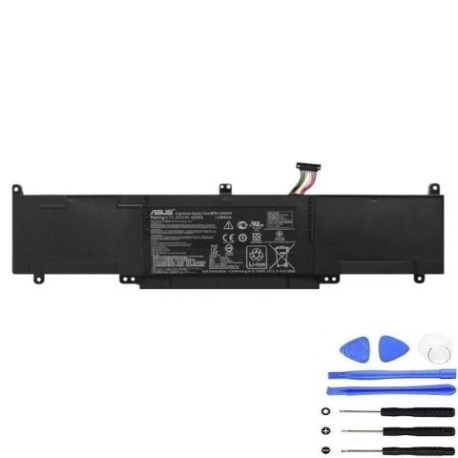
Battery models & part numbers
| Reference / P/N |
|---|
| 0B200-00930000 |
| 0B200-00930100 |
| 0B200-00930200 |
| 0B200-00930300 |
| Asus-C31N1339-50Wh |
| C13Po93 |
Compatible models
| Model |
|---|
| Asus Transformer Book Flip TP300 |
| Asus Transformer Book Flip TP300L |
| Asus Transformer Book Flip TP300LA |
| Asus Transformer Book Flip TP300LD |
| Asus Transformer Book Flip TP300LJ |
| Asus Transformer Book Flip TP300UA |
| Asus ZenBook UX303LA |
| Asus ZenBook UX303LB |
| Asus ZenBook UX303LN |
| Asus ZenBook UX303UA |
| Asus ZenBook UX303UB |
Introduction
Laptop batteries don’t last forever – they typically need replacement every 2-4 years depending on usage patterns. The ASUS C31N1339 50Wh battery is a high-quality replacement option for multiple ASUS Transformer Book and ZenBook models commonly used across Australia and New Zealand. Understanding when and how to replace your battery can save you from unexpected shutdowns and extend your laptop’s usable life.
Common signs you need a replacement
| Symptom | Cause | Verification | Recommendation |
|---|---|---|---|
| Battery drains quickly | Reduced capacity from age/cycles | Check battery health in Windows | Consider replacement if under 50% capacity |
| Laptop shuts down unexpectedly | Battery can’t maintain voltage | Monitor shutdown percentages | Replace immediately for data safety |
| Battery won’t charge fully | Charging circuit or cell failure | Check charging indicator lights | Test with different charger first |
| Battery swelling/bulging | Gas buildup from chemical breakdown | Visual inspection of battery compartment | Replace immediately – safety hazard |
| Overheating during use | Increased internal resistance | Monitor temperature with software | Replace to prevent damage to other components |
How to check compatibility
Before purchasing any replacement battery, it’s crucial to verify compatibility with your specific ASUS model. For Australian and New Zealand users, here’s how to confirm your laptop needs the C31N1339 battery:
Finding Your Model Information: Check the bottom panel of your laptop for the model number sticker. ASUS typically places this near the serial number and regulatory information. The model should start with “TP300” or “UX303” followed by additional letters.
Using ASUS Official Tools: Visit the ASUS support website and enter your serial number to access official compatibility information. The ASUS Live Update utility can also provide detailed system information including battery specifications.
Physical Verification: If you’re comfortable opening your laptop, the original battery will have part numbers printed directly on it. Compare these with the compatible part numbers listed above.
Retailer Verification: Many Australian electronics retailers like JB Hi-Fi or Officeworks can help verify battery compatibility if you provide your laptop’s model number.
When to replace
Timing your battery replacement correctly can save you money and prevent data loss. Consider replacement when:
- Your battery health shows less than 50% of original capacity
- You experience unexpected shutdowns above 20% charge
- The battery takes more than 4 hours to charge fully
- You notice physical swelling or deformation
- The laptop won’t run for more than 30 minutes unplugged
- You’ve owned the laptop for over 3 years with regular use
For Australian users, consider seasonal factors – extreme summer heat can accelerate battery degradation, making replacement more urgent as temperatures rise.
Installation guide
Replacing the battery in compatible ASUS models is generally straightforward. Here’s a step-by-step guide:
Tools Needed: Phillips #00 screwdriver, plastic spudger or guitar pick, anti-static wrist strap (recommended)
Step 1 – Preparation: Shut down your laptop completely and unplug all cables. Place the laptop on a clean, static-free surface. Remove any peripheral devices.
Step 2 – Access the Battery Compartment: For most ASUS Transformer Book and ZenBook models, you’ll need to remove the bottom panel. Locate and remove all screws – note that some may be hidden under rubber feet. Use a plastic tool to carefully pry open the case starting from the corners.
Step 3 – Disconnect Old Battery: Locate the battery connector on the motherboard. Gently pull the connector straight out – avoid pulling on the wires. Remove any screws securing the battery to the chassis.
Step 4 – Install New Battery: Position the new C31N1339 battery in place and secure with screws. Reconnect the battery connector, ensuring it’s firmly seated. The connector should click into place.
Step 5 – Reassembly: Replace the bottom panel and secure all screws. Don’t overtighten – snug is sufficient.
Step 6 – Initial Charge: Connect your charger and allow the battery to charge fully before first use. This helps calibrate the battery monitoring system.
Common Installation Issues: Some users report tight battery connectors – use even pressure rather than force. If the new battery isn’t recognized, try resetting the EC (Embedded Controller) by holding the power button for 40 seconds with the battery and charger disconnected.
Usage & care tips
Proper battery maintenance can extend the life of your new C31N1339 battery significantly. Follow these Australian-tested tips:
Charging Practices: Lithium-ion batteries prefer partial discharges over full cycles. Try to keep your battery between 20-80% charge for daily use. Avoid leaving your laptop plugged in constantly at 100% charge.
Temperature Management: Australian summers can be harsh on batteries. Never leave your laptop in a hot car or in direct sunlight. Ideal operating temperature is 15-25°C. If the laptop feels hot to touch, give it a break.
Storage Guidelines: If storing your laptop for extended periods, charge the battery to about 50% and store in a cool, dry place. Check and recharge every 3 months.
Power Settings: Use ASUS Power4Gear Hybrid or Windows power plans to optimise battery life. The “Power Saver” mode can significantly extend runtime when you need it most.
Calibration: Perform a full calibration every 2-3 months: charge to 100%, use until it shuts down, then charge uninterrupted to 100% again.
Safety & recycling in AU/NZ
Battery safety and proper disposal are particularly important in our region:
Safety Precautions: Never attempt to open or puncture a lithium-ion battery. If you notice swelling, overheating, or strange odours, discontinue use immediately and contact a professional. Keep batteries away from children and pets.
Australian Recycling Options: Most council waste facilities accept laptop batteries for recycling. Major retailers like Officeworks, JB Hi-Fi, and Battery World also provide free battery recycling services. Never dispose of lithium batteries in household rubbish.
New Zealand Recycling: The Soft Plastic Recycling scheme accepts batteries at participating stores. Many transfer stations and some retailers like Noel Leeming offer battery recycling services.
Transport Regulations: When shipping batteries within Australia or New Zealand, follow dangerous goods regulations. Most couriers have specific requirements for lithium battery transport.
Warranty Considerations: Keep your purchase receipt – most battery retailers in AU/NZ offer 12-month warranties. Register your product if required for warranty claims.
FAQ
How long does the C31N1339 battery typically last?
With normal use, expect 2-4 years or 500-800 charge cycles. Heavy users might see shorter lifespan, while light users could get 4+ years.
Will this battery work with my ASUS laptop if it’s not listed?
Only use this battery with the specifically listed models. Using incompatible batteries can damage your laptop and void warranties.
How do I know if my battery is genuine ASUS?
Genuine ASUS batteries have proper branding, clear printing, and come in official packaging. Purchase from authorised retailers to ensure authenticity.
Can I replace the battery myself without voiding warranty?
For newer laptops still under manufacturer warranty, check ASUS policies. Many allow user-replaceable battery installation, but some newer models may require authorised service.
What should I do with my old battery?
Never throw lithium batteries in household waste. Use the recycling options mentioned above to dispose of them safely and responsibly.
Why is my new battery not charging to 100%?
New batteries sometimes need calibration. Allow 2-3 full charge/discharge cycles for the battery monitoring system to accurately report capacity.
Is the C31N1339 compatible with both Australian and New Zealand voltage standards?
Yes, this battery works with standard AU/NZ 230V 50Hz power through the original ASUS charger. No additional adapters are needed.