ASUS C21N1818 37Wh Battery Replacement Guide for VivoBook 15 Models
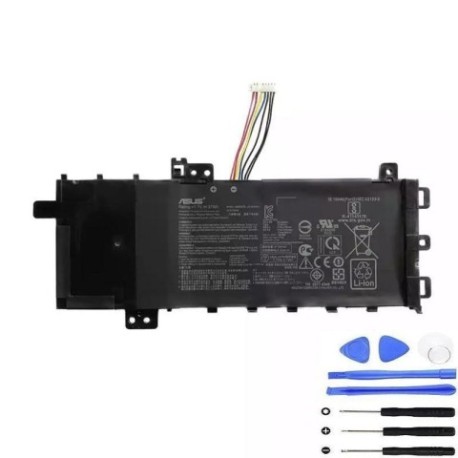
Battery models & part numbers
| Reference / P/N |
|---|
| Asus-C21N1818-1-37Wh |
Compatible models
| Model |
|---|
| Asus VivoBook 15 F512FA |
| Asus VivoBook 15 F512FB |
| Asus VivoBook 15 F512FJ |
| Asus VivoBook 15 F512FL |
| Asus VivoBook 15 F512UA |
| Asus VivoBook 15 X512FA |
| Asus VivoBook 15 X512FB |
| Asus VivoBook 15 X512FL |
| Asus VivoBook 15 X512UA |
Introduction
If you’re experiencing battery issues with your ASUS VivoBook 15, you’re not alone. Many Australian and New Zealand users find that after 2-3 years of regular use, their laptop’s battery performance begins to decline significantly. The ASUS C21N1818 37Wh battery is the genuine replacement part designed specifically for multiple VivoBook 15 models, ensuring optimal performance and safety standards. This comprehensive guide will walk you through everything from recognising when you need a replacement to installation and proper care.
Common signs you need a replacement
| Symptom | Cause | Verification | Recommendation |
|---|---|---|---|
| Battery drains in under 1 hour | Reduced capacity from age/cycles | Check battery health in Windows | Replace if capacity below 60% |
| Laptop won’t charge past 80% | Battery protection mode activated | Check ASUS Battery Health Charging | Reset settings or replace battery |
| Battery swelling or bulging | Internal chemical degradation | Visual inspection of battery compartment | Replace immediately for safety |
| Random shutdowns at 20-30% | Voltage regulation failure | Monitor shutdown patterns | Replace battery to prevent data loss |
| Overheating during charging | Internal resistance increase | Check temperature with software | Replace to prevent damage |
How to check compatibility
Before purchasing any replacement battery for your ASUS VivoBook 15, it’s crucial to verify compatibility. Start by locating your laptop’s exact model number, which is typically found on a sticker on the bottom case or under the battery compartment. For VivoBook 15 models, this will begin with “F512” or “X512” followed by additional letters. You can also check in Windows by pressing Windows Key + R, typing “msinfo32”, and looking under “System Model”. The ASUS C21N1818 battery is specifically designed for the models listed in our compatibility table above. Always cross-reference your model number with our verified list to ensure perfect fit and performance.
When to replace
Most lithium-ion batteries in ASUS VivoBook laptops last between 500-800 charge cycles, which typically translates to 2-3 years of regular use. However, several factors can accelerate degradation. If your battery health shows less than 60% of original capacity in Windows battery report, it’s time to consider replacement. Other indicators include the laptop shutting down unexpectedly when unplugged, the battery taking significantly longer to charge, or physical signs like swelling. Don’t wait until your battery fails completely – proactive replacement ensures you maintain productivity and avoid potential data loss from sudden shutdowns.
Installation guide
Replacing the battery in your ASUS VivoBook 15 is a straightforward process that most users can complete in 15-20 minutes. First, ensure you have the correct tools: a Phillips head screwdriver, plastic spudger or guitar pick, and an anti-static wrist strap is recommended. Begin by shutting down your laptop completely and disconnecting the power adapter. Turn the laptop over and locate the battery compartment screws – typically 4-6 screws securing the bottom panel. Carefully remove these screws and use the plastic tool to gently pry open the bottom case. Once inside, you’ll see the battery connected via a ribbon cable. Disconnect this cable by gently pulling the connector, then remove any screws securing the battery. Install your new ASUS C21N1818 battery in reverse order, ensuring all connections are secure before reassembling.
Usage & care tips
To maximise the lifespan of your new ASUS C21N1818 battery, follow these best practices: Avoid frequently draining the battery to 0% – instead, try to keep it between 20-80% for daily use. Don’t leave your laptop plugged in constantly at 100% charge; use ASUS’s Battery Health Charging feature to limit maximum charge to 80% or 60% when primarily using AC power. Store your laptop in temperatures between 10°C and 35°C, as extreme heat or cold can permanently damage battery cells. If storing the laptop for extended periods, charge the battery to around 50% and power down completely. Perform regular calibration by allowing the battery to discharge to about 10% then charging fully to 100% once every 2-3 months.
Safety & recycling in AU/NZ
Battery safety is paramount when dealing with lithium-ion cells. Never attempt to open, puncture, or modify the battery casing. If you notice any swelling, overheating, or unusual odours, discontinue use immediately and contact a professional. In Australia and New Zealand, lithium-ion batteries must be recycled properly – never dispose of them in household rubbish. Most electronics retailers offer free battery recycling services, and many local councils provide dedicated e-waste collection points. When shipping batteries, ensure they’re properly packaged to prevent short circuits. Always use authorised replacement parts like the genuine ASUS C21N1818 to ensure compliance with Australian and New Zealand safety standards.
FAQ
How long does the ASUS C21N1818 battery typically last?
With normal use, you can expect 3-5 hours of battery life depending on your usage patterns, screen brightness, and running applications. The battery itself should provide 500-800 charge cycles before significant capacity loss.
Will replacing the battery void my ASUS warranty?
If your laptop is still under manufacturer warranty, we recommend having the battery replaced by an authorised ASUS service centre. For out-of-warranty devices, self-replacement typically doesn’t affect other components’ warranties.
How do I know if my battery replacement was successful?
After installation, boot your laptop and check the battery icon in the system tray. It should show charging status when plugged in. You can also generate a battery report in Windows to verify the new battery’s capacity and health.
Can I use a higher capacity battery in my VivoBook 15?
No, the ASUS C21N1818 is specifically designed for these models. Using incompatible batteries can damage your laptop and pose safety risks. Always use the correct part number for your specific model.
How should I dispose of my old ASUS battery?
Take it to any authorised battery recycling centre. Most Officeworks, JB Hi-Fi, and Harvey Norman stores in Australia and New Zealand accept old batteries for free recycling.
What if my laptop still doesn’t recognise the new battery?
Try resetting the EC (Embedded Controller) by shutting down, disconnecting power, holding the power button for 40 seconds, then reconnecting power and starting normally.
Is the ASUS C21N1818 compatible with VivoBook 14 or 17 models?
No, this battery is specifically designed for the VivoBook 15 series models listed in our compatibility table. Other VivoBook models require different battery part numbers.