Acer SQU 1605 41.58Wh Laptop Battery Replacement Guide
Is your Acer laptop struggling to hold a charge? Our comprehensive guide covers everything Australian and New Zealand users need to know about replacing their Acer SQU 1605 41.58Wh battery, including compatibility, installation, and local safety standards.
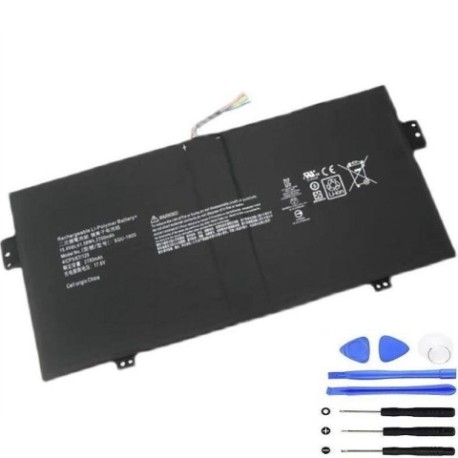
Battery models & part numbers
| Reference / P/N |
|---|
| Acer-SQU-1605-41.58Wh |
| KT.0040B.001 |
| KT0040B001 |
Compatible models
| Model |
|---|
| Acer Spin 7 (SP714-51) |
| Acer Swift 7 (SF713-51) |
Introduction
The Acer SQU 1605 41.58Wh battery is specifically designed for Acer’s premium ultra-portable laptops, including the Spin 7 and Swift 7 series. These batteries are engineered to provide reliable power for professionals and students across Australia and New Zealand who depend on their laptops for work, study, and entertainment.
As laptop batteries age, they naturally lose capacity, which can significantly impact your device’s portability and performance. Understanding when and how to replace your battery ensures you maintain optimal laptop performance while avoiding unexpected shutdowns during important tasks.
Common signs you need a replacement
| Symptom | Cause | Verification | Recommendation |
|---|---|---|---|
| Battery drains quickly (less than 2 hours) | Reduced battery capacity due to age and charge cycles | Check battery health in Windows Power Settings | Consider replacement if capacity below 60% |
| Laptop shuts down unexpectedly | Battery cannot deliver consistent voltage under load | Monitor shutdown patterns during intensive tasks | Immediate replacement recommended |
| Battery won’t charge to 100% | Battery management system limiting charge to protect cells | Check charging status in system tray | Replace if stuck below 80% maximum charge |
| Laptop feels hot near battery compartment | Increased internal resistance causing heat generation | Use temperature monitoring software | Safety concern – replace immediately |
| Battery swelling or bulging | Gas buildup from chemical degradation | Visual inspection of laptop base | Critical safety issue – stop using and replace |
How to check compatibility
Before purchasing a replacement battery, it’s crucial to verify compatibility with your specific Acer laptop model. Here’s how Australian and New Zealand users can ensure they’re getting the right battery:
Finding your laptop model information
For Acer laptops, you can find your model number in several locations:
- On the laptop base: Look for a sticker on the bottom of your device that displays the model number (e.g., SP714-51 or SF713-51)
- In Windows System Information: Press Windows Key + R, type “msinfo32”, and check the System Model field
- On the original packaging: The model number is printed on the box your laptop came in
- In BIOS/UEFI: Restart your laptop and enter BIOS to find model details
Acer-specific compatibility tools
Acer provides several resources to help identify compatible parts:
- Acer Support Website: Visit the official Acer support portal and enter your serial number or model
- Acer Care Centre: Use the pre-installed Acer software to check hardware compatibility
- Authorised Acer Service Centres: Contact local Acer service providers in AU/NZ for professional verification
Cross-referencing part numbers
The Acer SQU 1605 41.58Wh battery is compatible with multiple part numbers, including KT.0040B.001 and KT0040B001. Always cross-reference these numbers with your current battery or laptop documentation to ensure perfect compatibility.
When to replace your battery
Understanding the optimal time to replace your laptop battery can save you from unexpected downtime and potential data loss. Here are the key indicators for AU/NZ users:
Battery age and cycle count
Most lithium-ion batteries, including the Acer SQU 1605, have a typical lifespan of 2-4 years or 300-500 charge cycles. If your laptop is approaching this age range and showing performance issues, replacement is advisable.
Performance metrics
Monitor your battery’s health through Windows Battery Report (run “powercfg /batteryreport” in Command Prompt). Replace your battery when:
- Design capacity drops below 60% of original
- Battery runtime is consistently less than 50% of original
- Charging cycles exceed manufacturer recommendations
Seasonal considerations for AU/NZ
Australian summers and New Zealand’s variable climate can affect battery performance. Extreme temperatures (above 35°C or below 0°C) accelerate battery degradation. Consider replacement before summer if your battery is already marginal.
Installation guide
Replacing the battery in your Acer Spin 7 or Swift 7 requires careful attention to detail. Follow these steps for a successful installation:
Preparation
Before beginning, ensure you have:
- Replacement Acer SQU 1605 41.58Wh battery
- Phillips head screwdriver (size #00)
- Plastic spudger or guitar pick
- Anti-static wrist strap (recommended)
- Clean, well-lit workspace
Step-by-step installation
- Power down and disconnect: Shut down your laptop completely and disconnect all cables and peripherals
- Remove bottom cover: Place laptop upside down on a soft surface. Remove the 8-10 screws securing the bottom cover. Use a plastic tool to carefully pry the cover loose, starting from the corners
- Disconnect old battery: Locate the battery connector on the motherboard. Gently pull the connector straight out – avoid twisting or bending
- Remove old battery: Unscrew the 4-6 screws securing the battery to the chassis. Lift the battery out carefully
- Install new battery: Place the new Acer SQU 1605 battery in position and secure with screws. Reconnect the battery connector to the motherboard
- Reassemble: Replace the bottom cover and secure all screws. Ensure all clips are properly engaged
Post-installation setup
After installation:
- Connect the power adapter and charge the battery to 100%
- Allow the battery to calibrate by running it down to 10% and recharging
- Update BIOS and battery drivers from Acer’s official website
Usage & care tips
Proper battery maintenance extends the life of your new Acer SQU 1605 battery and ensures optimal performance throughout its lifespan:
Charging best practices
- Avoid deep discharges: Try to recharge when battery reaches 20-30% rather than waiting for complete discharge
- Moderate temperatures: Charge and use your laptop in environments between 10°C and 35°C
- Periodic calibration: Allow the battery to discharge to 10% and recharge to 100% once every 2-3 months
Storage recommendations
If storing your laptop for extended periods:
- Charge battery to 50-60% before storage
- Store in a cool, dry place away from direct sunlight
- Recharge every 3-6 months to maintain battery health
Performance optimization
- Use Acer’s power management software to optimize battery settings
- Reduce screen brightness and close unused applications
- Disable Bluetooth and Wi-Fi when not needed
- Keep your operating system and drivers updated
Safety & recycling in AU/NZ
Battery safety and proper disposal are critical considerations for Australian and New Zealand consumers:
Safety precautions
- Only use authorised Acer batteries or certified replacements
- Never attempt to open or modify lithium-ion batteries
- Avoid exposing batteries to extreme temperatures or moisture
- Stop using immediately if you notice swelling, leaking, or overheating
Australian recycling options
In Australia, used laptop batteries can be recycled through:
- B-cycle program: Drop off points at major retailers like Officeworks and JB Hi-Fi
- Council e-waste collections: Most local councils offer battery recycling services
- Authorised Acer recyclers: Check with Acer Australia for approved recycling partners
New Zealand recycling options
In New Zealand, recycle your old batteries through:
- eDay events: Community e-waste collection events
- Retailer take-back: Many electronics retailers accept old batteries
- Council transfer stations: Most councils have dedicated e-waste disposal areas
Legal requirements
Both Australia and New Zealand have strict regulations regarding battery disposal. Never dispose of lithium-ion batteries in household waste due to fire risk and environmental concerns.
<
FAQ
How long does the Acer SQU 1605 41.58Wh battery typically last?
Under normal usage conditions, you can expect 2-4 years of service or approximately 500 full charge cycles. Actual lifespan depends on usage patterns, charging habits, and environmental conditions. Heavy users in warmer Australian climates might experience slightly shorter battery life.
Can I use my Acer laptop while charging the new battery?
Yes, you can safely use your Acer Spin 7 or Swift 7 while charging the new battery. Modern laptops are designed to handle simultaneous charging and usage. However, for optimal battery health, avoid intensive tasks that generate excessive heat during charging.
Will replacing the battery void my Acer warranty?
If your laptop is still under manufacturer warranty, having the battery replaced by an unauthorised service provider may void the remaining warranty. For warranty-protected devices, we recommend using Acer’s authorised service centres in Australia or New Zealand. For out-of-warranty devices, self-replacement with a quality battery like the SQU 1605 is generally safe and cost-effective.
How can I verify my replacement battery is genuine?
Look for these indicators of a genuine Acer SQU 1605 battery: proper branding and labelling, correct weight (approximately 200g), smooth casing without rough edges, and matching specifications (41.58Wh, 7.7V). Purchase from reputable suppliers who provide warranty coverage and customer support within AU/NZ.
What should I do if my new battery isn’t recognised by the system?
First, ensure the battery connector is firmly seated. If the issue persists, try resetting the EC (Embedded Controller) by disconnecting both power and battery, then holding the power button for 30 seconds. Reconnect and power on. Update your BIOS and check Acer’s support website for battery firmware updates specific to your model.
Is the battery capacity sufficient for all-day use?
The 41.58Wh capacity provides approximately 6-8 hours of typical usage for Acer Spin 7 and Swift 7 models. Actual runtime varies based on screen brightness, applications used, and system settings. For extended all-day use without charging, consider carrying your power adapter or reducing power-intensive activities.
Can I replace the battery myself if I have no technical experience?
Yes, the battery replacement process for Acer Spin 7 and Swift 7 models is relatively straightforward. However, if you’re uncomfortable with electronics disassembly, consider using a professional repair service. Many local computer repair shops across Australia and New Zealand offer affordable battery replacement services with installation guarantees.
Restoring your Acer laptop’s battery life not only improves productivity but also extends the useful life of your device. With proper installation and care, your new Acer SQU 1605 41.58Wh battery will provide reliable power for your mobile computing needs across Australia and New Zealand.