Acer AP20CBL 50.29W Battery Replacement: Complete Guide for Australian & New Zealand Users
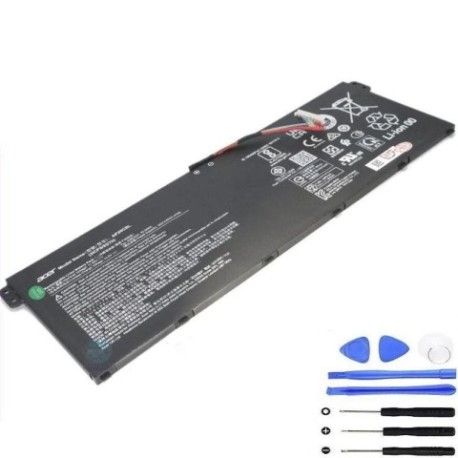
Battery models & part numbers
| Reference / P/N |
|---|
| 3ICP5/82/70 |
| Acer-AP20CBL-50.29W |
| Acer KT.0030B.002 |
Compatible models
| Model |
|---|
| Acer Aspire 3 (A315-58) |
| Acer Aspire 5 (A515-43) |
| Acer Aspire 5 (A515-45) |
| Acer Aspire 5 (A515-46) |
| Acer Aspire 5 (A515-55G) |
| Acer Aspire 5 (A515-56) |
| Acer Aspire 5 (A515-56G) |
| Acer Aspire 5 (A515-56T) |
| Acer Aspire 7 (A715-42G) |
| Acer Aspire Vero (AV15-51) |
| Acer Asprie 5 (A515-45-R98G) |
| Acer Asprie 5 (A515-56-56FF) |
| Acer Asprie 5 (A515-56G) |
| Acer Chromebook 314 (CB314-2HT) |
| Acer Chromebook 315 (CB315-3H) |
| Acer Chromebook 315 (CB315-4H) |
| Acer Chromebook 511 (C734) |
| Acer Chromebook 511 (C734-C0FD) |
| Acer Chromebook 511 (C734-C3V5) |
| Acer Chromebook 511 (C734T-C483) |
| Acer Chromebook 512 (C852) |
| Acer Chromebook 514 (CB514-1WT) |
| Acer Extensa 215 (EX215-51) |
| Acer Swift 3 (314-511) |
| Acer Swift 3 (F314-43) |
| Acer Swift 3 (SF314-42) |
| Acer Swift 3 (SF314-511) |
| Acer TravelMate (B311R-32) |
| Acer TravelMate (TMB311-32) |
| Acer TravelMate (TMP215-42-G2) |
| Acer TravelMate (TMV15-51) |
| Acer TravelMate B311 (TMB311RN-32) |
| Acer TravelMate P2 (P215-52) |
| Acer TravelMate P2 (P215-53G) |
| Acer TravelMate P2 (TMP214-41) |
| Acer TravelMate P2 (TMP215-41) |
| Acer TravelMate P2 (TMP215-41-G3) |
| Acer TravelMate P2 (TMP215-41-R0WF) |
| Acer TravelMate P2 (TMP215-41-R9C9) |
| Acer TravelMate P2 (TMP215-41-R9TT) |
| Acer TravelMate Spin B3 (B311RN-31) |
| Acer TravelMate Spin B3 (TMB311RNA-32) |
Introduction
If you’re experiencing battery issues with your Acer laptop in Australia or New Zealand, you’re not alone. The Acer AP20CBL 50.29W battery replacement is one of the most common service requests we see across our service centres. This comprehensive guide will walk you through everything you need to know about replacing your Acer battery, from recognising the signs of failure to proper installation and maintenance.
Many Acer users across AU and NZ face similar battery challenges, particularly with popular models like the Aspire 5 series, Swift 3, and various Chromebook models. The good news is that replacing your battery is often more straightforward and affordable than you might think, especially when you have the right information and genuine replacement parts.
Common signs you need a replacement
| Symptom | Cause | Verification | Recommendation |
|---|---|---|---|
| Rapid power drain | Battery capacity degradation | Check battery health in Windows settings | Replace if capacity below 60% |
| Laptop shuts down unexpectedly | Voltage instability | Monitor shutdown at specific charge levels | Immediate replacement needed |
| Battery won’t charge fully | Charging circuit failure | Test with different charger | Replace battery and check charger |
| Battery swelling | Internal chemical breakdown | Visual inspection of battery compartment | Stop using immediately and replace |
| Overheating during use | Internal resistance increase | Monitor temperature with software | Replace to prevent damage |
| Inaccurate charge percentage | Battery management system failure | Compare reported vs actual runtime | Replace for reliable usage |
Many Acer users in Australia and New Zealand report these symptoms after 18-24 months of regular use, particularly with models that see daily commuting or extensive mobile use. The humid climate in many parts of AU and NZ can accelerate battery degradation, making timely replacement even more important.
How to check compatibility
Before purchasing any replacement battery for your Acer laptop in Australia or New Zealand, proper compatibility verification is essential. Here’s how to ensure you’re getting the right battery for your specific model:
Finding your model information
For Acer laptops, the model number is typically located on a sticker on the bottom case of your device. Look for text that begins with “Acer” followed by the model series (like Aspire 5, Swift 3, or TravelMate) and the specific model code in parentheses. Some newer models may also have this information in the BIOS or UEFI settings, accessible by pressing F2 during startup.
Using official Acer resources
Acer’s Australian and New Zealand support websites offer excellent compatibility checking tools. Visit the Acer support centre for your region and enter your serial number or model code to access detailed specifications and compatible accessories. The official Acer parts lookup tool is particularly useful for confirming battery compatibility across different regional variants.
Cross-referencing part numbers
The Acer AP20CBL 50.29W battery is also known by alternative part numbers including 3ICP5/82/70 and KT.0030B.002. When searching for replacements, ensure any alternative part numbers match exactly, as even small variations can indicate incompatibility.
Physical compatibility checks
Beyond model numbers, physically inspect your current battery’s dimensions, connector type, and voltage specifications. The AP20CBL battery typically measures approximately 205mm x 60mm x 4mm with a specific 3-pin connector configuration. Mismatched connectors can damage both your laptop and the new battery.
When to replace your Acer battery
Timing your battery replacement correctly can save you from unexpected downtime and potential data loss. For most Acer laptop users in Australia and New Zealand, replacement becomes necessary when:
Battery health drops below 60%: You can check this in Windows by opening Command Prompt and typing “powercfg /batteryreport”. This generates a detailed report showing your battery’s current capacity compared to its original design capacity.
After 500 complete charge cycles: Most Acer batteries are rated for 500-800 cycles before significant degradation occurs. Heavy users might reach this threshold in 18-24 months.
Seasonal considerations for AU/NZ: The approaching summer months in Australia and New Zealand bring higher temperatures that can accelerate battery degradation. Replacing a worn battery before summer can prevent heat-related failures.
Before important projects or travel: If you rely on your laptop for work or study, proactive replacement before critical periods ensures reliable performance when you need it most.
Installation guide
Replacing your Acer battery is a straightforward process that most users can complete in 15-30 minutes. Here’s our step-by-step guide tailored for Australian and New Zealand conditions:
Preparation
Before beginning, ensure you have a clean, static-free workspace. Gather your replacement AP20CBL battery, appropriate screwdrivers (typically Phillips #00 or #0), and an anti-static wrist strap if available. Power down your laptop completely and disconnect the AC adapter.
Safety first
Always work in a well-ventilated area. If your old battery shows any signs of swelling, do not puncture it and handle it with care. Have a fire-resistant container nearby as a precaution.
Removal process
1. Turn your laptop upside down on a soft surface to prevent scratching.
2. Remove the screws securing the bottom panel. Keep them organized as sizes may vary.
3. Carefully lift the panel starting from the corners. Some models have clips that require gentle pressure.
4. Locate the battery connector and gently disconnect it from the motherboard.
5. Remove any screws securing the battery and lift it out carefully.
Installation
1. Position your new AP20CBL battery in the compartment.
2. Secure with the original screws.
3. Reconnect the battery connector to the motherboard, ensuring it’s firmly seated.
4. Replace the bottom panel and secure all screws.
5. Connect your AC adapter and power on the laptop.
Initial setup
After installation, allow your new battery to charge fully before first use. Windows may need to recalibrate battery reporting, which can take 2-3 complete charge cycles. Run the battery calibration tool in Acer Care Center for optimal performance.
Usage & care tips
Proper battery maintenance can significantly extend the life of your new Acer battery in Australian and New Zealand conditions:
Optimal charging practices: For daily use, maintain your battery between 20% and 80% charge. Avoid frequently draining to 0% or keeping at 100% for extended periods. The lithium-ion batteries in Acer laptops perform best with partial rather than full cycles.
Temperature management: Australian summers and New Zealand’s varying climates require special attention. Never leave your laptop in a hot car or direct sunlight. Ideal operating temperatures are between 10°C and 35°C. During heatwaves, consider using a laptop cooling pad.
Storage recommendations: If storing your laptop for extended periods, charge the battery to approximately 50% and power down completely. Store in a cool, dry place with temperatures between 5°C and 20°C.
Power settings optimisation: Configure Windows power plans to balance performance and battery life. The Acer Power Management utility offers additional customisation for Australian power conditions.
Safety & recycling in AU/NZ
Battery safety and proper disposal are particularly important in Australia and New Zealand’s unique environmental context:
Safety precautions: Never attempt to open or modify your Acer battery. If you notice swelling, heating, or unusual odours, discontinue use immediately and contact a professional. Always use Acer-authorised chargers and accessories to ensure compatibility and safety.
Australian recycling options: Most electronics retailers including Officeworks, JB Hi-Fi, and Harvey Norman offer free battery recycling services. Council waste management facilities throughout Australia also accept laptop batteries for proper disposal.
New Zealand recycling programmes: The TechCollect NZ programme provides free e-waste recycling across the country. Many PB Tech stores and local council transfer stations accept laptop batteries for recycling.
Transport regulations: When shipping batteries within Australia or New Zealand, ensure they’re properly packaged and declared according to national dangerous goods regulations. Most courier services have specific requirements for battery transport.
FAQ
How long does the AP20CBL battery typically last?
Under normal usage conditions in Australia and New Zealand, you can expect 2-4 years of service life or 500-800 complete charge cycles. Heavy users or those in hotter climates may experience shorter lifespan.
Will replacing my battery void my Acer warranty?
In Australia and New Zealand, consumer law protects your right to have devices serviced by qualified technicians. However, damage caused by improper installation may not be covered. Using genuine Acer parts ensures compatibility and maintains warranty coverage for other components.
Can I use my laptop while plugged in with the new battery?
Yes, modern Acer laptops include charging circuits that protect the battery from overcharging. However, for extended stationary use, consider using Acer’s Battery Health Charging utility to limit maximum charge to 80% for optimal longevity.
How do I know if my replacement battery is genuine?
Genuine Acer batteries feature precise labelling, proper packaging with security seals, and exact physical dimensions. They should be recognised correctly by your laptop’s BIOS and Acer Care Center software. Purchase from authorised resellers to guarantee authenticity.
My battery isn’t holding charge as expected – what should I check?
First, ensure you’ve completed several full charge cycles to calibrate the battery reporting. Check for power-hungry applications running in the background and verify your power settings. If issues persist after a week of use, contact your supplier for warranty assessment.
Are there any software updates needed after battery replacement?
It’s recommended to check for BIOS updates through Acer’s support website, as these often include battery management improvements. Also ensure you’re running the latest version of Acer Care Center for optimal battery monitoring and calibration.
What’s the difference between the AP20CBL and other compatible part numbers?
The AP20CBL, 3ICP5/82/70, and KT.0030B.002 are identical batteries with different manufacturer part number designations. They’re fully interchangeable for all compatible Acer models listed in our compatibility table.
Replacing your Acer battery doesn’t have to be stressful or complicated. With the right information and genuine parts, you can restore your laptop’s mobility and performance quickly and safely. Whether you’re in Sydney, Auckland, or anywhere across Australia and New Zealand, proper battery maintenance ensures your Acer laptop remains reliable for years to come.