Acer AP19D5P 74Wh Battery Replacement Guide for Australian & New Zealand Users
If you’re experiencing battery issues with your Acer laptop, finding the right replacement battery is crucial for maintaining optimal performance. This comprehensive guide covers everything Australian and New Zealand consumers need to know about the Acer AP19D5P 74Wh battery replacement, including compatible models, installation tips, and local safety standards.
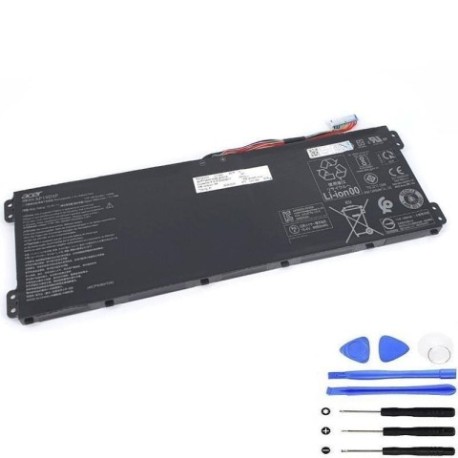
Battery models & part numbers
| Reference / P/N |
|---|
| Acer-AP19D5P-74Wh |
| Acer KT.00405.011 |
| Acer KT00405011 |
Compatible models
| Model |
|---|
| Acer ConceptD 3 (CN315-72G) |
| Acer ConceptD 3 Ezel (CC315-72G) |
| Acer ConceptD 3 Ezel (CC315-73G) |
| Acer ConceptD 3 Ezel Pro (CC315-72P) |
| Acer ConceptD 3 Pro (CN315-72P) |
| Acer ConceptD 3 Pro (CN316-73P) |
| Acer Predator Helios 500 (PH517-52) |
| Acer Predator Helios 700 (PH717-72) |
| Acer TravelMate P6 (P614P-52) |
| Acer TravelMate P6 (P614P-52-546K) |
| Acer TravelMate P6 (TMP614P-52) |
Introduction
Laptop batteries are consumable components that naturally degrade over time, and Acer laptops are no exception. The Acer AP19D5P 74Wh battery serves multiple high-performance models across different series, including the creative-focused ConceptD line, gaming-oriented Predator series, and business-grade TravelMate laptops. Understanding when and how to replace your battery can save you from unexpected downtime and maintain your laptop’s portability.
Common signs you need a replacement
| Symptom | Cause | Verification | Recommendation |
|---|---|---|---|
| Rapid battery drain | Reduced capacity from age/cycles | Check battery health in Windows | Consider replacement if below 60% |
| Laptop shuts down unexpectedly | Voltage drops under load | Monitor during intensive tasks | Replace immediately |
| Battery won’t charge fully | Charging circuit or cell failure | Try different power adapter | Replace battery if issue persists |
| Physical swelling/bulging | Gas buildup from degradation | Visual inspection | Replace urgently – safety risk |
| Overheating during charging | Internal resistance increase | Touch test during charging | Replace to prevent damage |
| Inaccurate battery percentage | Battery controller calibration issues | Run battery calibration | Replace if calibration fails |
How to check compatibility
Before purchasing any replacement battery, verifying compatibility is essential to avoid wasting time and money. For Acer laptops, there are several reliable methods to confirm your device needs the AP19D5P 74Wh battery.
Finding Your Model Information: Locate the model number on the bottom casing of your laptop, typically near the regulatory labels. For Acer devices, this is usually a combination like “CN315-72G” or “PH517-52”. Some models may have the information under the battery compartment if it’s removable.
Acer Official Resources: Visit the Acer support website and enter your serial number or SNID to access detailed specifications. The Acer Care Centre application (pre-installed on most Acer laptops) can also provide battery information under the “System Information” section.
Physical Verification: If you have the original battery, remove it carefully and check for part numbers printed on the label. The AP19D5P 74Wh battery typically measures approximately 205mm x 70mm x 20mm and features a black casing with white printing.
Third-Party Tools: Websites like Acer Parts can cross-reference your model number with compatible batteries. However, always double-check with multiple sources to ensure accuracy.
When to replace
Timing your battery replacement correctly can save you from unexpected downtime. Most lithium-ion batteries like the AP19D5P have a lifespan of 2-4 years or 300-500 charge cycles, whichever comes first. For gaming laptops like the Predator Helios series, heavy usage may shorten this timeframe due to higher heat generation and more frequent charging cycles.
Creative professionals using ConceptD models should monitor battery health closely, as rendering and design work often involves intensive power draw that accelerates battery degradation. Business users with TravelMate P6 laptops might notice gradual capacity loss over time, which becomes problematic during travel or meetings away from power outlets.
Consider replacing your battery when it holds less than 60% of its original capacity, or if you notice any of the warning signs mentioned earlier. Proactive replacement is often better than waiting for complete failure, especially if you rely on your laptop for work or important projects.
Installation guide
Installing the AP19D5P 74Wh battery requires careful attention to safety and proper procedure. The installation process varies slightly depending on your specific Acer model, but follows general principles.
Safety First: Always power off your laptop completely and disconnect the AC adapter. Work on a clean, static-free surface and consider using an anti-static wrist strap to prevent damage to sensitive components.
Accessing the Battery: For most modern Acer laptops, you’ll need to remove the bottom panel. Use the appropriate screwdriver (usually Phillips #00 or #0) and carefully remove all screws. Some models may have hidden screws under rubber feet or labels, so inspect thoroughly.
Battery Removal: Once inside, locate the battery connector. Gently disconnect the cable by pulling the connector straight out – never pull on the wires. Remove any screws securing the battery to the chassis, then lift the battery out carefully.
Installation: Place the new AP19D5P battery in position and secure it with the original screws. Reconnect the battery cable firmly, ensuring it clicks into place. Replace the bottom panel and tighten all screws evenly.
Initial Setup: After installation, connect the power adapter and allow the battery to charge fully before first use. It’s recommended to perform a complete charge-discharge cycle to help calibrate the battery monitoring system.
Model-Specific Notes: ConceptD Ezel models may require additional care when accessing internal components due to their unique hinge mechanisms. Predator Helios laptops often have more complex cooling systems that shouldn’t be disturbed during battery replacement.
Usage & care tips
Proper battery maintenance can significantly extend the lifespan of your new AP19D5P battery and maintain optimal performance throughout its service life.
Charging Practices: Avoid frequently charging to 100% if you primarily use your laptop while plugged in. Modern lithium-ion batteries prefer partial discharges rather than full cycles. Consider setting charge limits to 80-90% if your Acer software supports this feature.
Temperature Management: Keep your laptop in environments between 10°C and 35°C for optimal battery health. High temperatures are particularly damaging – never leave your laptop in a hot car or direct sunlight. Gaming sessions on Predator models generate significant heat, so ensure proper ventilation.
Storage Guidelines: If storing your laptop for extended periods, charge the battery to around 50-60% and store in a cool, dry place. Check and recharge every 3-6 months to prevent deep discharge.
Power Management: Use Acer’s power management settings to optimise battery life. The “Battery Saver” mode can extend runtime when you’re away from power outlets. For ConceptD users working on intensive projects, consider using performance modes only when necessary.
Regular Maintenance: Perform battery calibration every 2-3 months by fully charging, then discharging to about 5%, and recharging completely. This helps maintain accurate battery level reporting.
Safety & recycling in AU/NZ
Battery safety and proper disposal are critical responsibilities for Australian and New Zealand consumers. Lithium-ion batteries like the AP19D5P require careful handling to prevent safety hazards.
Safety Precautions: Never attempt to open, puncture, or modify the battery casing. Avoid exposing batteries to extreme temperatures, moisture, or direct sunlight. If you notice any swelling, leaking, or unusual odour, discontinue use immediately and contact a professional.
Australian Recycling Options:
Battery safety and proper disposal are critical responsibilities for Australian and New Zealand consumers. Lithium-ion batteries like the AP19D5P require careful handling to prevent safety hazards.
Safety Precautions: Never attempt to open, puncture, or modify the battery casing. Avoid exposing batteries to extreme temperatures, moisture, or direct sunlight. If you notice any swelling, leaking, or unusual odour, discontinue use immediately and contact a professional.
Australian Recycling Options: In Australia, you can recycle old laptop batteries through B-cycle, the official battery recycling scheme. Drop-off points are available at most Officeworks, Aldi, and Battery World stores. Some local council waste facilities also accept e-waste containing batteries.
New Zealand Recycling: The Mate Act requires proper disposal of electronic waste. Many retailers including Noel Leeming and Harvey Norman offer take-back programs for batteries and electronic devices. Community recycling centres throughout New Zealand accept e-waste free of charge.
Transportation: When transporting old batteries for recycling, tape the terminals to prevent short circuits and place them in a separate bag. Never place loose batteries in regular rubbish or recycling bins due to fire risks.
Regulatory Compliance: Both Australia and New Zealand have strict regulations governing battery disposal. Fines may apply for improper disposal that leads to environmental contamination or fire hazards at waste facilities.
FAQ
How long does the AP19D5P battery typically last?
Under normal usage conditions, expect 2-4 years of service or 300-500 complete charge cycles. Heavy usage in gaming or creative applications may shorten this timeframe.
Will this battery work with all ConceptD 3 models?
Yes, the AP19D5P is compatible with all ConceptD 3 variants including the standard, Ezel, and Pro models as listed in our compatibility table.
Is installation difficult for beginners?
While not extremely complex, battery replacement requires careful handling of internal components. If you’re uncomfortable with disassembling your laptop, consider professional installation through an authorised Acer service centre.
How can I verify my replacement is genuine?
Purchase from reputable suppliers, check for proper branding and labelling, and verify the capacity matches specifications. Genuine Acer batteries will have proper safety certifications.
What should I do if my new battery isn’t recognised?
Ensure the connector is properly seated, try resetting the EC firmware by holding the power button for 30 seconds with the battery and AC adapter disconnected, then reconnect and power on.
Can I use my laptop while plugged in with the new battery?
Yes, modern charging circuits prevent overcharging. However, for extended stationary use, consider setting charge limits if available in your Acer software to reduce wear on the battery.
What warranty applies to replacement batteries?
Most reputable suppliers offer 12-24 month warranties. Ensure you keep your purchase documentation and register the product if required by the manufacturer.