Acer AP18JHQ 84.36Wh Battery Replacement Guide
If you’re experiencing battery issues with your Acer ConceptD 7 or Predator Triton laptop in Australia or New Zealand, this comprehensive guide will help you identify the right replacement battery and provide expert advice on installation and maintenance.
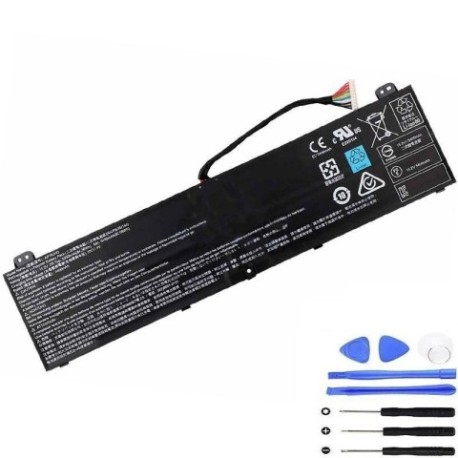
Battery models & part numbers
| Reference / P/N |
|---|
| Acer-AP18JHQ-84.36Wh |
| Acer KT.00408.001 |
| Acer KT00408001 |
Compatible models
| Model |
|---|
| Acer ConceptD 7 (CC715-71) |
| Acer ConceptD 7 (CN715-72P) |
| Acer ConceptD 7 Ezel (CC715-71) |
| Acer ConceptD 7 Ezel (CC715-72G) |
| Acer ConceptD 7 Ezel Pro (CC715-72P) |
| Acer ConceptD 7 Ezel Pro (CC715-91P) |
| Acer ConceptD 7 Ezel Pro (CC715-92P) |
| Acer ConceptD 7 Pro (CN715-72P) |
| Acer ConceptD 7 Spatial Edition (CN715-73G) |
| Acer Predator Triton (PT515-52) |
| Acer Predator Triton 500 (PT515-51) |
| Acer Predator Triton 500 (PT515-52) |
Introduction
As a creative professional or gaming enthusiast in Australia or New Zealand, your Acer ConceptD 7 or Predator Triton laptop is essential for your work and entertainment. When battery performance declines, it can significantly impact your productivity and user experience. The Acer AP18JHQ 84.36Wh battery is specifically designed for these high-performance models, ensuring you get back to peak performance quickly and safely.
Common signs you need a replacement
| Symptom | Cause | Verification | Recommendation |
|---|---|---|---|
| Rapid power drain | Aged battery cells losing capacity | Check battery health in Windows Power Report | Replace if capacity drops below 60% |
| Laptop won’t hold charge | Internal short circuits or damaged cells | Test with different power adapter | Immediate replacement needed |
| Battery swelling | Gas buildup from chemical degradation | Visual inspection of battery compartment | Stop using immediately and replace |
| Overheating during charging | Faulty charging circuit or aged battery | Monitor temperature with HWMonitor | Replace if consistently over 45°C |
| Random shutdowns | Voltage drops under load | Run battery stress test | Replace battery for stable performance |
How to check compatibility
Before purchasing a replacement battery for your Acer laptop in Australia or New Zealand, it’s crucial to verify compatibility. Start by locating your laptop’s model number, typically found on the bottom case or under the battery compartment. For ConceptD 7 and Predator Triton models, the exact model variant matters significantly. Use Acer’s official support website with your serial number to confirm battery specifications. The AP18JHQ battery is specifically designed for the high-power requirements of these creative and gaming laptops, ensuring optimal performance and safety.
When to replace
Most lithium-ion batteries in Acer laptops last 2-3 years with regular use. Consider replacement when your battery health drops below 70% capacity, you experience significant runtime reduction, or the battery shows physical signs of swelling. For creative professionals using ConceptD 7 models, maintaining reliable battery performance is essential for uninterrupted workflow. Gaming enthusiasts with Predator Triton laptops should replace batteries before they impact gaming sessions during power outages or mobile use.
Installation guide
Replacing the battery in your Acer ConceptD 7 or Predator Triton requires careful attention to detail. First, power down the laptop completely and disconnect all cables. Remove the bottom cover using the appropriate screwdriver – typically a Phillips #00 for these models. Locate the battery connector and gently disconnect it from the motherboard. Remove the screws securing the battery, then lift it out carefully. Install the new AP18JHQ battery, ensuring all connections are secure and the battery sits flush in the compartment. Reassemble the laptop and perform a full charge cycle before first use.
Usage & care tips
To maximise your new battery’s lifespan in Australia’s varying climate conditions, avoid exposing your laptop to extreme temperatures. Ideal operating range is between 10°C and 35°C. For optimal battery health, maintain charge levels between 20% and 80% for daily use, with full discharge cycles only once per month. When storing your laptop for extended periods, charge the battery to 50% and store in a cool, dry place. Use only Acer-authorised chargers to ensure proper charging voltage and current.
Safety & recycling in AU/NZ
Battery safety is paramount in Australia and New Zealand. Never attempt to open or modify lithium-ion batteries, as they contain hazardous materials. If your battery shows signs of swelling, overheating, or damage, discontinue use immediately and contact a professional recycling centre. In Australia, take used batteries to authorised collection points at electronics retailers or local council recycling centres. In New Zealand, use the Recycle-mobile programme or council facilities. Proper disposal helps protect our environment and complies with local regulations.
FAQ
How long does the AP18JHQ battery typically last?
The Acer AP18JHQ 84.36Wh battery typically provides 4-6 hours of normal usage for ConceptD 7 models and 3-5 hours for Predator Triton laptops under gaming loads, depending on screen brightness and application usage.
Is this battery compatible with all ConceptD 7 variants?
Yes, the AP18JHQ battery is specifically designed for all ConceptD 7 models including the standard, Ezel, Pro, and Spatial Edition variants, as well as Predator Triton 500 series laptops.
What warranty comes with genuine Acer batteries?
Genuine Acer replacement batteries typically come with a 12-month warranty in Australia and New Zealand, covering manufacturing defects and premature capacity loss.
Can I use third-party batteries with my Acer laptop?
While third-party options exist, we recommend genuine Acer batteries for optimal safety, performance, and compatibility. Third-party batteries may not meet the same quality standards and could void your laptop’s warranty.
How do I calibrate my new battery?
After installation, charge your new battery to 100%, then use it until it reaches 5-10% capacity, then recharge fully. Repeat this process 2-3 times to properly calibrate the battery monitoring system.
What should I do if my battery isn’t recognised after replacement?
First, ensure all connections are secure. If the issue persists, try resetting the EC (Embedded Controller) by holding the power button for 30 seconds with the battery and AC adapter disconnected.
Are there any software updates needed after battery replacement?
Check Acer’s support website for your specific model to ensure you have the latest BIOS and battery management drivers, which can improve battery performance and monitoring accuracy.