Acer AP19A5K 41Wh Battery Replacement: Complete Guide for Australian & NZ Users
If your Acer Chromebook isn’t holding charge like it used to, you’ve come to the right place. This comprehensive guide covers everything Australian and New Zealand users need to know about replacing their Acer battery with the genuine AP19A5K 41Wh model.
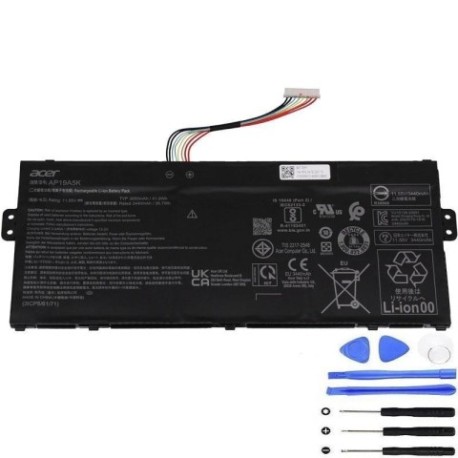
Battery models & part numbers
| Reference / P/N |
|---|
| Acer AP19A8K |
| Acer KT.00305.012 |
| Acer KT.0030G.023 |
| Acer-AP19A5K-41Wh |
Compatible models
| Model |
|---|
| Acer Chromebook (CP311-2HN) |
| Acer Chromebook (CP511-2HT) |
| Acer Chromebook 311 (CB311-9H) |
| Acer Chromebook 311 (CB311-9HT) |
| Acer Chromebook Spin 11 (CP311-1HN) |
| Acer Chromebook Spin 311 (CP311-2H) |
| Acer Chromebook Spin 511 (R752T) |
| Acer Chromebook Spin 511 (R752TN) |
Introduction
As an experienced laptop user in Australia or New Zealand, you know how frustrating it can be when your trusty Acer Chromebook starts showing its age. The AP19A5K 41Wh battery is the heart of many popular Acer Chromebook models, and understanding when and how to replace it can save you both time and money. This guide is specifically tailored for AU/NZ consumers, covering local safety standards, recycling options, and practical advice for getting the most from your device.
Common signs you need a replacement
| Symptom | Cause | Verification | Recommendation |
|---|---|---|---|
| Battery drains in under 2 hours | Normal wear after 300+ charge cycles | Check battery health in Chrome OS settings | Consider replacement if capacity below 60% |
| Laptop shuts down unexpectedly | Battery can’t maintain stable voltage | Monitor battery percentage during use | Replace immediately to prevent data loss |
| Battery won’t charge past 80% | Battery management system failure | Try different charger and power cycle | Replace battery if issue persists |
| Laptop feels unusually hot | Battery working harder than normal | Check temperature with external thermometer | Replace if consistently over 45°C |
| Battery percentage jumps erratically | Faulty battery sensors | Observe percentage changes during use | Replace for accurate battery monitoring |
How to check compatibility
Before purchasing any replacement battery for your Acer Chromebook, proper compatibility checking is essential. Start by locating your laptop’s model number, which is typically found on a sticker on the bottom case or under the battery compartment. For Acer Chromebooks specifically, you can also check by clicking the status area in the bottom-right corner of your screen, selecting Settings, then About Chrome OS, and looking for detailed device information.
Many Australian and New Zealand users find that their Acer Chromebooks use interchangeable batteries across multiple models. The AP19A5K is particularly versatile, working with both standard and convertible Spin models. If you’re unsure, contact Acer’s authorised service centres in Australia (1300 308 056) or New Zealand (0800 223 276) for official confirmation.
Third-party compatibility checkers can be helpful, but always cross-reference with Acer’s official documentation. Remember that using incompatible batteries can void your warranty and potentially damage your device.
When to replace
Timing your battery replacement correctly can save you unnecessary expense. Most Acer Chromebook batteries like the AP19A5K are designed to last 2-3 years with regular use. If your device is approaching this age and showing performance issues, replacement is likely cost-effective compared to buying a new laptop.
Consider the overall condition of your Chromebook too. If the screen, keyboard, and performance are still satisfactory, a AU$80-$120 battery replacement makes much more sense than spending AU$400-$800 on a new device. Many Australian users report getting another 2 years of solid use from their Chromebooks after battery replacement.
Seasonal considerations matter in our climate too. Battery performance naturally decreases in colder Australian winters, so don’t panic if you notice slightly reduced runtime during July and August. However, consistent poor performance across seasons indicates genuine battery degradation.
Installation guide
Replacing the battery in your Acer Chromebook is generally straightforward, but requires care and the right tools. You’ll need a Phillips #00 screwdriver, plastic spudger or guitar pick, and an anti-static wrist strap is recommended. Begin by completely shutting down your Chromebook and disconnecting the charger.
For most Acer Chromebook models compatible with the AP19A5K battery, you’ll need to remove the bottom case. Place your Chromebook upside down on a soft surface and remove all visible screws. Some models have hidden screws under rubber feet, so check carefully. Use your plastic tool to gently pry the bottom case away from the chassis, working slowly around the edges.
Once inside, locate the battery connector – it’s usually a white or black plug near the centre of the motherboard. Gently pull the connector straight out, being careful not to twist or bend the pins. Remove any screws securing the battery to the chassis, then lift the old battery out. Position your new AP19A5K battery, secure it with screws, reconnect the battery cable, and reassemble the bottom case.
Power on your Chromebook and check that it recognises the new battery. You may need to fully charge and discharge the battery once or twice for accurate calibration. If you encounter any issues, don’t force anything – seek professional help from an authorised repair centre.
Usage & care tips
Maximising your new battery’s lifespan starts with proper usage habits. Unlike older battery technologies, lithium-ion batteries in modern Chromebooks perform best when kept between 20% and 80% charge. Avoid constantly charging to 100% or letting the battery drain completely to 0%.
Temperature management is crucial in Australian and New Zealand conditions. Never leave your Chromebook in a hot car or in direct sunlight, as temperatures over 35°C can permanently damage the battery. Similarly, using your device in very cold conditions (below 5°C) can temporarily reduce performance.
If you plan to store your Chromebook unused for extended periods, charge the battery to around 50% and power down completely. Store in a cool, dry place away from direct sunlight. Check the charge level every few months and top up if it drops below 20%.
Regular maintenance includes keeping your Chrome OS updated, as battery management improvements are often included in system updates. Also, avoid using demanding applications while charging, as the combined heat from processor and charging can stress the battery.
Safety & recycling in AU/NZ
Battery safety is particularly important given Australia’s variable climate and New Zealand’s humidity levels. Never attempt to open or modify the battery casing – lithium-ion batteries contain hazardous materials and can pose fire risk if damaged. If your battery becomes swollen, immediately stop using it and contact a professional disposal service.
In Australia, battery recycling is available through programs like B-cycle (formerly Batteryback), with drop-off points at most Officeworks, Bunnings, and Aldi stores. Many local councils also offer battery recycling services. In New Zealand, the Reclaim programme provides free battery recycling at participating retailers including The Warehouse, Noel Leeming, and Countdown supermarkets.
Never dispose of batteries in household rubbish. Not only is this illegal in most Australian states and New Zealand, but it poses environmental risks and fire hazards in waste facilities. Proper recycling ensures valuable materials are recovered and hazardous substances are contained.
When transporting batteries for recycling, tape the terminals to prevent short circuits and place in a clear plastic bag. Most recycling programmes accept all types of rechargeable batteries free of charge.
FAQ
How long does the AP19A5K battery typically last?
With normal use, expect 4-6 hours of runtime depending on screen brightness and applications used. Heavy usage may reduce this to 3-4 hours, while light browsing can extend to 7+ hours.
Will replacing the battery void my warranty?
If your Chromebook is still under manufacturer’s warranty, having the battery replaced by an authorised service centre won’t void it. Self-replacement may affect warranty coverage, so check Acer’s terms for your specific situation.
How can I check my current battery’s health?
In Chrome OS, type “chrome://system” in the address bar, then click “expand” next to “power_supply_info”. Look for cycle_count and charge_full fields to assess battery condition.
Is the AP19A5K compatible with newer Acer Chromebook models?
This battery is designed for specific Chromebook generations. Always verify compatibility with your exact model number, as newer Acer Chromebooks may use different battery specifications.
Can I use a higher capacity battery instead?
No, the AP19A5K’s 41Wh capacity is specifically matched to these Chromebook models’ power management systems. Using incompatible batteries can cause damage and void warranties.
How do I properly dispose of my old battery in Australia?
Take it to any B-cycle participating retailer or council e-waste collection point. Many computer repair shops also accept old batteries for recyclingWhat’s the typical delivery time to regional Australia?
Most suppliers deliver within 3-5 business days to metropolitan areas and 5-10 days to regional locations. Express options are often available for urgent replacements.
Are there any special considerations for NZ power outlets?
No, the battery charges via standard USB-C, compatible with all NZ power outlets. Just ensure your charger meets local safety standards (look for the RCM mark in Australia or NZ’s supplier declaration).
Remember that investing in a genuine Acer AP19A5K battery ensures optimal performance and safety for your Chromebook. With proper care and maintenance, your replacement battery should provide reliable service for years, keeping your device productive throughout its lifespan.