ASUS C21N1334 38Wh Battery Replacement Guide for Australian & New Zealand Users
If you’re experiencing battery issues with your ASUS T200TA or Transformer Book, this comprehensive guide covers everything you need to know about the C21N1334 38Wh replacement battery. We’ll walk you through compatibility, installation, and maintenance specifically for AU/NZ consumers.
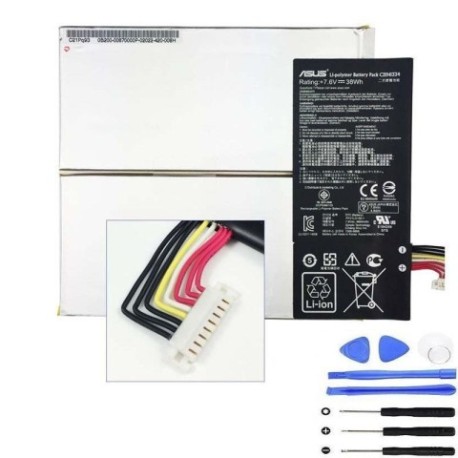
Battery models & part numbers
| Reference / P/N |
|---|
| 0B200-00870000 |
| 0B200-00870100 |
| Asus-C21N1334-38Wh |
| C21Pq9H |
Compatible models
| Model |
|---|
| Asus T200TA |
| Asus Transformer Book T200TA |
Introduction
The ASUS C21N1334 38Wh battery is specifically designed for ASUS T200TA series devices, providing reliable power for your convertible laptop. As an Australian or New Zealand user, understanding your battery’s lifecycle and replacement options ensures you get the most from your investment.
Common signs you need a replacement
| Symptom | Cause | Verification | Recommendation |
|---|---|---|---|
| Battery drains quickly (under 2 hours) | Ageing cells, reduced capacity | Check battery health in Windows | Consider replacement if under 70% capacity |
| Laptop shuts down unexpectedly | Voltage drops under load | Monitor during intensive tasks | Replace immediately to prevent data loss |
| Battery won’t charge past certain percentage | Charging circuit or cell failure | Try different charger first | Replace battery if issue persists |
| Battery swelling or bulging | Gas buildup from degradation | Visual inspection, uneven surfaces | Replace immediately – safety hazard |
| Overheating during charging | Internal resistance increase | Check temperature with software | Replace if consistently over 45°C |
How to check compatibility
For ASUS T200TA owners in Australia and New Zealand, verifying battery compatibility is straightforward. Start by checking the label on your current battery – it should be visible when you remove the device from its dock or check the bottom casing. The part number will typically begin with “C21” or “0B200” for these models.
You can also check through Windows by opening Command Prompt as administrator and typing “powercfg /batteryreport”. This generates a detailed report showing your battery’s specifications and health. ASUS devices also display battery information in the BIOS – restart your device and press F2 during boot to access this.
For official verification, ASUS Australia and New Zealand provide online support tools where you can enter your device’s serial number to confirm compatible parts. Remember that the C21N1334 battery is specifically designed for the T200TA series and won’t fit other ASUS models.
When to replace
Most ASUS T200TA batteries last 2-3 years with regular use before showing significant degradation. If your battery capacity drops below 70% of its original 38Wh rating, replacement is recommended. Australian climate conditions, particularly in warmer regions, can accelerate battery ageing, so monitor performance closely if you’re in Queensland or Northern Territory.
Seasonal temperature variations across New Zealand can also affect battery performance. If you notice your device struggling to hold charge through a typical workday or if the battery percentage fluctuates wildly, it’s time to consider a replacement. Don’t wait until complete failure – proactive replacement prevents unexpected downtime.
Installation guide
Replacing the battery in your ASUS T200TA requires careful handling but is manageable for most users. Start by powering off the device completely and disconnecting all cables. Place the laptop on a clean, static-free surface – an anti-static mat is ideal but not essential for home users.
For the T200TA, you’ll need to remove several screws from the bottom casing. Keep these organised as they may vary in length. Once the back panel is removed, locate the battery connector – it’s usually secured with a small bracket or tape. Gently disconnect the battery, being careful not to damage the connector pins.
Install the new C21N1334 battery by reversing the process. Ensure the connector is firmly seated and any securing brackets are properly fastened. Before replacing the back panel, test the device by connecting power – the charging light should illuminate. If everything works, reassemble the device completely.
Usage & care tips
To maximise your new battery’s lifespan in Australian and New Zealand conditions, avoid exposing your device to extreme temperatures. Don’t leave it in direct sunlight or in hot vehicles, as temperatures over 35°C can permanently damage lithium-ion batteries. Similarly, avoid using your device in very cold conditions below 5°C.
For optimal battery health, maintain charge levels between 20-80% for daily use. While occasional full discharges are acceptable, regular deep cycling accelerates degradation. If storing your device for extended periods, charge the battery to around 50% and store in a cool, dry place away from direct sunlight.
Australian power conditions are generally stable, but using a surge protector is recommended, especially during summer storm seasons. In New Zealand, ensure your charger is compatible with local voltage standards (230V).
Safety & recycling in AU/NZ
Battery safety is paramount. Never attempt to open or modify the battery casing, as this can cause short circuits or thermal runaway. If you notice any swelling, overheating, or unusual odours, stop using the battery immediately and contact a professional.
In Australia, used laptop batteries must be recycled through authorised collection points. Major retailers like Officeworks and JB Hi-Fi offer free battery recycling services. Many local councils also provide battery recycling at waste transfer stations. Never dispose of lithium-ion batteries in household rubbish – they pose fire risks in landfill.
New Zealand has similar requirements through the Product Stewardship Scheme. Retailers like Noel Leeming and PB Tech accept used batteries for recycling. Some councils offer special collection events for hazardous waste, including batteries. Proper recycling helps recover valuable materials and prevents environmental contamination.
FAQ
How long does the C21N1334 battery typically last?
The C21N1334 38Wh battery typically provides 6-8 hours of mixed usage when new. With normal degradation, expect 4-6 hours after one year and 3-5 hours after two years, depending on usage patterns and environmental conditions.
Can I use a higher capacity battery in my T200TA?
No, the T200TA is designed specifically for the 38Wh capacity. Using a higher capacity battery could cause compatibility issues and potentially damage your device. Stick with the manufacturer-specified C21N1334 for optimal performance and safety.
Will replacing the battery void my ASUS warranty?
If your device is still under manufacturer warranty, having the battery replaced by an unauthorised service provider may void remaining coverage. For warranty-protected devices, contact ASUS Australia or New Zealand for authorised replacement services.
How do I know if my battery is genuine?
Genuine ASUS batteries feature proper branding, clear labelling with part numbers, and come in official packaging. Purchase from authorised retailers or reputable suppliers who provide warranty coverage. Counterfeit batteries often have poor printing quality and may lack safety certifications.
What should I do with my old battery?
Never dispose of lithium-ion batteries in household waste. Take them to authorised recycling centres – most Officeworks, JB Hi-Fi (Australia) or Noel Leeming, PB Tech (New Zealand) stores accept them free of charge. Some local councils also provide battery recycling services.
Can I leave my T200TA plugged in all the time?
While modern devices have charging circuits that prevent overcharging, continuous charging can generate heat that accelerates battery ageing. For optimal battery health, unplug once fully charged and allow occasional discharge cycles.
Why does my battery drain faster in tablet mode?
Tablet mode typically uses more power for touchscreen operation and may run more intensive applications. The display also consumes more energy when detached from the keyboard base. This is normal behaviour for convertible devices like the T200TA.