Battery models & part numbers
| Reference / P/N |
|---|
| 5B10Z37617 |
| 5B10Z37618 |
| 5B10Z37621 |
| Lenovo L19C4PDD |
| Lenovo-L19M4PDD-56Wh |
Compatible laptop models
| Model |
|---|
| Lenovo ThinkBook 13s G2 ARE (20WC) |
| Lenovo ThinkBook 13s G2 ITL (20V9) |
| Lenovo ThinkBook 13s G3 ACN (20YA) |
| Lenovo ThinkBook 13s ITL (20V9) |
| Lenovo ThinkBook 14s G2 ITL (20VA) |
Introduction
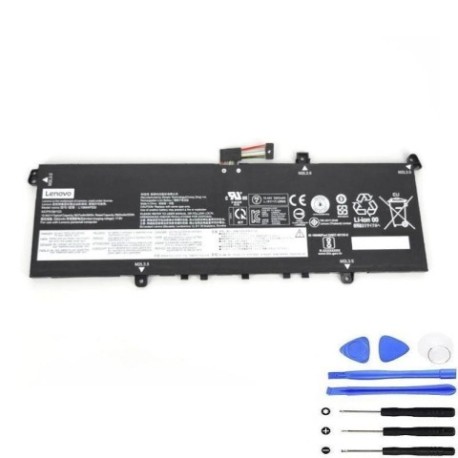
Keep your Lenovo ThinkBook running at peak performance with our genuine replacement battery. The Lenovo L19M4PDD 56Wh battery is specifically designed for compatibility with multiple ThinkBook models, ensuring reliable power and extended usage time.
Common signs you need a replacement
| Symptoms | Causes | Verification | Recommendation |
|---|---|---|---|
| Battery drains quickly | Ageing cells, reduced capacity | Check battery health in system settings | Consider replacement if below 60% capacity |
| Laptop shuts down unexpectedly | Voltage drops, unstable power | Monitor battery percentage during use | Replace if frequent shutdowns occur |
| Battery won’t charge fully | Charging circuit issues, worn cells | Check charging indicator and percentage | Replace if stuck below 80% charge |
| Battery swelling or overheating | Internal damage, safety hazard | Visual inspection, temperature check | Immediate replacement required |
How to check compatibility
Verify your laptop model matches one of the compatible models listed above. Check your current battery part number (usually found on the battery label) against our compatibility list. For additional confirmation, consult your laptop’s documentation or contact Lenovo support.
When to replace
Replace your battery when you notice significant performance degradation, typically after 2-3 years of regular use. Key indicators include reduced runtime, charging issues, or physical damage. Regular Australian/NZ climate conditions can affect battery lifespan, so monitor performance closely.
Installation guide (overview)
1. Power off your laptop and disconnect all cables
2. Remove the bottom panel (consult your model’s service manual)
3. Disconnect the battery connector carefully
4. Remove any screws securing the battery
5. Install the new battery and reconnect
6. Replace the bottom panel and power on
Note: Always refer to official Lenovo documentation for detailed instructions.
Usage & care tips
• Avoid extreme temperatures (ideal range 15-25°C)
• Don’t leave laptop plugged in constantly
• Perform occasional full discharge cycles
• Store in cool, dry conditions when not in use
• Use only authorised Lenovo chargers
Safety & recycling in AU/NZ
Batteries must be disposed of responsibly. In Australia and New Zealand, take old batteries to authorised collection centres. Many electronics retailers offer free battery recycling services. Never dispose of batteries in household waste due to fire risk and environmental concerns.
FAQ
How long does shipping take in Australia/NZ?
Typically 3-7 business days depending on your location.
Is this battery genuine Lenovo?
Yes, this is an authentic Lenovo replacement battery with full compatibility.
What warranty is provided?
This battery comes with a 12-month warranty covering manufacturing defects.
Can I install it myself?
Yes, with basic technical skills and proper tools. Follow our installation guide carefully.
How do I check my current battery health?
Use Lenovo Vantage software or check battery report in Windows settings.
What if my model isn’t listed?
Contact us with your exact laptop model for compatibility verification.
Is overnight charging safe?
Modern laptops have protection circuits, but avoid regular overnight charging for optimal battery health.