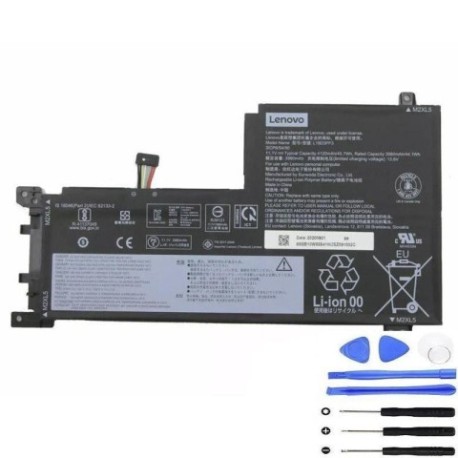
Lenovo L19C3PF4 45Wh Battery Replacement
Introduction
If your Lenovo IdeaPad 5 is struggling to hold charge or showing battery warnings, our genuine L19C3PF4 45Wh replacement battery restores optimal performance. This high-quality battery is specifically designed for your Lenovo laptop model.
Battery models & part numbers
| Reference / P/N |
|---|
| 0 |
| Lenovo 3ICP6/54/90 |
| Lenovo 5B10W86955 |
| Lenovo 5B10W86959 |
| Lenovo L19C3PF4-45Wh |
| Lenovo L19D3PF3 |
| Lenovo SB10W86951 |
| Lenovo SB10W86955 |
| Lenovo SB10W86959 |
Compatible laptop models
| Model |
|---|
| Lenovo IdeaPad 5 -15ILL05 (81YK) |
| Lenovo IdeaPad 5 15IAL7 (82SF) |
| Lenovo IdeaPad 5-15ALC05 (82LN) |
| Lenovo IdeaPad 5-15ARE05 (81YQ) |
| Lenovo IdeaPad 5-15IIL05 (81YK) |
| Lenovo IdeaPad 5-15ITL05 (82FG) |
Common signs you need a replacement
| Symptoms | Causes | Verification | Recommendation |
|---|---|---|---|
| Battery drains quickly (under 2 hours) | Ageing cells, reduced capacity | Check battery health in Windows | Replace if capacity below 60% |
| Laptop won’t charge past 80% | Battery protection mode activated | Check charging status light | Reset battery or replace |
| Battery swelling or overheating | Internal damage, safety risk | Visual inspection, feel for heat | Replace immediately |
| Laptop shuts down unexpectedly | Voltage drops under load | Monitor during intensive tasks | Replace battery |
How to check compatibility
Verify your laptop model matches our compatibility list above. Check your current battery part number (usually printed on the battery) or use Lenovo’s official support website with your serial number.
When to replace
Replace your battery when it shows significant capacity loss (typically after 2-3 years), won’t hold charge, shows physical damage, or triggers system warnings. Don’t wait until complete failure.
Installation guide (overview)
1. Power off laptop and disconnect charger
2. Remove bottom cover screws
3. Carefully disconnect old battery connector
4. Remove mounting screws
5. Install new battery and reconnect
6. Replace cover and power on
Note: Always use proper tools and anti-static precautions.
Usage & care tips
• Avoid complete discharges – charge between 20-80% for longest life
• Store in cool conditions (15-25°C)
• Use original Lenovo charger only
• Calibrate battery monthly by full charge/discharge cycle
• Keep firmware updated for optimal battery management
Safety & recycling in AU/NZ
Never puncture or disassemble batteries. In Australia and New Zealand, dispose of old batteries at authorised recycling centres. Many electronics retailers offer free battery recycling services. Never dispose in household waste.
FAQ
How long does delivery take in Australia?
Most metro areas receive orders within 3-5 business days. Regional areas may take 5-7 business days.
Is this battery genuine Lenovo?
Yes, this is an original Lenovo L19C3PF4 battery with full manufacturer warranty.
Will this battery work with my specific model?
Check the compatibility tables above – if your model is listed, it’s fully compatible.
How do I install the battery myself?
Follow our installation guide above. Basic technical skill required. If unsure, seek professional installation.
What’s the battery warranty?
This battery comes with 12 months warranty from date of purchase.
Can I use my laptop while charging?
Yes, modern laptops are designed for simultaneous use and charging without damaging the battery.
How do I maximise battery life?
Avoid extreme temperatures, don’t leave plugged in constantly, and follow our usage tips above.