Asus C31N1843 42Wh Laptop Battery Replacement Guide
If your Asus VivoBook is struggling to hold a charge or shutting down unexpectedly, you’ve come to the right place. This comprehensive guide covers everything Australian and New Zealand users need to know about replacing their laptop battery with the genuine Asus C31N1843 42Wh model.
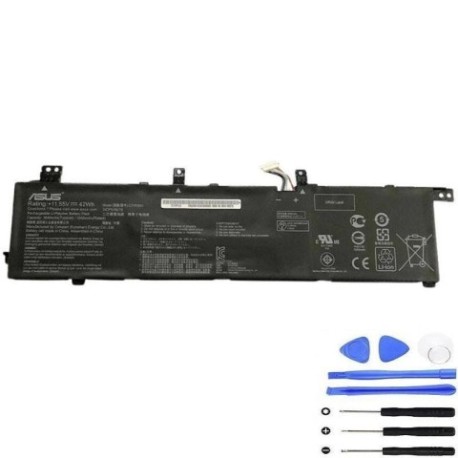
Battery models & part numbers
| Reference / P/N |
|---|
| Asus-C31N1843-42Wh |
Compatible models
| Model |
|---|
| Asus VivoBook S14 S432F |
| Asus VivoBook S14 S432FA |
| Asus VivoBook S14 S432FL |
| Asus VivoBook S15 S532F |
| Asus VivoBook S15 S532FA |
| Asus VivoBook S15 S532FL |
| Asus X432FA |
| Asus X432FL |
| Asus X532EQ |
| Asus X532FA |
Introduction
Laptop batteries are the heart of your portable computing experience, and when they start to fail, it can be incredibly frustrating. For Asus VivoBook S14, S15, and X series owners across Australia and New Zealand, understanding when and how to replace your battery is crucial for maintaining optimal performance. The Asus C31N1843 42Wh battery is specifically designed for these popular models, offering reliable power and extended usage time.
Many users don’t realise that laptop batteries have a finite lifespan, typically lasting 2-4 years with regular use. If you’ve noticed your VivoBook isn’t performing like it used to, this guide will walk you through the entire replacement journey—from recognising the signs you need a new battery to installation and proper care.
Common signs you need a replacement
| Symptom | Cause | How to Verify | Recommendation |
|---|---|---|---|
| Rapid battery drain | Reduced battery capacity | Check battery health in Windows | Consider replacement if below 60% capacity |
| Laptop shuts down unexpectedly | Battery can’t maintain voltage | Monitor shutdown patterns | Replace immediately to prevent data loss |
| Battery won’t charge fully | Charging circuit or battery failure | Try different power outlet and charger | Replace battery if charger works elsewhere |
| Battery swelling or bulging | Internal chemical breakdown | Visual inspection of battery compartment | Replace immediately – safety hazard |
| Overheating during use | Inefficient battery operation | Monitor temperature with software | Replace to prevent damage to other components |
How to check compatibility
Before purchasing any replacement battery, it’s essential to verify compatibility with your specific Asus model. For VivoBook S14, S15, and X series owners, here’s how to ensure you’re getting the right battery:
Finding Your Model Number: The model number is typically located on a sticker on the bottom of your laptop. Look for designations like “S432F,” “S532FA,” or “X432FL.” You can also find this information in Windows by pressing Windows Key + R, typing “msinfo32,” and checking the System Model field.
Using Asus Official Tools: Visit the Asus support website and enter your serial number or model to access official compatibility information. The Asus Live Update utility can also provide detailed system information, including battery specifications.
Physical Inspection: If you’re comfortable doing so, you can remove the current battery (with the laptop powered off and unplugged) and check for the part number printed on the battery itself. The C31N1843 designation should be clearly visible.
Cross-Reference with Our List: Compare your model number with the comprehensive list provided above. All VivoBook S14 (S432 series), S15 (S532 series), and X series models listed are confirmed compatible with the C31N1843 battery.
When to replace
Timing your battery replacement correctly can save you from unexpected downtime and potential data loss. Most Asus VivoBook batteries begin showing significant degradation after 300-500 charge cycles, which typically translates to 2-3 years of regular use.
Proactive Replacement: Consider replacing your battery when it holds less than 60% of its original capacity. You can check this in Windows by generating a battery report (open Command Prompt as administrator and type “powercfg /batteryreport”). This gives you time to order a replacement before the battery fails completely.
Emergency Replacement: If your laptop shuts down at 30-40% battery or won’t hold a charge for more than 30 minutes, immediate replacement is recommended. Continuing to use a failing battery can lead to sudden shutdowns and potential data corruption.
Seasonal Considerations: In Australia and New Zealand’s varying climates, extreme temperatures can accelerate battery degradation. If you notice performance drops during summer heatwaves or winter cold snaps, it might be time for a replacement.
Installation guide
Replacing the battery in your Asus VivoBook is generally straightforward, but requires care and attention to detail. Here’s a step-by-step guide for Australian and New Zealand users:
Preparation: Before beginning, ensure you have a clean, static-free workspace. Gather a small Phillips head screwdriver, plastic spudger or guitar pick, and an anti-static wrist strap if available. Power down your laptop completely and unplug it from any power source.
Removing the Old Battery: Turn your laptop upside down and locate the battery compartment. For most VivoBook models, you’ll need to remove several screws securing the bottom panel. Carefully lift the panel using your plastic tool, being mindful of any clips. Once inside, locate the battery connector and gently disconnect it from the motherboard. Remove any screws securing the battery and lift it out.
Installing the New C31N1843 Battery: Place your new Asus C31N1843 battery in position, securing it with the appropriate screws. Reconnect the battery connector to the motherboard, ensuring it’s firmly seated. Replace the bottom panel and secure all screws.
Initial Setup: After installation, plug in your laptop and allow it to charge for at least 4 hours before first use. This ensures the battery calibration is accurate. Windows should automatically detect the new battery and install any necessary drivers.
Troubleshooting: If your laptop doesn’t recognise the new battery, try resetting the EC (Embedded Controller) by holding the power button for 40 seconds with the laptop unplugged and battery installed. Then reconnect power and turn on normally.
Usage & care tips
Proper battery care can significantly extend the lifespan of your new Asus C31N1843 battery. Follow these best practices developed for Australian and New Zealand conditions:
Charging Habits: Unlike older battery technologies, modern lithium-ion batteries don’t need to be fully discharged. In fact, it’s better to keep them between 20-80% charge for daily use. Avoid leaving your laptop plugged in constantly at 100% charge, as this can stress the battery over time.
Temperature Management: Australian summers can be particularly harsh on electronics. Avoid leaving your laptop in hot cars or direct sunlight. Ideal operating temperatures are between 10°C and 35°C. If your laptop feels hot to the touch, give it a break to cool down.
Storage Advice: If you won’t be using your laptop for an extended period, store it with the battery at around 50% charge in a cool, dry place. This prevents both deep discharge and storage at full charge, both of which can damage lithium-ion batteries.
Power Settings: Configure your power settings to optimise battery life. Use the balanced power plan in Windows and adjust screen brightness according to your needs. The Asus Battery Health Charging utility (available through MyASUS) can help maintain battery health by limiting maximum charge to 80% or 60% for extended AC use.
Safety & recycling in AU/NZ
Battery safety and proper disposal are crucial considerations for Australian and New Zealand consumers:
Safety Precautions: Never attempt to open or puncture a lithium-ion battery. If you notice any swelling, leaking, or unusual heating, stop using the battery immediately and dispose of it properly. Only use authorised Asus replacement batteries or certified compatible alternatives to ensure safety and performance.
Australian Recycling Options: In Australia, used laptop batteries can be recycled through Battery World stores, Officeworks, or council e-waste collection services. Many computer retailers also accept old batteries for recycling. Never dispose of lithium-ion batteries in household rubbish due to fire risk.
New Zealand Recycling: Across the ditch, organisations like Computer Recycling and RCN e-Cycle accept electronic waste including laptop batteries. Most council transfer stations have dedicated e-waste areas. Some retailers like Noel Leeming and Harvey Norman also offer take-back programs.
Transport Considerations: When shipping or transporting spare batteries within Australia or New Zealand, ensure they’re properly packaged to prevent short circuits. If carrying batteries on flights, check with your airline about current regulations regarding spare lithium batteries.
FAQ
How long does the Asus C31N1843 42Wh battery typically last?
With normal use, you can expect 3-5 hours of battery life depending on your usage patterns, screen brightness, and running applications. Higher performance tasks will naturally drain the battery faster.
Will replacing the battery void my Aswarranty?
In Australia and New Zealand, replacing the battery yourself typically does not void your laptop’s warranty for other components, as batteries are considered consumable items. However, if you damage other components during installation, those specific damages may not be covered.
How can I verify my replacement battery is genuine?
Genuine Asus C31N1843 batteries will have proper branding, the correct part number clearly printed, and appropriate safety certifications. Purchase from authorised retailers and check for the CE, UL, or RoHS marks. The battery should also be detected correctly in Windows and the Asus control software.
My laptop still isn’t recognising the new battery after installation. What should I do?
First, ensure the battery connector is firmly seated. Try an EC reset by disconnecting both power and battery, then holding the power button for 40 seconds. Reconnect and try again. If issues persist, check for BIOS updates on the Asus support site, as these can sometimes resolve battery detection issues.
Can I use a higher capacity battery with my VivoBook?
No, you should only use batteries specifically designed for your model. The C31N1843 is engineered to fit the physical dimensions and power requirements of compatible VivoBook models. Using incompatible batteries can cause damage and pose safety risks.
How often should I calibrate my new battery?
For optimal performance, calibrate your battery every 2-3 months by charging it to 100%, then allowing it to discharge completely until the laptop shuts down, then charging back to 100% without interruption. This helps maintain accurate battery level reporting.
Is it safe to leave my laptop plugged in all the time?
While modern laptops have protection circuits, continuous charging at 100% can still contribute to long-term battery degradation. For extended stationary use, consider using Asus’s Battery Health Charging feature (available in MyASUS) to limit maximum charge to 80% or 60%.
Where can I get professional installation help in Australia/NZ?
Most computer repair shops and authorised Asus service centres across major cities like Sydney, Melbourne, Auckland, and Wellington can perform battery replacements if you’re uncomfortable doing it yourself. Check the Asus website for authorised service centres near you.