ASUS C31N1821 50Wh Battery Replacement Guide for Australian & New Zealand Users
If your ASUS ZenBook S13 is struggling with battery life or showing warning signs, you’ve come to the right place. This comprehensive guide covers everything Australian and New Zealand users need to know about replacing their laptop battery with the genuine ASUS C31N1821 50Wh model.
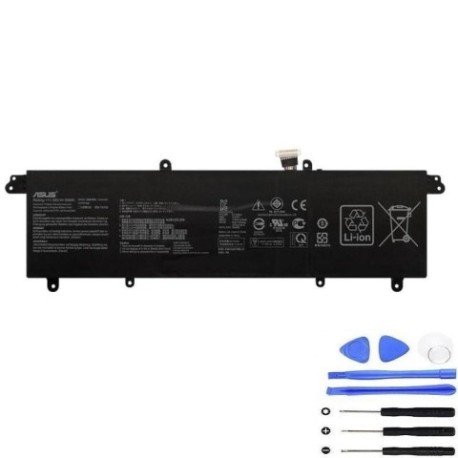
Battery models & part numbers
| Reference / P/N |
|---|
| 0B200-03210100 |
| Asus-C31N1821-50Wh |
| C31PoJH |
Compatible models
| Model |
|---|
| Asus ZenBook S13 UX392FA |
| Asus ZenBook S13 UX392FA-AB001R |
| Asus ZenBook S13 UX392FA-AB017T |
| Asus ZenBook S13 UX392FA-AB021T |
| Asus ZenBook S13 UX392FN |
| Asus ZenBook S13 UX392FN-AB003T |
| Asus ZenBook S13 UX392FN-AB007T |
| Asus ZenBook S13 UX392FN-AB016T |
Introduction
The ASUS ZenBook S13 UX392 series represents some of the finest ultraportable laptops available in the Australian and New Zealand markets. These sleek machines are designed for professionals and students who need reliable performance on the go. However, like all lithium-ion batteries, the original power source will eventually need replacement after 2-3 years of regular use.
Finding the right replacement battery can be confusing, especially with multiple part numbers and model variations. This guide eliminates the guesswork by providing clear compatibility information and practical advice tailored specifically for AU/NZ consumers.
Common signs you need a replacement
| Symptom | Cause | Verification | Recommendation |
|---|---|---|---|
| Battery drains quickly (less than 2 hours) | Reduced capacity from age/cycles | Check battery health in Windows | Consider replacement if below 60% capacity |
| Laptop shuts down unexpectedly | Voltage drops under load | Monitor during intensive tasks | Immediate replacement needed |
| Battery won’t charge past 80-90% | Battery management system failure | Check charging cycles in BIOS | Replace to restore full capacity |
| Battery swelling or bulging | Gas buildup from degradation | Visual inspection, trackpad lifting | Stop using immediately and replace |
| Overheating during charging | Internal resistance increase | Feel bottom case temperature | Replace to prevent damage |
How to check compatibility
Before purchasing any replacement battery for your ASUS ZenBook S13, it’s crucial to verify compatibility. Here’s how Australian and New Zealand users can confirm they’re getting the right part:
Finding Your Model Information: The easiest method is to check the bottom case of your laptop. Look for the model number sticker, which should clearly display “UX392FA” or “UX392FN” followed by any variant codes. You can also find this information in Windows by pressing Windows Key + R, typing “msinfo32”, and checking the System Model field.
Understanding ASUS Model Codes: The UX392 series includes both FA and FN variants, with the main difference being internal specifications like processor generation and graphics capabilities. Fortunately, both variants use the same battery form factor and connector, making the C31N1821 compatible across the entire UX392 range.
Using Official Tools: ASUS provides an official support website where you can enter your serial number or model to find compatible accessories. However, for older models like the UX392 series, the battery may no longer be listed as available from ASUS directly, making third-party authorised suppliers your best option.
Physical Verification: If you’re replacing an existing battery, compare the part number printed on your current battery with our compatibility list. The C31N1821 may also be referenced as 0B200-03210100 or C31PoJH depending on manufacturing region and batch.
When to replace
Timing your battery replacement correctly can save you from unexpected downtime and potential data loss. For ASUS ZenBook S13 users in Australia and New Zealand, consider replacement under these circumstances:
Performance-Based Replacement: When your battery health drops below 60% of original capacity, replacement becomes economically sensible. You can check this in Windows by generating a battery report (open Command Prompt as administrator and type “powercfg /batteryreport”).
Age-Based Replacement: Lithium-ion batteries naturally degrade over time, regardless of usage. If your ZenBook S13 is over 3 years old and you rely on portability, proactive replacement ensures you won’t be caught without power during important meetings or study sessions.
Safety-Based Replacement: Any signs of physical damage, swelling, or excessive heat during charging warrant immediate replacement. Continuing to use a compromised battery risks damaging your laptop’s internal components and creates a potential fire hazard.
Seasonal Considerations: Australian summers and the generally warmer climate can accelerate battery degradation. If you notice performance dropping significantly during hotter months, it might be time for a fresh battery.
Installation guide
Replacing the battery in your ASUS ZenBook S13 UX392 is a straightforward process that most users can complete in 20-30 minutes with basic tools. Here’s our step-by-step guide tailored for Australian and New Zealand DIY enthusiasts:
Tools Required: You’ll need a Phillips #00 screwdriver, plastic spudger or guitar pick, anti-static wrist strap (recommended), and a clean, well-lit workspace.
Safety First: Always start by shutting down your laptop completely and disconnecting the AC adapter. Remove any peripherals and place the laptop on a soft, static-free surface.
Step 1 – Access the Interior: The ZenBook S13 UX392 has a bottom panel secured by 10 small Phillips screws. Carefully remove all screws, noting that some may be different lengths. Use your plastic tool to gently pry the bottom case starting from the rear corners.
Step 2 – Disconnect the Battery: Once inside, locate the battery connector near the centre of the motherboard. Gently pull the connector straight up to disconnect it from the board. Never pull on the wires themselves.
Step 3 – Remove Old Battery: The battery is secured by four screws – two at the top and two at the bottom. Remove these screws and carefully lift the battery out. Be mindful of the ribbon cable that may be tucked underneath.
Step 4 – Install New Battery: Place your new C31N1821 battery in position and secure with the four screws. Reconnect the battery connector to the motherboard, ensuring it clicks into place firmly.
Step 5 – Reassembly: Before replacing the bottom cover, briefly connect your AC adapter to verify the laptop powers on. Once confirmed, snap the bottom cover back into place and reinstall all 10 screws.
Initial Charging: After installation, charge your new battery completely before first use. This helps calibrate the battery management system for accurate runtime reporting.
Usage & care tips
Maximising the lifespan of your new ASUS C31N1821 battery requires proper care and usage habits. Here are expert recommendations for Australian and New Zealand climate conditions:
Optimal Charging Practices: Unlike older battery technologies, lithium-ion batteries prefer partial discharges rather than full cycles. Try to keep your battery between 20% and 80% for daily use, with full cycles only once a month to recalibrate the battery meter.
Temperature Management: Extreme temperatures are the enemy of battery health. Avoid leaving your ZenBook in hot cars during Australian summers, and don’t use it on soft surfaces like beds or couches that can block ventilation and cause overheating.
Storage Considerations: If storing your laptop for extended periods, charge the battery to around 50% and store in a cool, dry place. Ideal storage temperature is between 10°C and 25°C.
Power Settings Optimisation: Use ASUS Battery Health Charging software (available through MyASUS app) to set charging limits when primarily using AC power. This feature helps reduce stress on the battery when plugged in for long periods.
Regular Maintenance: Generate a battery report every few months to monitor health trends. Look for consistent capacity loss rather than sudden drops, which could indicate other issues.
Safety & recycling in AU/NZ
Proper handling and disposal of laptop batteries is both an environmental responsibility and a legal requirement in Australia and New Zealand. Here’s what you need to know:
Safety Precautions: Never attempt to open, puncture, or modify the battery casing. Damaged batteries can release toxic chemicals or catch fire. If your battery shows any signs of swelling, leaking, or damage, place it in a fire-proof container and contact professional disposal services immediately.
Australian Recycling Options: Most electronics retailers including Officeworks, JB Hi-Fi, and Harvey Norman offer free battery recycling services. You can also use the B-cycle program, Australia’s official battery recycling scheme with collection points nationwide.
New Zealand Recycling Options: The NZ Ministry for the Environment recommends using accredited e-waste recyclers. Places like Computer Recycling in Auckland and EcoDrop in Wellington accept laptop batteries. Many council transfer stations also have dedicated e-waste collection areas.
Transportation Regulations: When shipping old batteries for recycling, clearly mark the package as “Damaged Lithium Batteries for Recycling” if applicable. Follow Australia Post or NZ Post guidelines for hazardous materials to ensure safe transport.
Environmental Benefits: Proper recycling recovers valuable materials like lithium, cobalt, and copper, reducing the need for new mining operations. It also prevents heavy metals from contaminating soil and waterways.
FAQ
Q: How long does the ASUS C31N1821 50Wh battery typically last?
A: Under normal usage conditions, you can expect 2-3 years of reliable performance or approximately 500 full charge cycles before noticeable capacity degradation occurs.
Q: Will replacing the battery void my ASUS warranty?
A: In Australia and New Zealand, consumer law protects your right to have repairs done by third parties without voiding manufacturer warranty for unrelated issues. However, any damage caused during installation wouldn’t be covered.
Q: How can I verify I’m purchasing a genuine ASUS battery?
A: Look for proper branding, correct weight (around 200g), and authentic packaging with safety certifications. Purchase from authorised suppliers who provide warranties and can verify authenticity.
Q: What’s the difference between the UX392FA and UX392FN models for battery purposes?
A> There’s no difference in battery compatibility between these variants. Both use the exact same physical battery compartment and electrical specifications.
Q: My laptop shows “plugged in, not charging” after replacement. What should I do?
A> First, try a full power reset by disconnecting AC power, removing the battery, holding the power button for 60 seconds, then reassembling. If the issue persists, check the battery connector is fully seated and undamaged.
Q: Can I use a higher capacity battery in my ZenBook S13 UX392?
A> No, the physical dimensions and connector are specific to the 50Wh configuration. Using non-standard batteries can damage your laptop and poses safety risks.
Q: Where can I get professional installation help in Australia/NZ?
A> Most computer repair shops including leading chains like IT Again and local computer stores can perform battery replacements if you’re uncomfortable doing it yourself.
Restoring your ASUS ZenBook S13 to its original portable glory is simpler than you might think. With the right replacement battery and our comprehensive guide, you can enjoy full-day productivity again without the anxiety of sudden shutdowns. Remember to recycle your old battery responsibly through approved AU/NZ programs.