ASUS C31N1637 42Wh Laptop Battery Replacement Guide
If your ASUS VivoBook is struggling to hold a charge or showing battery warning signs, our comprehensive guide helps you find the right replacement battery and install it safely. This 42Wh battery is compatible with multiple ASUS VivoBook models commonly used across Australia and New Zealand.
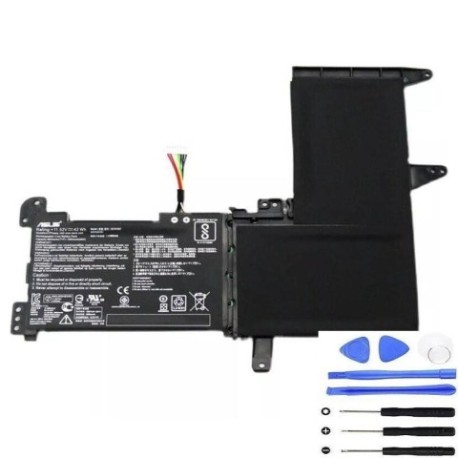
Battery models & part numbers
| Reference / P/N |
|---|
| 0B200-02590000 |
| 0B200-02590100 |
| 0B200-02590200 |
| 0B200-02590300 |
| 0B200-02590400 |
| Asus-C31N1637-42Wh |
| B31BI91 |
| B31BI9H |
| B31BmEH |
| B31N1637 |
Compatible models
| Model |
|---|
| Asus VivoBook 15 X510UA |
| Asus VivoBook 15 X510UN |
| Asus VivoBook 15 X510UQ |
| Asus VivoBook 15 X510UR |
| Asus VivoBook R520UQ |
| Asus VivoBook S15 S510UA |
| Asus VivoBook S15 S510UN |
| Asus VivoBook S15 S510UQ |
| Asus VivoBook S15 S510UR |
| Asus VivoBook S510NA |
Introduction
Laptop batteries naturally degrade over time, and ASUS VivoBook users across Australia and New Zealand often face the frustrating reality of reduced battery life after 1-2 years of regular use. The ASUS C31N1637 42Wh battery serves as a direct replacement for multiple VivoBook models, restoring your laptop’s mobility and eliminating the constant search for power outlets. This comprehensive guide covers everything from recognising battery issues to safe installation and proper disposal in accordance with AU/NZ regulations.
Common signs you need a replacement
| Symptom | Cause | Verification | Recommendation |
|---|---|---|---|
| Battery drains in under 1 hour | Cell degradation from charge cycles | Check Windows Battery Report | Replace if capacity below 60% |
| Laptop shuts down unexpectedly | Voltage drops under load | Monitor during intensive tasks | Immediate replacement needed |
| Battery won’t charge past 80% | Battery protection mode activated | Check ASUS Battery Health Charging | Replace to restore full capacity |
| Battery swelling or bulging | Gas buildup from cell failure | Visual inspection of battery compartment | Remove immediately for safety |
| Overheating during charging | Internal resistance increase | Touch test (caution: hot) | Replace to prevent damage |
How to check compatibility
Before purchasing any replacement battery, verifying compatibility is crucial. For ASUS VivoBook owners, start by locating your exact model number on the bottom casing sticker. The model should match exactly with our compatibility list. You can also check your current battery’s part number by removing the bottom panel – look for labels showing C31N1637, B31N1637, or any of the 0B200 series numbers. ASUS MyASUS app provides battery health information and can confirm your device’s specifications. If unsure, contact ASUS authorised service centres in Australia or New Zealand for verification. Remember that physical fit is as important as electrical compatibility – the C31N1637 measures standard dimensions for VivoBook battery compartments.
When to replace
Most laptop batteries need replacement after 300-500 complete charge cycles, typically 18-24 months of regular use. However, several factors accelerate degradation in the Australian and New Zealand climate. High ambient temperatures (common during summer months), frequent full discharges, and leaving your laptop plugged in constantly can reduce battery lifespan. We recommend replacement when your battery health drops below 70% of original capacity, when you experience sudden shutdowns at 20-30% charge, or if your laptop becomes unreliable for mobile use. For business users who depend on their VivoBook for presentations or client meetings, proactive replacement at the first signs of decline prevents embarrassing situations.
Installation guide
Replacing your ASUS VivoBook battery is straightforward with proper preparation. First, ensure you have a clean, static-free workspace and the correct screwdrivers (usually Phillips #00). Power down your laptop completely and disconnect the AC adapter. Flip the laptop over and remove the bottom panel screws – note that some screws may be different lengths, so keep them organised. Gently pry open the bottom cover starting from the edges. Locate the battery connector – it’s typically a white or black plug near the centre. Carefully disconnect the battery by pulling the connector straight out, not by tugging the wires. Remove any screws securing the battery and lift it out. Install your new C31N1637 battery in reverse order, ensuring all connections are secure before reassembling. First boot may take longer as the system recognises the new battery.
Usage & care tips
Maximise your new battery’s lifespan with proper care. Avoid exposing your VivoBook to temperatures above 35°C, as heat is the primary battery killer. Don’t leave your laptop in hot cars during Australian summers. For optimal battery health, maintain charge between 20-80% for daily use rather than frequent full cycles. Use ASUS Battery Health Charging software to set maximum charge limits if you primarily use your laptop plugged in. Calibrate your battery monthly by charging to 100%, then discharging to 5% before recharging. Store your laptop with 50-60% charge if not using for extended periods. These practices can extend your battery’s effective life to 2-3 years in typical AU/NZ conditions.
Safety & recycling in AU/NZ
Battery safety is paramount. Never attempt to open, puncture, or modify lithium-ion batteries. If your old battery shows any swelling, handle it with extreme care and store it in a cool, dry place until proper disposal. In Australia, most council waste centres accept laptop batteries for recycling free of charge. Major retailers like Officeworks and JB Hi-Fi also provide battery recycling bins. In New Zealand, check with your local council for e-waste collection days or use dedicated recycling centres. Never dispose of batteries in household rubbish – lithium batteries can cause fires in waste facilities. Proper recycling recovers valuable materials and prevents environmental contamination.
FAQ
How long does the C31N1637 battery last on a full charge?
Under normal usage (web browsing, document editing), expect 4-6 hours. Intensive tasks like video editing may reduce this to 2-3 hours.
Will this battery work with my VivoBook if it originally had a different part number?
Yes, as long as your laptop model appears in our compatibility list. The C31N1637 replaces multiple OEM part numbers.
Do I need to calibrate the new battery?
We recommend one full calibration cycle: charge to 100%, use until shutdown, then recharge to 100% without interruption.
Is installation difficult for beginners?
Most users can complete the replacement in 15-20 minutes with basic tools. If uncomfortable, seek help from authorised service centres.
What warranty comes with this battery?
Typically 12 months warranty covering manufacturing defects when purchased from reputable suppliers.
Can I use my laptop while charging the new battery?
Yes, modern laptops are designed for simultaneous use and charging without damaging the battery.
How do I dispose of my old battery safely?
Take it to authorised battery recycling points at electronics stores or council waste centres across Australia and New Zealand.