Asus B31N1909 48Wh Battery Replacement Guide for Australian & New Zealand Users
If your Asus ExpertBook is struggling with battery life, this comprehensive guide covers everything you need to know about the B31N1909 48Wh replacement battery. We’ll help you identify compatibility, recognise replacement signs, and provide expert installation advice tailored for AU/NZ consumers.
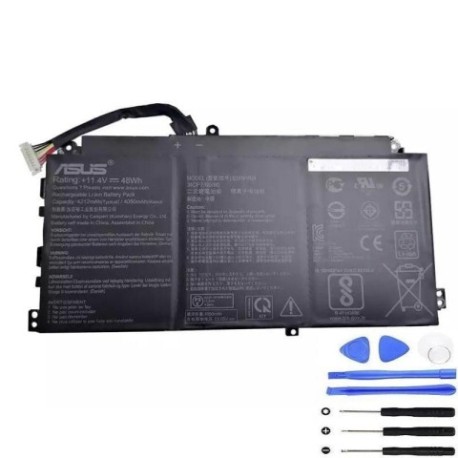
Battery models & part numbers
| Reference / P/N |
|---|
| 0B200-03670000 |
| 3ICP7/60/80 |
| Asus-B31N1909-48Wh |
| B31BNE1 |
Compatible models
| Model |
|---|
| Asus ExpertBook B2 B2402CBA |
| Asus ExpertBook L2 Flip L2402FYA |
| Asus ExpertBook L2 L2402CYA |
| Asus ExpertBook L2 L2502CYA |
| Asus ExpertBook P2 P2451FA |
| Asus ExpertBook P2 P2451FA-EB0354R |
| Asus ExpertBook P2 P2451FA-EB2015R |
| Asus ExpertBook P2 P2451FB |
| Asus ExpertBook P2 P2451FB-EK0092R |
| Asus L2402CYA |
| Asus L2402FYA |
| Asus L2502CYA |
Introduction
Asus ExpertBook laptops are renowned for their reliability and performance in Australian and New Zealand business environments. However, like all lithium-ion batteries, the B31N1909 48Wh battery will eventually need replacement after 2-3 years of regular use. Understanding when and how to replace your battery ensures you maintain optimal productivity without unexpected downtime.
Common signs you need a replacement
| Symptom | Cause | Verification | Recommendation |
|---|---|---|---|
| Battery drains rapidly (under 1 hour) | Reduced capacity from charge cycles | Check Windows Battery Report | Replace if capacity below 60% |
| Laptop shuts down unexpectedly at 20-30% | Voltage regulation failure | Monitor shutdown patterns | Immediate replacement needed |
| Battery won’t charge past 80% | Cell imbalance or BMS issues | Use Asus Battery Health Charging | Replace to restore full capacity |
| Battery swelling or case distortion | Gas buildup from degraded cells | Visual inspection | Stop using immediately and replace |
| Overheating during charging | Internal resistance increase | Check temperature with HWMonitor | Replace if consistently over 45°C |
How to check compatibility
Before purchasing any replacement battery for your Asus ExpertBook, proper compatibility verification is essential. Start by locating your laptop’s model number, typically found on the bottom casing sticker or in System Information (press Windows Key + R, type “msinfo32”). For Asus devices, the model number format usually follows patterns like “B2402CBA” or “P2451FA”. Cross-reference this with our compatibility table above.
Australian and New Zealand users can also utilise Asus’s official support website by entering their serial number or model. The Asus Battery Health Charging utility in MyASUS software provides detailed battery information including part numbers. Remember that while multiple part numbers may be compatible (like 0B200-03670000 and B31BNE1), they all refer to the same B31N1909 48Wh battery specification.
When to replace
Most Asus ExpertBook batteries last 500-800 complete charge cycles while maintaining 80% of original capacity. In AU/NZ climates, where temperatures can vary significantly, battery degradation may accelerate. Consider replacement when your battery health drops below 70% capacity, you experience consistent runtime issues affecting work productivity, or notice physical changes like swelling. Business users should plan replacement proactively rather than waiting for complete failure.
Installation guide
Replacing the B31N1909 battery in your ExpertBook requires careful attention to detail. First, completely power down your laptop and disconnect all cables. Use a precision Phillips #00 screwdriver to remove the bottom case screws – note that some ExpertBook models have hidden screws under rubber feet. Gently pry the bottom case starting from the corners using a plastic spudger.
Once inside, locate the battery connector near the centre of the motherboard. Carefully disconnect the battery cable by pulling the connector straight out – never pull by the wires. Remove the 4-6 screws securing the battery, then lift it out at a 30-degree angle. Install the new B31N1909 battery in reverse order, ensuring all connections are secure before reassembling. Allow the laptop to charge for at least 4 hours before first use to calibrate the new battery.
Usage & care tips
To maximise your new B31N1909 battery’s lifespan in Australian and New Zealand conditions, avoid frequent full discharges – instead, keep charge between 20-80% for daily use. The Asus Battery Health Charging feature in MyASUS software can help maintain long-term health by limiting maximum charge to 60%, 80%, or 100% based on your usage pattern. In warmer regions like Queensland or Northern Territory, avoid leaving your laptop in hot cars or direct sunlight, as temperatures above 35°C accelerate battery degradation.
For business users who frequently travel between air-conditioned offices and warmer environments, allow the laptop to acclimatise before charging if it’s been in extreme temperatures. Use only Asus-authorised chargers, as incompatible power adapters can damage the battery management system. Calibrate your battery monthly by allowing a full discharge followed by an uninterrupted charge to 100%.
Safety & recycling in AU/NZ
Lithium-ion batteries require proper handling and disposal throughout Australia and New Zealand. Never attempt to open or puncture a swollen battery, as this can cause thermal runaway and fire. If your battery shows signs of swelling, stop using it immediately and store in a cool, dry place until proper disposal.
In Australia, most council waste centres accept laptop batteries for recycling, and many electronics retailers like Officeworks provide free battery recycling services. New Zealand residents can use the e-waste recycling programmes available at most transfer stations or through specialised e-waste collectors. Both countries have strict regulations about lithium battery disposal, so never place them in general household waste.
FAQ
How long does the B31N1909 battery typically last?
The B31N1909 48Wh battery typically provides 2-3 years of reliable service under normal usage conditions, or approximately 500-800 complete charge cycles while maintaining at least 80% of original capacity. Heavy users may experience shorter lifespan.
Can I use my ExpertBook while charging the new battery?
Yes, you can safely use your ExpertBook while charging the new battery. Modern lithium-ion batteries and charging circuits are designed for simultaneous use and charging without affecting battery lifespan.
Will replacing the battery void my Asus warranty?
In Australia and New Zealand, consumer law protects your right to have repairs completed by third parties without voiding manufacturer warranty for unrelated issues. However, any damage caused by improper installation would not be covered by Asus warranty.
How do I check my current battery’s health?
Use Windows Battery Report by opening Command Prompt as administrator and typing “powercfg /batteryreport”. This generates a detailed HTML report showing battery capacity, usage history, and estimated runtime.
What’s the difference between all the part numbers listed?
The different part numbers (0B200-03670000, 3ICP7/60/80, B31BNE1) all refer to the same physical B31N1909 48Wh battery. Manufacturers often use multiple part numbers for internal tracking, regional variations, or different packaging, but the battery specifications remain identical.
Is the replacement process different for Flip models?
The installation process for Asus ExpertBook L2 Flip models is essentially identical to standard models. The battery location and connection method remain the same, though you may need to take extra care when handling the convertible hinge mechanism during disassembly.
Where can I recycle my old laptop battery in regional areas?
Most regional council waste transfer stations in Australia and New Zealand accept e-waste including laptop batteries. Many Australia Post offices and some battery specialty stores also provide recycling services. Check your local council website for specific drop-off locations.