ASUS B21N1404 32Wh Laptop Battery Replacement Guide
If your ASUS laptop is struggling to hold charge or showing battery warning signs, our comprehensive guide helps you identify compatibility, understand replacement needs, and install your new battery with confidence.
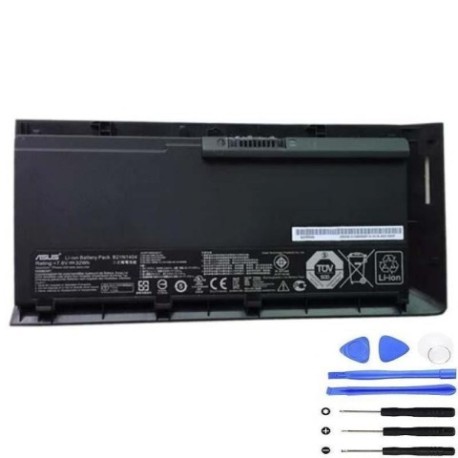
Battery models & part numbers
| Reference / P/N |
|---|
| 0B200-01060000 |
| 0B200-01060100 |
| Asus-B21N1404-32Wh |
| B21Bn95 |
| BU201 |
| BU201L |
| BU201LA |
Compatible models
| Model |
|---|
| Asus PRO Advanced BU201 |
| Asus PRO Advanced BU201LA |
Introduction
Laptop batteries naturally degrade over time, typically lasting 2-4 years with regular use. The ASUS B21N1404 32Wh battery serves multiple ASUS PRO Advanced business laptops, providing reliable power for professionals across Australia and New Zealand. Understanding when and how to replace your battery ensures uninterrupted productivity and protects your investment in quality ASUS hardware.
Common signs you need a replacement
| Symptom | Cause | Verification | Recommendation |
|---|---|---|---|
| Rapid power drain | Reduced capacity from chemical aging | Check battery health in Windows Power Report | Replace if capacity below 60% of original |
| Laptop shuts down unexpectedly | Voltage drops under load | Monitor battery percentage during use | Immediate replacement recommended |
| Battery won’t charge fully | Charging circuit protection activated | Check charging indicator and percentage | Replace to restore full capacity |
| Physical swelling or bulging | Gas buildup from internal degradation | Visual inspection of battery compartment | Replace immediately – safety hazard |
| Overheating during charging | Increased internal resistance | Feel battery temperature during charge | Replace to prevent damage to laptop |
How to check compatibility
Finding your exact laptop model is crucial for battery compatibility. For ASUS PRO Advanced series laptops, locate the model number on the bottom case label, typically near the regulatory markings. The label should clearly display “ASUS PRO Advanced BU201” or “ASUS PRO Advanced BU201LA” along with other identification numbers.
You can also check within Windows by pressing Windows Key + R, typing “msinfo32” and looking for System Model in the System Information window. ASUS provides official support tools through their website where you can enter your serial number to verify compatible parts.
For business users in Australia and New Zealand, many organisations maintain asset registers with detailed hardware specifications. Check with your IT department if you’re using a company-issued device. The B21N1404 battery is specifically designed for ASUS business laptops with the compatible part numbers listed above.
When to replace
Most laptop batteries require replacement after 300-500 complete charge cycles, which typically translates to 2-4 years of regular use. Business laptops like the ASUS PRO Advanced series often experience heavier usage patterns, potentially shortening battery lifespan. Consider replacement when your battery holds less than 60% of its original capacity, shows physical damage, or causes operational issues.
Seasonal temperature variations across Australia and New Zealand can accelerate battery degradation. Extreme heat in summer months and frequent charging in air-conditioned offices both contribute to reduced battery performance over time.
Installation guide
Replacing the battery in your ASUS PRO Advanced laptop is straightforward with proper preparation. Begin by shutting down the laptop completely and disconnecting the AC adapter. Place the laptop on a clean, static-free surface with good lighting.
For most ASUS business models, the battery is accessible by releasing the retention clips on the bottom panel. Use a plastic spudger or your fingernails to gently release the clips – avoid metal tools that could damage the casing. Once the bottom panel is removed, locate the battery connector near the centre of the mainboard.
Carefully disconnect the battery cable by pulling the connector straight out – never pull by the wires. Remove any screws securing the battery, then lift it out of the compartment. Align your new B21N1404 battery in the same orientation, secure with screws, and reconnect the cable until it clicks into place.
Before reassembling, test the installation by connecting the AC adapter and powering on the laptop. Check that the battery is recognised in Windows and begins charging. Once confirmed, reassemble the bottom panel and ensure all clips are securely fastened.
Usage & care tips
Maximise your new battery’s lifespan with proper care techniques. Avoid frequent full discharges – lithium-ion batteries prefer partial discharges between 20-80% capacity. For business users who primarily use their laptops plugged in, consider setting a maximum charge limit of 80% in ASUS Battery Health Charging software if available.
Temperature management is crucial in Australian and New Zealand climates. Never leave your laptop in direct sunlight or in hot vehicles, as temperatures above 45°C can permanently damage battery cells. Similarly, avoid using your laptop in very cold conditions below 0°C.
When storing your laptop for extended periods, charge the battery to approximately 50% and store in a cool, dry place. Perform a full charge cycle every 3-6 months during storage to maintain battery health. Regular use actually helps maintain battery calibration and performance.
Safety & recycling in AU/NZ
Battery safety is paramount. Never attempt to open, puncture, or modify lithium-ion batteries. If you notice swelling, leaking, or unusual heating, discontinue use immediately and contact professional disposal services. In Australia, authorised battery recycling programs are available through organisations like Battery World and council recycling centres.
New Zealand residents can utilise the e-waste recycling services provided by most local councils and specialised recycling facilities. Both countries have strict regulations regarding lithium battery disposal – never place used batteries in household rubbish bins due to fire risk and environmental concerns.
When purchasing replacement batteries in Australia and New Zealand, ensure they meet local safety standards and carry the RCM (Regulatory Compliance Mark) for electrical safety. Reputable suppliers provide batteries that comply with Australian/New Zealand standards for your protection.
FAQ
How long does the B21N1404 battery typically last?
The 32Wh capacity provides approximately 4-6 hours of typical business use, though this varies based on screen brightness, applications running, and wireless connectivity usage. With normal degradation, expect 2-3 years of reliable performance before noticeable capacity reduction.
Can I use this battery with other ASUS models?
No, the B21N1404 is specifically designed for compatible ASUS PRO Advanced business laptops with the part numbers listed above. Using incompatible batteries can damage your laptop and void warranties.
Will replacing the battery void my ASUS warranty?
In Australia and New Zealand, replacing the battery with a compatible, quality replacement should not void your overall laptop warranty, though the new battery itself would be covered by the supplier’s warranty rather than ASUS. Always check your specific warranty terms.
How do I calibrate my new battery?
After installation, charge the battery to 100% without interruption, then use the laptop on battery power until it automatically shuts down (around 5%). Charge again to 100% without using the laptop during charging. This calibration helps ensure accurate battery percentage reporting.
What should I do with my old battery?
Never dispose of lithium batteries in household waste. In Australia, take them to authorised battery recycling points at electronics retailers or council facilities. New Zealand residents can use e-waste recycling services – many suppliers offer return programs for old batteries.
Why does my battery percentage seem inaccurate after replacement?
This is normal during the initial calibration period. The battery management system needs several charge cycles to accurately measure capacity. Follow the calibration procedure above and the readings should stabilise within 1-2 weeks of regular use.
Can I leave my laptop plugged in all the time with the new battery?
While modern laptops have charging circuits that prevent overcharging, for optimal battery health we recommend unplugging occasionally to allow discharge cycles. ASUS Battery Health Charging software (if available for your model) can help manage this automatically.