ASUS A42N1520 90Wh Laptop Battery Replacement Guide
If your ASUS ROG gaming laptop is struggling to hold charge or experiencing power issues, this comprehensive guide covers everything Australian and New Zealand users need to know about the A42N1520 90Wh replacement battery.
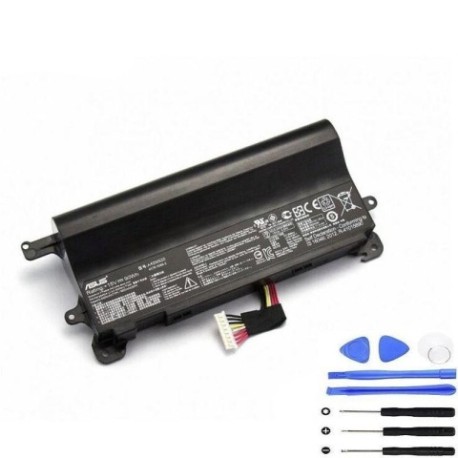
Battery models & part numbers
| Reference / P/N |
|---|
| 0B110-00380000 |
| 0B110-00380200 |
| A42LM9H |
| Asus-A42N1520-90Wh |
Compatible models
| Model |
|---|
| Asus G752VS-1A |
| Asus G752VY |
| Asus G752VY-1A |
| Asus G752VY-GC082T |
| Asus G752VY-GC083T |
| Asus G752VY-GC086T |
| Asus G752VY-GC087T |
| Asus G752VY-GC088T |
| Asus G752VY-GC134T |
| Asus G752VY-GC144D |
| Asus G752VY-GC261T |
| Asus G752VY-GC263T |
| Asus G752VY-GC264T |
| Asus ROG G752VS |
| Asus ROG G752VS-BA184T |
| Asus ROG G752VS-BA185T |
| Asus ROG G752VS-BA191T |
| Asus ROG G752VS-BA214D |
| Asus ROG G752VS-BA215T |
| Asus ROG G752VS-BA329T |
| Asus ROG G752VS-BA336T |
| Asus ROG G752VS-BA337T |
| Asus ROG G752VS-BA338T |
| Asus ROG G752VS-GC085T |
| Asus ROG G752VS-GC086T |
| Asus ROG G752VS-GC087T |
| Asus ROG G752VS-GC089T |
| Asus ROG G752VS-GC090D |
| Asus ROG G752VS-GC123T |
Introduction
The ASUS A42N1520 90Wh battery is specifically designed for high-performance ROG gaming laptops in the G752 series. These powerful machines demand reliable power sources to maintain peak gaming performance. As batteries naturally degrade over time, understanding when and how to replace yours is crucial for maintaining your laptop’s gaming capabilities.
Common signs you need a replacement
| Symptom | Cause | Verification | Recommendation |
|---|---|---|---|
| Battery drains quickly during gaming | High power draw exceeding aged battery capacity | Check battery health in Windows Power Report | Replace if capacity below 60% of original |
| Laptop shuts down unexpectedly | Battery cannot maintain voltage under load | Monitor battery voltage during intensive tasks | Immediate replacement recommended |
| Battery won’t charge to 100% | Cell degradation and internal resistance increase | Check charging cycles and maximum capacity | Replace if charging stops below 80% regularly |
| Battery swelling or overheating | Internal chemical breakdown and gas production | Visual inspection and temperature monitoring | Replace immediately for safety reasons |
| Laptop only works when plugged in | Complete battery failure or protection circuit issue | Test with known good battery if possible | Replace battery to restore portability |
How to check compatibility
Finding your exact ASUS model number is straightforward. Check the bottom label of your laptop – it should clearly display the complete model designation. For G752 series laptops, you’ll typically find labels near the battery compartment or on the bottom casing. You can also check through Windows System Information or ASUS’s own diagnostic tools available from their support website.
ASUS provides excellent support resources for Australian and New Zealand customers. Visit the official ASUS support centre website and enter your serial number or model to access detailed specifications and compatible accessories. The A42N1520 battery is specifically engineered for the G752VS and G752VY series, ensuring perfect fit and optimal performance for these gaming machines.
When to replace
Gaming laptops like the G752 series experience more rapid battery degradation due to high power demands and heat generation. Most users should consider replacement after 18-24 months of regular gaming use, or when battery capacity drops below 70% of original. If you notice significant performance drops during gaming sessions or your laptop can’t complete a full gaming session on battery, it’s time for a replacement.
Installation guide
Replacing the battery in your ASUS G752 series laptop is relatively straightforward. First, ensure the laptop is completely powered off and disconnected from any power source. Flip the laptop over and locate the battery release latches – typically there are two sliding locks on the bottom casing. Slide both to the unlock position, then carefully lift the battery out of its compartment.
When installing the new A42N1520 battery, align the connectors properly and press firmly until you hear a click. Make sure the battery sits flush with the laptop casing. After installation, connect the power adapter and allow the battery to charge fully before first use. The initial charge may take several hours as the battery management system calibrates.
Usage & care tips
To maximise your new battery’s lifespan, avoid exposing it to extreme temperatures. Ideal operating range is between 10°C and 35°C. For gaming laptops, it’s actually beneficial to remove the battery when gaming for extended periods while plugged in, as this reduces heat exposure. Calibrate your battery monthly by allowing it to discharge to around 20% then charging to 100% uninterrupted.
Store your laptop in cool, dry conditions when not in use. If storing for extended periods, charge the battery to around 50-60% and remove it from the laptop. Avoid leaving your laptop plugged in constantly at 100% charge, as this can accelerate degradation over time.
Safety & recycling in AU/NZ
In Australia and New Zealand, lithium-ion batteries must be disposed of properly through authorised recycling programmes. Never dispose of batteries in household waste. Most electronics retailers offer free battery recycling services. For the A42N1520 battery, check with your local council’s e-waste programme or visit Battery World locations for proper disposal.
Always use genuine or high-quality replacement batteries from reputable suppliers. Counterfeit batteries can pose serious safety risks including fire hazards. The A42N1520 features multiple safety protections including overcharge protection, short circuit protection, and thermal monitoring.
FAQ
How long does the A42N1520 battery typically last?
The A42N1520 90Wh battery typically provides 2-3 hours of gaming or 4-6 hours of general use on a full charge, depending on your laptop’s configuration and usage patterns. With normal use, the battery should maintain good performance for 500-800 charge cycles.
Can I use this battery with other ASUS models?
No, the A42N1520 is specifically designed for the G752VS and G752VY series laptops. Using it with incompatible models may cause damage to your laptop or the battery itself. Always verify compatibility using the official lists provided.
Will replacing the battery void my ASUS warranty?
In Australia and New Zealand, replacing the battery yourself typically does not void your overall laptop warranty, but any damage caused during installation maynot be covered. For laptops still under warranty, consider having the replacement performed by an authorised ASUS service centre.
How do I know if my battery is genuine?
Genuine A42N1520 batteries will have proper ASUS branding, correct model number printing, and come in official packaging with security seals. Purchase only from authorised resellers to ensure authenticity and quality.
What should I do if my new battery isn’t charging?
First, try a full power reset by disconnecting the AC adapter, removing the battery, holding the power button for 30 seconds, then reinstalling the battery and reconnecting power. If issues persist, check for BIOS updates or contact the supplier.
Is it safe to leave my laptop plugged in all the time?
While modern laptops have charging circuits to prevent overcharging, prolonged periods at 100% charge and high temperatures can reduce battery lifespan. For desktop replacement use, consider using ASUS’s Battery Health Charging software to limit maximum charge to 80%.
Where can I recycle my old laptop battery in Australia/NZ?
Most Officeworks, JB Hi-Fi, and Battery World stores offer free battery recycling. You can also check with your local council’s e-waste programme. Never dispose of lithium-ion batteries in household bins due to fire risk.