Acer AS10B51 56Wh Battery Replacement Guide for Australian & New Zealand Users
If your Acer Aspire laptop is struggling to hold a charge or won’t power on without being plugged in, you’ve come to the right place. This comprehensive guide covers everything Australian and New Zealand consumers need to know about replacing their Acer laptop battery with the genuine AS10B51 56Wh model.
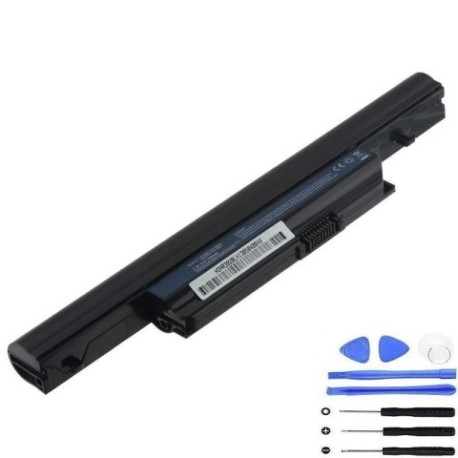
Battery models & part numbers
| Reference / P/N |
|---|
| Acer AS10B41 |
| Acer AS10B51 |
| Acer AS10B61 |
| Acer AS10B71 |
| Acer AS10B73 |
| Acer AS10B75 |
| Acer LC.BTP00.119 |
| Acer-AS10B51-56Wh |
Compatible models
| Model |
|---|
| Aspire 5553 |
| Aspire 5553G |
| Aspire 5745G |
| Aspire 5745P |
| Aspire 5745PG |
| Aspire 5745Z |
| Aspire 7250 |
| Aspire 7250G |
| Aspire 7339 |
| Aspire 7739 |
| Aspire 7739G |
| Aspire 7739Z |
| Aspire 7739ZG |
| Aspire 7745 |
| Aspire 7745G |
| Aspire 7745Z |
Introduction
Welcome to your complete guide for Acer AS10B51 56Wh battery replacement in Australia and New Zealand. As your trusted local resource, we understand the frustration of a failing laptop battery – especially when you rely on your device for work, study, or staying connected with family and friends. The AS10B51 battery series has been a workhorse for numerous Acer Aspire models, providing reliable power for thousands of users across our region.
What makes this guide particularly valuable for AU/NZ consumers is our focus on local considerations – from understanding our unique climate’s impact on battery life to navigating local warranty support and recycling options. We’ve compiled everything you need in one place, saving you the hassle of searching through multiple sources.
Common signs you need a replacement
| Symptom | Cause | Verification | Recommendation |
|---|---|---|---|
| Rapid power drain | Reduced battery capacity from age/cycles | Check Windows battery report | Replace if under 50% original capacity |
| Laptop won’t charge | Battery protection circuit failure | Try different power outlet | Immediate replacement needed |
| Swollen battery case | Gas buildup from chemical breakdown | Visual inspection, uneven surface | Stop using immediately – safety risk |
| Overheating during use | Increased internal resistance | Monitor temperature with software | Replace to prevent damage to laptop |
| Inaccurate battery percentage | Faulty battery management system | Compare reported vs actual runtime | Calibrate first, then replace if persistent |
| Random shutdowns | Voltage drops under load | Occurs during high CPU/GPU usage | Replace to restore stable operation |
How to check compatibility
Before purchasing any replacement battery for your Acer laptop in Australia or New Zealand, proper compatibility verification is essential. Here’s our comprehensive guide tailored for AU/NZ consumers:
Locating Your Model Information: Turn your laptop over and look for the white sticker containing model details. For Acer Aspire models compatible with AS10B51, you’ll typically find this information near the battery compartment. Common locations include the bottom case, under the battery, or sometimes on the screen bezel. The model number should start with “Aspire” followed by numbers and sometimes letters (like G, P, or Z indicating specific configurations).
Using Acer’s Official Resources: Visit Acer’s Australian or New Zealand support website and use their compatibility checker tool. Simply enter your serial number or model number, and the system will confirm which battery part numbers are authorised for your device. This is particularly important for ensuring you get a battery that meets Australian safety standards.
Physical Compatibility Check: Remove your current battery and examine the connector type, physical dimensions, and mounting mechanism. The AS10B51 compatible models all share the same 10.8V, 56Wh specification with identical connector pinouts. Measure your existing battery – it should be approximately 205mm x 50mm x 25mm.
Software Verification: Use Acer Care Centre (available for download from Acer’s official website) to check your current battery’s health and compatible replacement options. The software can often detect if a non-genuine battery is installed and provide warnings about compatibility issues.
When to replace
Understanding the optimal timing for battery replacement can save you both money and frustration. Here’s what Australian and New Zealand consumers should consider:
Battery Age: Most lithium-ion batteries, including the AS10B51, have a typical lifespan of 2-3 years with regular use. If your battery is approaching this age and showing performance degradation, it’s wise to consider replacement before complete failure occurs.
Cycle Count: Lithium-ion batteries are rated for approximately 300-500 full charge cycles. You can check your cycle count using Acer’s built-in diagnostics or third-party tools like BatteryInfoView. Once you approach 400 cycles, start planning for replacement.
Performance Thresholds: When your battery capacity drops below 60% of its original specification, replacement becomes economically sensible. Continuing to use a severely degraded battery can lead to unexpected shutdowns and potential data loss.
Seasonal Considerations for AU/NZ: Our climate can accelerate battery degradation. Hot Australian summers and humid conditions in parts of New Zealand can reduce battery lifespan. Consider replacing before extreme weather seasons if your battery is already aged.
Installation guide
Replacing your Acer AS10B51 battery is a straightforward process that most Australian and New Zealand consumers can complete in under 10 minutes. Follow these steps carefully:
Preparation: Power down your laptop completely and unplug the AC adapter. Work on a clean, static-free surface with good lighting. Have a small Phillips head screwdriver ready.
Removing the Old Battery: Turn your laptop upside down. Locate the battery release latches – most compatible Aspire models have two sliding locks. Slide both to the unlock position simultaneously. The battery should lift out easily. If it’s stuck, don’t force it – check for additional screws or clips.
Installing the New AS10B51: Align the new battery with the compartment, ensuring the connector pins match up. Gently press the battery into place until you hear a click from both locking mechanisms. Don’t force it – if it doesn’t seat properly, realign and try again.
Initial Setup: Connect your AC adapter and power on the laptop. Allow the system to recognise the new battery. It’s recommended to charge the battery to 100% before first use, then perform a full discharge cycle to calibrate the battery meter.
Troubleshooting Common Issues: If your laptop doesn’t recognise the new battery, try resetting the EC (Embedded Controller) by holding the power button for 30 seconds with the battery and AC adapter removed. For persistent issues, ensure you’ve purchased from an authorised Australian or New Zealand retailer.
Usage & care tips
Maximise your new AS10B51 battery’s lifespan with these expert tips tailored for Australian and New Zealand conditions:
Optimal Charging Practices: Avoid frequently charging to 100% if you’re primarily using your laptop plugged in. Modern lithium-ion batteries prefer being kept between 20-80% charge for daily use. Consider using Acer’s battery health charging feature if available in your model’s software.
Temperature Management: Australian summers can be particularly harsh on laptop batteries. Avoid leaving your laptop in hot cars or direct sunlight. Ideal operating temperature is between 10°C and 35°C. During New Zealand’s cooler months, allow the battery to warm to room temperature before charging if it’s been in cold conditions.
Storage Recommendations: If storing your laptop for extended periods, charge the battery to about 50% and power down completely. Store in a cool, dry place away from direct sunlight. For Australian consumers in humid coastal areas, consider using silica gel packs in storage areas.
Performance Optimisation: Adjust your power settings in Windows to balance performance and battery life. Use battery saver mode when unplugged, and reduce screen brightness – this is one of the biggest power drains on compatible Aspire models.
Safety & recycling in AU/NZ
Proper battery handling and disposal are crucial for both personal safety and environmental protection in Australia and New Zealand:
Safety Precautions: Never attempt to open or modify the battery casing. If you notice swelling, overheating, or leakage, stop using immediately and contact professional disposal services. Keep batteries away from children and pets.
<
Australian Recycling Options: Most electronics retailers including Officeworks, JB Hi-Fi, and Harvey Norman offer free battery recycling services. You can also check with your local council for household chemical collection days or dedicated battery recycling centres. Under the Australian Battery Stewardship Scheme, many retailers are now part of the B-cycle program.
New Zealand Recycling: The NZ Product Stewardship Scheme for batteries is expanding rapidly. Look for battery recycling bins at participating retailers like Noel Leeming, PB Tech, and PlaceMakers. Many local councils also provide battery recycling at transfer stations and resource recovery centres.
Transporting Old Batteries: When taking your old AS10B51 battery for recycling, tape the terminals to prevent short circuits and place it in a clear plastic bag. Never dispose of lithium-ion batteries in regular household waste – this is illegal in most Australian states and New Zealand regions due to fire risk.
FAQ
How long does the AS10B51 battery typically last?
With normal use, expect 2-3 years of service or 300-500 full charge cycles. Heavy users in Australia’s warmer climates might experience slightly shorter lifespan.
Will this battery work with my Aspire model if it’s not on the compatibility list?
We strongly recommend only using batteries for models explicitly listed. Using incompatible batteries can damage your laptop and void your warranty.
How can I verify I’m purchasing a genuine Acer battery in Australia?
Look for Australian Consumer Law guarantees, purchase from authorised resellers, and check for proper certification markings. Genuine Acer batteries will have proper serial numbers and safety certifications.
What’s the warranty period for AS10B51 batteries in AU/NZ?
Most genuine Acer batteries come with 12 months warranty, though some retailers may offer extended coverage. Always keep your receipt for warranty claims.
Can I use my laptop while charging the new battery?
Yes, this is perfectly safe and won’t damage the battery. Modern charging circuits are designed to handle simultaneous use and charging.
Why does my battery percentage seem inaccurate after replacement?
The battery meter needs calibration. Perform a full charge to 100%, then discharge completely, and recharge again. This recalibrates the monitoring system.
Are there any specific settings I should change after battery replacement?
We recommend checking your power management settings and updating your BIOS if available. Some Aspire models have battery health monitoring features in the Acer Care Centre that should be configured.
Ready to restore your Acer Aspire laptop to its former glory? Don’t let a failing battery disrupt your work or entertainment. Click above to purchase your genuine AS10B51 replacement battery from an authorised supplier, backed by Australian Consumer Law guarantees and local support. Your laptop – and your productivity – will thank you!