Acer AP19B8M 55.9Wh Battery Replacement Guide for Australian & New Zealand Users
If your Acer laptop is struggling to hold charge or showing battery warning signs, you’ve come to the right place. This comprehensive guide covers everything Australian and New Zealand users need to know about the Acer AP19B8M 55.9Wh replacement battery, including compatible models, installation steps, and local safety considerations.
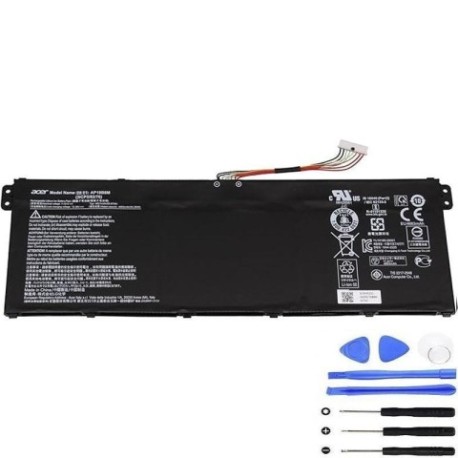
Battery models & part numbers
| Reference / P/N |
|---|
| Acer-AP19B8M-55.9Wh |
| Acer KT.0030G.024 |
| Acer KT0030G024 |
Compatible models
| Model |
|---|
| Acer Aspire 1 (A114-33) |
| Acer Aspire 3 (A314-23P) |
| Acer Aspire 3 (A315-59) |
| Acer Aspire 3 (A317-55P) |
| Acer Chromebook 15 (CB515-1WT) |
| Acer Chromebook 317 (CB317-1H) |
| Acer Chromebook 317 (CB317-1HT) |
| Acer Chromebook 515 (CB515-1W) |
| Acer Chromebook Spin 514 (CP514-1H) |
| Acer Chromebook Spin 514 (CP514-1W) |
| Acer Chromebook Spin 514 (CP514-1WH) |
| Acer Chromebook Spin 514 (P514-1W-52MW) |
| Acer Chromebook Spin 713 (CP713-3W) |
| Acer Chromebook Spin 714 (CP714-1WN) |
| Acer ConceptD 3 Pro (CN315-72P) |
| Acer Extensa 15 (EX215-54G) |
| Acer RS (AP714-51GT) |
| Acer RS (AP714-51T) |
| Acer Spin (SP313-51N) |
| Acer Spin 3 (SP313-51N) |
| Acer Spin 5 (SP513-55N) |
| Acer Spin 5 (SP513-55NA) |
| Acer Swift 3 (F314-43) |
| Acer Swift 3 (SF313-53) |
| Acer Swift 3 (SF314-511) |
| Acer Swift 3 (SF314-59) |
| Acer Swift 3 (SF315-53G) |
| Acer Swift 3 (SF316-51) |
| Acer Swift 5 (SF514-55GT) |
| Acer Swift 5 (SF514-55T) |
| Acer Swift 5 (SF514-55TA) |
| Acer TravelMate P2 (P215-54) |
| Acer TravelMate P2 (TMP215-52) |
| Acer TravelMate P4 (P414-51G) |
| Acer TravelMate P4 (TMP414-51) |
| Acer TravelMate P4 (TMP414RN-51) |
| Acer TravelMate P4 (TP414RN-51) |
| Acer TravelMate P6 (P614P-52) |
| Acer TravelMate P6 (P614RN-52) |
| Acer TravelMate P6 (TMP614-52) |
| Acer TravelMate P6 (TMP614P-52) |
| Acer TravelMate P6 (TMP614RN-52) |
| Acer TravelMate X (TMX40-53) |
Common signs you need a replacement
| Symptom | Cause | Verification | Recommendation |
|---|---|---|---|
| Rapid discharge (less than 1 hour) | Battery degradation after 300-500 cycles | Check battery health in Windows Power Report | Replace if capacity below 60% |
| Laptop shuts down unexpectedly | Voltage drops under load | Monitor battery percentage during use | Immediate replacement needed |
| Battery won’t charge past 80% | Cell imbalance or BMS failure | Try different charger, check charging light | Replace battery to restore full capacity |
| Battery bulge or swelling | Gas buildup from chemical breakdown | Visual inspection, trackpad lifting | Stop using immediately – safety hazard |
| Overheating during charging | Internal resistance increase | Feel battery temperature, use monitoring software | Replace to prevent damage to laptop |
How to check compatibility
Finding your exact Acer model number is crucial for battery compatibility. For most Acer laptops manufactured after 2018, you’ll find the model information in several locations:
- Bottom sticker: Look for a white or silver label on the underside of your laptop. The model number typically appears as “Acer [Series] [Model]” format
- System Information: Press Windows Key + R, type “msinfo32” and check System Model
- Command Prompt: Open Command Prompt and type “wmic csproduct get name”
- Acer Care Center: Use the pre-installed Acer software for detailed system information
- Original battery: Remove the current battery and check the part number printed on it
For Australian and New Zealand users, it’s important to note that Acer uses global part numbers, so the AP19B8M battery is identical whether purchased locally or internationally. However, buying from authorised Australian resellers ensures you get local warranty protection and faster shipping.
When to replace your Acer battery
Most Acer laptop batteries last 2-3 years with regular use, or approximately 500 charge cycles. Key indicators for replacement include:
- Battery health below 60% in Windows battery report
- Noticeable swelling or deformation of battery case
- Consistent overheating during charging or use
- Frequent unexpected shutdowns even with adequate charge
- Charging time significantly increased
- Laptop only works when plugged in
For business users with TravelMate series laptops, consider proactive replacement at 2-year intervals to maintain productivity. Students and home users can typically extend to 3 years with proper care.
Installation guide for Acer AP19B8M battery
Replacing your Acer battery is generally straightforward, but requires care and the right tools. Here’s our step-by-step guide for Australian DIY enthusiasts:
Tools needed:
- Phillips head screwdriver (size #00 or #0)
- Plastic spudger or guitar pick
- Anti-static wrist strap (recommended)
- Clean, well-lit workspace
Step
Step-by-step installation:
- Power down completely: Shut down your Acer laptop and disconnect the AC adapter
- Remove external power: Unplug all cables and peripherals
- Ground yourself: Use an anti-static wrist strap or touch a grounded metal object
- Access battery compartment: For most Acer models, flip the laptop over and locate the battery release latches or screws
- Remove old battery: Slide the release latches to unlock, or carefully unscrew the battery compartment. Gently disconnect the battery connector from the motherboard
- Install new AP19B8M battery: Align the new battery properly, reconnect the connector, and secure with screws or latches
- Initial charge: Connect the AC adapter and charge for at least 4 hours before first use
Important safety notes: Never force connectors, avoid touching circuit boards directly, and if you encounter resistance, stop and reassess. For Acer Spin and Chromebook models with internal batteries, consider professional installation.
Usage & care tips for longer battery life
Maximise your new Acer battery’s lifespan with these AU/NZ specific tips:
- Optimal charging: Keep battery between 20-80% for daily use. Avoid frequent 0-100% cycles
- Temperature management: Never leave your laptop in a hot car (common in Australian summers). Ideal operating temperature is 10-35°C
- Storage advice: If storing for extended periods, charge to 50% and store in cool, dry place
- Power settings: Use Acer’s PowerSmart utility or Windows battery saver mode for optimal performance
- Regular calibration: Once every 3 months, fully discharge then recharge to 100% to calibrate the battery meter
Safety & recycling in Australia & New Zealand
Battery safety and proper disposal are regulated in both Australia and New Zealand. Important local considerations:
- Australian standards: All replacement batteries must meet Australian Safety Standards (AS/NZS 60335.2.29)
- Disposal regulations: Never dispose of lithium-ion batteries in household bins. Use designated battery recycling points available at most electronics retailers
- Recycling programs: In Australia, use Batteryback or similar programs. In NZ, check with local council recycling centres
- Transport restrictions: Damaged or swollen batteries cannot be shipped via standard postal services – contact professional disposal services
- Warranty claims: Keep your purchase receipt for warranty claims through Australian Consumer Law protections
Frequently Asked Questions
How long does the AP19B8M battery last on a single charge?
Depending on your specific Acer model and usage, the 55.9Wh capacity typically provides 6-10 hours of mixed use. Chromebook models generally achieve longer runtime due to efficient Chrome OS, while powerful models like ConceptD 3 Pro may see shorter durations under heavy loads.
Is this battery compatible with both Australian and New Zealand voltage standards?
Yes, the AP19B8M battery operates within standard laptop voltage ranges (typically 11.1V-11.4V) and works seamlessly with Australian (230V/50Hz) and New Zealand (230V/50Hz) power systems when used with the original Acer charger.
How can I verify I’m purchasing a genuine Acer battery in Australia?
Look for authorised resellers with Australian business registration, check for proper packaging with safety certifications, and verify the battery has the correct Acer part number laser-etched (not printed) on the casing. Genuine batteries will have proper Australian warranty documentation.
My Acer laptop won’t recognise the new battery – what should I do?
First, ensure the battery connector is fully seated. Try a hard reset by disconnecting AC power, removing the battery, holding the power button for 30 seconds, then reinstalling. If issues persist, update your BIOS from Acer’s official Australian support website.
Can I use the AP19B8M battery in my Acer laptop if it originally had a different part number?
Only if your laptop model appears in our compatibility table. Using incompatible batteries can damage your laptop and void warranty. Always cross-reference your exact model number before purchase.
How do I dispose of my old Acer battery in New Zealand?
In New Zealand, take your old battery to any accredited e-waste recycler or participating retail stores (like Noel Leeming or Harvey Norman). Many local councils also offer battery recycling services – check your council’s website for specific drop-off locations.
What warranty coverage applies to battery purchases in Australia?
Under Australian Consumer Law, batteries are covered by statutory warranties that guarantee acceptable quality and fitness for purpose. Most reputable suppliers offer additional 12-month replacement warranties specifically for lithium-ion batteries.
Replacing your Acer laptop battery doesn’t have to be stressful. With the right information and genuine AP19B8M replacement, you can restore your laptop’s mobility and performance. Whether you’re a student needing all-day battery for classes, a professional requiring reliable power for meetings, or a home user wanting flexibility, this comprehensive guide ensures you make the right choice for your Acer device in the Australian and New Zealand market.