Acer AP18C7M 55.9Wh Battery Replacement: Complete Guide for Australian & New Zealand Users
If your Acer laptop is struggling to hold a charge or showing battery warning signs, you’ve come to the right place. This comprehensive guide covers everything Australian and New Zealand users need to know about the Acer AP18C7M 55.9Wh replacement battery, including compatible models, installation steps, and local safety considerations.
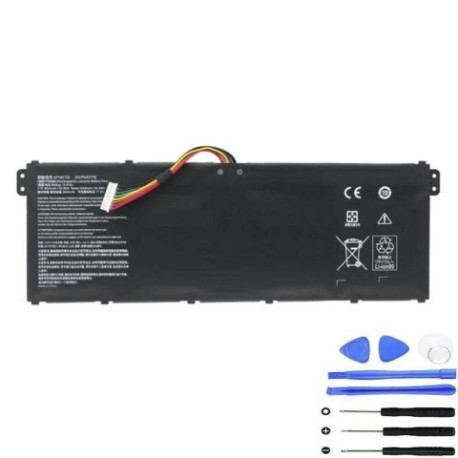
Battery models & part numbers
| Reference / P/N |
|---|
| Acer AP18C |
| Acer-AP18C7M-55.9Wh |
| Acer KT.00407.008 |
| Acer KT00407008 |
Compatible models
| Model |
|---|
| Acer Chromebook Spin 514 (CP514-1H) |
| Acer Chromebook Spin 514 (CP514-1W) |
| Acer Chromebook Spin 514 (CP514-1WH) |
| Acer ConceptD 3 (CN315-72) |
| Acer ConceptD 3 (CN316-73G) |
| Acer ConceptD 3 Ezel (CC315-72) |
| Acer ConceptD 3 Ezel Pro (CC315-72P) |
| Acer ConceptD 3 Ezel Pro (CC315-72P-79TG) |
| Acer ConceptD 3 Ezel Pro (CC315-73P) |
| Acer ConceptD 3 Pro (CN315-72P) |
| Acer RS (AP714-51GT) |
| Acer RS (AP714-51T) |
| Acer Spin (SP313-51N) |
| Acer Spin 3 (SP313-51N) |
| Acer Spin 5 (SP513-54N) |
| Acer Spin 5 (SP513-55N) |
| Acer Swift (SF14-71T) |
| Acer Swift 3 (314-511) |
| Acer Swift 3 (SF313-52) |
| Acer Swift 3 (SF313-52G) |
| Acer Swift 3 (SF313-53) |
| Acer Swift 3 (SF314-511) |
| Acer Swift 3 (SF314-59) |
| Acer Swift 3 (SF315-53G) |
| Acer Swift 3 (SF316-51) |
| Acer Swift 5 (SF514-54) |
| Acer Swift 5 (SF514-54GT) |
| Acer Swift 5 (SF514-54T) |
| Acer Swift 5 (SF514-55GT) |
| Acer Swift 5 (SF514-55T) |
| Acer Swift 5 (SF514-55TA) |
| Acer TravelMate P4 (P414-51G) |
| Acer TravelMate P4 (TMP414-51) |
| Acer TravelMate P4 (TMP414RN-51) |
| Acer TravelMate P4 (TP414RN-51) |
| Acer TravelMate P6 (P614P-52) |
| Acer TravelMate P6 (TMP614P-52) |
| Acer TravelMate P6 (TMP614RN-52) |
| Acer TravelMate Spin 4 (TMP414RNA-51) |
| Acer TravelMate Spin P4 (P414RN-51) |
Introduction
The Acer AP18C7M 55.9Wh battery is a high-quality replacement power source designed specifically for numerous Acer laptop models popular in Australia and New Zealand. With a capacity of 55.9 watt-hours, this lithium-ion battery provides reliable performance for professionals, students, and everyday users who depend on their Acer devices for work, study, and entertainment.
Battery degradation is a natural process that affects all laptops over time. In the Australian climate, where temperatures can fluctuate significantly, battery health can be particularly affected. Understanding when and how to replace your battery can extend your laptop’s lifespan and ensure you maintain productivity without unexpected shutdowns.
Common signs you need a replacement
| Symptom | Cause | Verification | Recommendation |
|---|---|---|---|
| Rapid battery drain | Reduced capacity from age/cycles | Check battery health in Windows | Consider replacement if below 60% |
| Laptop won’t power on without charger | Battery cannot hold charge | Test with known good charger | Immediate replacement needed |
| Battery swelling | Internal chemical breakdown | Visual inspection | Replace immediately for safety |
| Overheating during use | Inefficient battery operation | Monitor temperature readings | Replace to prevent damage |
| Inconsistent charge levels | Failing battery cells | Observe percentage jumps | Replace for reliable performance |
| Windows battery warnings | System detects battery issues | Check system notifications | Heed system recommendations |
How to check compatibility
Before purchasing any replacement battery, verifying compatibility is crucial. For Acer laptops in Australia and New Zealand, several methods ensure you get the correct battery for your specific model.
Finding Your Model Information: Locate the model number on your Acer device. Check the bottom casing, under the battery compartment, or on the original packaging. For Acer Chromebook Spin 514, Swift, TravelMate, and ConceptD models, the model number is typically found on a sticker near the keyboard or on the bottom panel.
Using Acer’s Official Tools: Visit Acer’s Australian support website and use their compatibility checker tool. Enter your serial number or model number to verify compatible parts. The Acer Care Centre application (pre-installed on most Acer Windows devices) can also provide detailed system information including battery specifications.
Physical Inspection: If possible, remove your current battery and note the part number printed on it. The AP18C7M battery should match dimensions of approximately 205mm x 70mm x 20mm and feature the same connector type as your original battery.
Cross-Reference with Our List: Compare your laptop model with the comprehensive compatibility list provided above. Note that some models may have multiple variants – ensure you match the exact model number including any suffixes in parentheses.
When to replace
Timing your battery replacement correctly can save you from unexpected downtime and potential data loss. Most Acer laptop batteries last between 2-4 years with regular use, though this can vary based on usage patterns and environmental conditions.
Proactive Replacement Indicators: Considerreplacing your battery when it reaches 60-70% of its original capacity, especially if you rely on your laptop for work or study. In Australia’s warmer climates, battery degradation can accelerate, making earlier replacement advisable for critical devices. If your laptop shuts down unexpectedly at 20-30% charge or the battery indicator becomes unreliable, these are clear signs that replacement is needed.
Seasonal Considerations: For Australian and New Zealand users, consider replacing before summer months when higher temperatures can further stress an aging battery. Business users should plan replacements during quieter periods to minimise disruption.
Installation guide
Replacing your Acer battery is generally straightforward, but requires care and the right tools. Always power off your laptop and disconnect the AC adapter before beginning.
Tools Required: Phillips screwdriver (usually #00 or #0), plastic spudger or guitar pick, anti-static wrist strap (recommended), clean workspace.
Step-by-Step Process:
- Turn off your laptop and disconnect all cables. Place it upside down on a soft, clean surface.
- Remove the bottom panel screws. For most Acer models compatible with the AP18C7M battery, you’ll need to remove all bottom panel screws. Some models may have specific battery compartment screws.
- Gently pry open the bottom panel using a plastic tool. Start from the corners and work your way around.
- Locate the battery connector on the motherboard. It’s typically a white or black connector with multiple wires.
- Carefully disconnect the battery cable by pulling straight up on the connector, not the wires.
- Remove the screws securing the battery to the chassis. Most Acer models use 4-6 screws.
- Lift the old battery out at an angle, being careful not to damage surrounding components.
- Place the new AP18C7M battery in position and secure with screws.
- Reconnect the battery cable to the motherboard, ensuring it clicks into place.
- Replace the bottom panel and secure all screws.
First Boot: Connect your AC adapter and power on the laptop. Your system may take slightly longer to boot as it recognises the new battery. Allow the battery to charge fully before first use.
Usage & care tips
Proper battery maintenance can significantly extend the lifespan of your new AP18C7M battery. Follow these Australia/NZ specific tips for optimal performance.
Charging Practices: Unlike older battery technologies, modern lithium-ion batteries don’t require full discharge cycles. It’s actually better to keep your battery between 20-80% charge for daily use. Avoid leaving your laptop plugged in constantly at 100% charge, as this can stress the battery over time.
Temperature Management: Australian summers can be particularly harsh on laptop batteries. Never leave your laptop in a hot car or in direct sunlight. Ideal operating temperatures are between 10°C and 35°C. If your laptop feels hot during use, consider using a cooling pad or ensuring proper ventilation.
Storage Recommendations: If storing your laptop for extended periods, charge the battery to approximately 50-60% and store in a cool, dry place. Avoid completely discharging the battery before storage.
Power Settings Optimisation: Configure your power settings for balanced performance. In Windows, use the battery saver feature when unplugged. For Acer-specific optimisations, the Acer Care Centre software includes battery health management tools.
Safety & recycling in AU/NZ
Battery safety and proper disposal are crucial for environmental protection and personal safety.
Safety Precautions: Never attempt to open or puncture a lithium-ion battery. If you notice swelling, overheating, or unusual odours from your battery, discontinue use immediately and contact a professional. Only use authorised replacement batteries from reputable suppliers.
Australian Recycling Options: In Australia, you can recycle old laptop batteries through Battery World stores, Officeworks, or your local council’s e-waste program. Many computer repair shops also accept old batteries for recycling. Never dispose of lithium-ion batteries in household rubbish.
New Zealand Recycling Services: In New Zealand, take old batteries to designated recycling centres, some Mitre 10 or Bunnings locations, or through computer retailers offering take-back programs. The Ministry for the Environment provides information on approved e-waste recyclers.
Transporting Old Batteries: When taking old batteries for recycling, tape the terminals to prevent short circuits and transport them in a separate bag from metal objects.
FAQ
How long does the AP18C7M battery typically last?
With normal use, you can expect 2-4 years of service, or approximately 500-800 full charge cycles. Heavy usage or exposure to high temperatures may reduce this lifespan.
Will replacing my battery void my Acer warranty?
In Australia and New Zealand, consumer law protects your right to have repairs done by third parties without voiding warranty for unrelated issues. However, any damage caused by improper installation would not be covered. For devices still under manufacturer warranty, consider using an authorised service centre.
How do I calibrate my new battery?
After installation, charge the battery to 100%, then use the laptop on battery power until it reaches about 10%, then recharge fully. This helps the battery management system accurately report charge levels.
Can I use my laptop while the new battery is charging?
Yes, modern laptops are designed to support usage while charging. However, for the first full charge cycle, it’s recommended to let the battery charge completely without heavy usage.
What should I do if my laptop doesn’t recognise the new battery?
Try resetting the EC (Embedded Controller) by shutting down, disconnecting the AC adapter, and holding the power button for 30 seconds. Reconnect power and restart. If issues persist, check the battery connection and ensure compatibility.
Is the AP18C7M battery compatible with both Australian and New Zealand power standards?
Yes, the battery itself is universal. You’ll use your existing Acer charger, which should have appropriate plugs for AU/NZ power outlets. The battery operates safely with both 220-240V systems used in both countries.
How can I check my battery health in Windows?
Open Command Prompt as administrator and type “powercfg /batteryreport”. This generates a detailed HTML report showing battery capacity, usage history, and health estimates.
Replacing your Acer laptop battery doesn’t have to be stressful. With the right information and a quality AP18C7M replacement battery, you can restore your laptop’s mobility and performance. Whether you’re a student in Sydney, a professional in Perth, or a remote worker in Wellington, a reliable battery ensures your Acer laptop continues to meet your computing needs.