Acer AP15H8i 54.8Wh Battery Replacement & Compatibility Guide
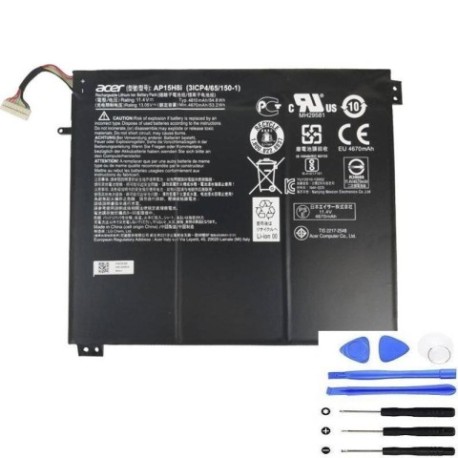
If you’re experiencing battery issues with your Acer laptop, you’ve come to the right place. This comprehensive guide covers everything Australian and New Zealand consumers need to know about the Acer AP15H8i 54.8Wh replacement battery, including compatibility, installation, and local safety standards.
Battery models & part numbers
| Reference / P/N |
|---|
| Acer-AP15H8i-54.8Wh |
| AP15H8i |
Compatible models
| Model |
|---|
| Acer Aspire One Cloudbook 11 (AO1-431) |
| Acer Aspire One Cloudbook AO1-431 |
| Acer KT0030G008 |
| Acer Swift 1 (SF114-31) |
Introduction
Laptop batteries naturally degrade over time, and if you own an Acer Aspire One Cloudbook or Swift 1 model, understanding your replacement options is crucial. The Acer AP15H8i 54.8Wh battery is specifically designed for these models, offering reliable performance and compatibility. In Australia and New Zealand, where we rely heavily on portable devices for work and study, having a properly functioning battery is essential for productivity.
Common signs you need a replacement
| Symptoms | Causes | Verification | Recommendation |
|---|---|---|---|
| Battery drains quickly (less than 1 hour) | Natural degradation after 300-500 cycles | Check battery health in Windows Power Settings | Consider replacement if capacity below 60% |
| Laptop shuts down unexpectedly | Battery can’t maintain stable voltage | Monitor shutdown patterns at specific charge levels | Immediate replacement recommended |
| Battery won’t charge past certain percentage | Cell imbalance or controller issues | Try different power adapters and outlets | Replace if issue persists across multiple chargers |
| Battery swelling or physical damage | Internal short circuits or overheating | Visual inspection for bulging or leakage | Stop using immediately and replace |
| Laptop reports “battery not detected” | Connection issues or dead battery | Restart laptop and check Device Manager | Replace if battery remains undetected |
How to check compatibility
Before purchasing any replacement battery, verifying compatibility is essential to avoid wasting time and money. For Acer laptops, there are several reliable methods to confirm your device’s requirements.
Finding your laptop model information
Start by locating your laptop’s model number. For Acer devices, you can typically find this information:
- On the bottom case of the laptop, usually on a sticker or engraved label
- In the System Information window (press Windows Key + R, type “msinfo32”, then look for System Model)
- On the original packaging or purchase documentation
- In the BIOS/UEFI settings during startup
For the specific models compatible with AP15H8i, you’re looking for: Acer Aspire One Cloudbook 11 (AO1-431), Acer Aspire One Cloudbook AO1-431, Acer KT0030G008, or Acer Swift 1 (SF114-31).
Acer-specific compatibility tools
Acer provides several resources to help identify compatible parts. Visit the official Acer support website and use their part lookup tool by entering your serial number or model. The Acer Care Centre application (pre-installed on most Acer laptops) also contains detailed system information, including battery specifications.
Physical compatibility checks
Beyond model numbers, ensure physical compatibility by checking:
- Battery dimensions: The AP15H8i measures approximately 207mm x 54mm x 20mm
- Connector type: 4-pin rectangular connector specific to Acer designs
- Voltage requirements: 7.7V output matching your laptop’s power system
When to replace your battery
Timing your battery replacement correctly can save you from unexpected downtime and potential data loss. Most lithium-ion batteries, including the AP15H8i, have a typical lifespan of 2-4 years with regular use. Consider replacement when:
- Your battery holds less than 60% of its original capacity
- You experience frequent, unexpected shutdowns
- The battery indicator becomes unreliable or inaccurate
- Your laptop usage patterns change (more mobile work required)
- You notice physical changes like swelling or overheating
For Australian and New Zealand consumers, consider seasonal factors too. Extreme summer temperatures can accelerate battery degradation, so proactive replacement before peak summer months might be wise.
Installation guide
Replacing the battery in your Acer Aspire One Cloudbook or Swift 1 is generally straightforward, but requires care and the right tools. Always power off your laptop and disconnect from power before beginning.
Tools required
- Phillips #00 screwdriver
- Plastic spudger or guitar pick
- Anti-static wrist strap (recommended)
- Clean, well-lit workspace
Step-by-step installation
- Power down and prepare: Shut down your laptop completely and disconnect the AC adapter. Remove any peripherals.
- Access the battery compartment: For most compatible models, turn the laptop over and locate the battery release latch or screws. Some models may require removing the bottom panel.
- Remove old battery: If there’s a release latch, slide it to the unlock position. Otherwise, carefully remove the screws securing the battery. Gently disconnect the battery cable from the motherboard.
- Install new battery: Connect the new AP15H8i battery to the motherboard, ensuring the connector is firmly seated. Secure the battery with screws or engage the locking mechanism.
- Initial charge: Before first use, connect your AC adapter and charge the battery completely without interruption.
- Calibration: After full charge, use the laptop on battery power until it reaches about 10%, then recharge fully. This helps calibrate the battery indicator.
Troubleshooting common installation issues
If your laptop doesn’t recognise the new battery, try these steps:
- Reset the EC (Embedded Controller) by holding the power button for 30 seconds with the battery and AC adapter disconnected
- Update your BIOS/UEFI to the latest version from Acer’s support site
- Check Device Manager for any unrecognised devices or driver issues
Usage & care tips
Proper battery maintenance can significantly extend the life of your new AP15H8i battery. Follow these best practices developed specifically for Australian and New Zealand conditions:
Charging practices
- Avoid frequent full discharges – lithium-ion batteries prefer partial discharges between 20-80%
- Don’t leave your laptop plugged in constantly at 100% charge for extended periods
- If storing the laptop unused for more than a month, charge to about 50% and power off
Temperature management
Australian summers can be particularly harsh on electronics. Never leave your laptop in a hot car or in direct sunlight. Ideal operating temperatures are between 10°C and 35°C. During heatwaves, consider using a laptop cooling pad.
Power settings optimisation
Configure your power plan for battery longevity. In Windows Power Options, create a custom plan that reduces screen brightness, turns off displays sooner, and puts the computer to sleep after reasonable inactivity periods.
Safety & recycling in AU/NZ
Battery safety and proper disposal are particularly important in our region due to environmental considerations and fire safety regulations.
Safety precautions
- Only use authorised Acer power adapters with your replacement battery
- Never attempt to open or modify the battery casing
- Avoid exposing batteries to temperatures above 60°C
- If you notice swelling, overheating, or strange odours, stop using immediately
Australian recycling programs
In Australia, most council waste centres accept laptop batteries for recycling. Many electronics retailers also participate in the National Television and Computer Recycling Scheme. Look for drop-off points at Officeworks, JB Hi-Fi, or Harvey Norman locations.
New Zealand recycling options
In New Zealand, check with your local council for e-waste collection days. Retailers like Noel Leeming and PB Tech often have battery recycling bins. The RCN e-Cycle programme provides nationwide recycling services for electronic waste.
Transporting batteries
When shipping or travelling with spare batteries, ensure they’re properly packaged to prevent short circuits. Carry batteries in your carry-on luggage when flying, as most airlines restrict lithium batteries in checked baggage.
FAQ
How long does the AP15H8i battery typically last?
The AP15H8i 54.8Wh battery typically provides 6-8 hours of normal usage for compatible Acer models. Actual runtime depends on your specific usage patterns, screen brightness, and running applications. With proper care, the battery should maintain good performance for 2-3 years before significant degradation occurs.
Can I use a higher capacity battery with my Acer laptop?
No, it’s not recommended to use batteries with different specifications than originally designed. The AP15laptop’s power management system is calibrated for the 54.8Wh capacity, and physical dimensions may differ. Using non-standard batteries can cause compatibility issues and potential safety hazards.
Is it safe to replace the battery myself?
Yes, for the compatible Acer models listed, battery replacement is designed to be user-serviceable. However, if you’re uncomfortable with the process or your laptop requires disassembly beyond simple battery compartment access, consider seeking professional assistance from an authorised Acer service centre.
Why does my new battery not charge to 100% immediately?
This is normal behaviour for new lithium-ion batteries. The battery management system needs several charge cycles to calibrate properly. Use your battery normally through several discharge/charge cycles (from around 20% to full), and the reporting should become accurate within a week of regular use.
What warranty comes with the AP15H8i replacement battery?
Replacement batteries typically come with a 12-month warranty, though this varies by supplier. Always check the specific warranty terms before purchase and retain your proof of purchase. The warranty usually covers manufacturing defects but not normal capacity degradation over time.
Can I use my laptop while plugged in all the time?
While modern laptops have charging circuits that prevent overcharging, continuous operation at 100% charge can slightly accelerate long-term battery degradation. For extended stationary use, consider using Acer’s Battery Health Charging feature (if available in your model) which limits maximum charge to 80% to prolong battery lifespan.
How do I dispose of my old battery in Australia/New Zealand?
Never dispose of laptop batteries with regular household waste. In Australia, use the B-cycle program drop-off locations. In New Zealand, take them to approved e-waste recycling centres. Many electronics retailers offer free battery recycling services – check with stores like Officeworks (AU) or Noel Leeming (NZ).
What should I do if my replacement battery doesn’t work?
First, ensure all connections are secure and try resetting the EC (Embedded Controller) as described in the installation guide. If problems persist, contact your supplier for warranty support. Keep your original packaging and proof of purchase, as most reputable suppliers will honour replacements for defective units.
Restoring your Acer laptop’s mobility with a genuine AP15H8i replacement battery means you can work, study, and create without being tethered to a power point. With proper installation and care, your replacement battery will provide reliable performance that keeps pace with your Australian or New Zealand lifestyle.