Acer AL10F31 49Wh Laptop Battery Replacement Guide
If you’re experiencing shorter battery life or charging issues with your Acer laptop, this comprehensive guide covers everything Australian and New Zealand consumers need to know about the AL10F31 49Wh replacement battery.
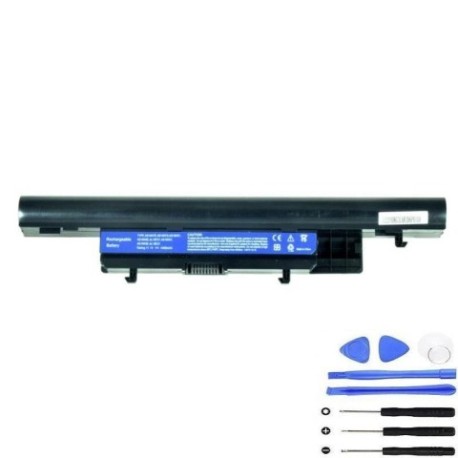
Battery models & part numbers
| Reference / P/N |
|---|
| Acer-AL10F31-49Wh |
| Acer AL10E31 |
| Acer AL12A31 |
| Acer AL12B72 |
| Acer AL12X32 |
| Acer AS10H31 |
| Acer AS10H3E |
| Acer AS10H51 |
| Acer AS10H7E |
| Acer BT00603120 |
| Acer BT00903012 |
| Acer KT.00403.011 |
| Acer KT.00407.002 |
Compatible models
| Model |
|---|
| Acer Aspire One 725 |
| Acer Aspire One 756 |
| Acer Aspire One AO756 |
| Acer Aspire V5-121 |
| Acer Aspire V5-121P |
| Acer Aspire V5-123 |
| Acer Aspire V5-131 |
| Acer Aspire V5-171 |
| Acer Chromebook AC710 |
| Acer Chromebook C710 Chromebook |
| Acer Gateway EC39Cs |
| Acer Gateway EC49Cs |
| Acer TravelMate B113-E |
| Acer TravelMate B113-M |
| Packard Bell EasyNote BFS |
| Packard Bell EasyNote BFS2 |
Introduction
The Acer AL10F31 49Wh battery is a high-quality replacement solution for numerous Acer laptop models popular in Australia and New Zealand. This lithium-ion battery delivers reliable performance and extended runtime for your computing needs. Whether you’re a student, professional, or home user, maintaining optimal battery health is crucial for productivity and mobility.
Common signs you need a replacement
| Symptom | Cause | Verification | Recommendation |
|---|---|---|---|
| Battery drains quickly (under 1 hour) | Ageing cells, reduced capacity | Check battery health in system settings | Replace if capacity below 60% |
| Laptop shuts down unexpectedly | Voltage drops under load | Monitor battery percentage during use | Immediate replacement needed |
| Battery won’t charge fully | Charging circuit failure | Check charging indicator and percentage | Replace battery and check charger |
| Battery swelling or overheating | Internal damage, safety hazard | Visual inspection, temperature check | Stop using immediately and replace |
| Inconsistent battery percentage | Faulty battery management system | Compare reported vs actual runtime | Calibrate first, then replace if persistent |
How to check compatibility
Finding your exact laptop model is the first step to ensuring compatibility. For Acer devices, check the bottom casing for a white or silver label containing the model number. On Aspire and TravelMate series, this is typically near the battery compartment. For Chromebook models, the information may be inside the battery bay or under the service cover.
Use Acer’s official support website by entering your serial number to verify exact battery specifications. Many Australian retailers and service centres can also cross-reference your model with compatible batteries. The AL10F31 battery is specifically designed for the listed models and provides optimal performance when matched correctly.
When to replace
Most laptop batteries last 2-4 years with regular use. Consider replacement when your battery holds less than 60% of its original capacity, requires frequent charging, or shows physical damage. In Australia’s climate, extreme temperatures can accelerate battery degradation, so monitor performance during summer months.
Installation guide
Replacing your Acer battery is straightforward with proper preparation. First, power down your laptop and disconnect the AC adapter. Place the laptop on a clean, static-free surface. For most compatible models, locate the battery release latch – typically found on the bottom casing. Slide the latch to unlock and carefully remove the old battery.
Align the new AL10F31 battery with the connector, ensuring proper orientation. The connectors are keyed to prevent incorrect installation. Gently press until you hear a click indicating secure connection. Power on your laptop and allow the system to recognise the new battery. Initial charging may take several hours to calibrate the battery management system.
Usage & care tips
To maximise your new battery’s lifespan, avoid frequent full discharges. Lithium-ion batteries perform best with partial discharges between 20-80%. Store your laptop in cool, dry conditions away from direct sunlight. Australian summers can be particularly harsh on batteries, so never leave your laptop in a hot car.
Calibrate your battery monthly by allowing it to discharge to about 10% then charging fully. Use only Acer-authorised chargers and avoid third-party alternatives that may damage the battery. For optimal performance, keep your laptop’s BIOS and power management drivers updated.
Safety & recycling in AU/NZ
Battery safety is paramount. Never attempt to open or modify the battery casing. If you notice swelling, overheating, or unusual odours, discontinue use immediately and contact professional disposal services. In Australia, most council waste centres accept laptop batteries for recycling. Many electronics retailers also provide battery recycling services.
In New Zealand, the Product Stewardship Scheme ensures proper disposal of electronic waste. Never dispose of lithium-ion batteries in household rubbish due to fire risk. Both countries have strict regulations governing battery disposal to protect the environment.
FAQ
How long does the AL10F31 battery typically last?
The AL10F31 49Wh battery provides 3-5 hours of typical usage depending on your laptop model and power settings. With power-saving modes enabled, some users report up to 6 hours of light usage.
Will this battery work with my Acer laptop if it’s not listed?
We strongly recommend using only the compatible models listed. Using an incompatible battery can damage your laptop and void warranties. Always verify compatibility before purchase.
How do I know if my battery is genuine?
Genuine Acer batteries feature proper branding, serial numbers, and safety certifications. Purchase from authorised retailers and check for Australian compliance marks. Counterfeit batteries may lack proper safety features.
Can I use my laptop while charging the new battery?
Yes, modern laptops are designed to support simultaneous charging and usage. However, for the first charge cycle, we recommend charging without heavy usage to ensure proper calibration.
What warranty comes with this battery?
Most reputable suppliers offer 12-month warranties on laptop batteries. Check with your retailer for specific warranty terms and Australian consumer law protections.
How should I store my laptop if not using it for extended periods?
Store with battery charged to 50-60% in a cool, dry location. Avoid full charge or complete discharge during storage. Check and recharge every 3 months if storing long-term.
Why does my new battery not show 100% capacity immediately?
This is normal during the initial calibration period. The battery management system needs several charge cycles to accurately report capacity. Allow 3-5 full cycles for optimal performance reporting.