Acer AL10B31 49Wh Laptop Battery Replacement Guide
Is your Acer or Packard Bell laptop struggling to hold a charge? Our comprehensive guide helps Australian and New Zealand users identify compatible replacement batteries, recognise replacement signs, and install with confidence.
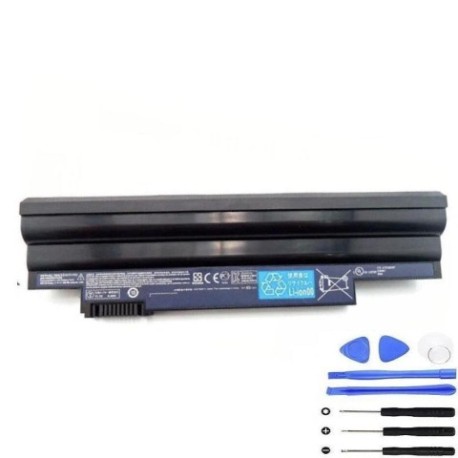
Battery models & part numbers
| Reference / P/N |
|---|
| Acer AL10A31 |
| Acer AL10B31 |
| Acer AL10G31 |
| Acer BT.00303.022 |
| Acer BT.00603.114 |
| Acer BT.00603.121 |
| Acer-AL10B31-49Wh |
Compatible models
| Model |
|---|
| Acer AC700 Chromia |
| Acer AC700-1090 Chromia |
| Acer AC700-1099 Chromia |
| Acer AC700-1529 Chromia |
| Acer AK.003BT.071 |
| Acer AK.006BT.074 |
| Acer Aspire One 522 |
| Acer Aspire One 722 |
| Acer Aspire One D255 |
| Acer Aspire One D255E |
| Acer Aspire One D257 |
| Acer Aspire One D260 |
| Acer Aspire One D270 |
| Acer Aspire One D271 |
| Acer Aspire One E100 |
| Acer Aspire One Happy |
| Acer Aspire One Happy N550 |
| Acer Aspire One Happy2 |
| Acer C700 Chromia |
| Packard Bell dot.S E2 |
| Packard Bell dot.S E3 |
| Packard Bell dot.SC |
| Packard Bell dot.SC-60GE |
| Packard Bell dot.SE |
| Packard Bell dot.SE/P-016GE |
| Packard Bell dot.SE/PB-052GE |
| Packard Bell dot.SE/W-036GE |
| Packard Bell dot.SE-/W-150GE |
| Packard Bell dot.SE-024GE |
| Packard Bell dot.SE-027GE |
| Packard Bell dot.SE-028 |
| Packard Bell dot.SPT |
| Packard Bell DOT-C/060GE |
| Packard Bell OL 532 R2 |
Introduction
The Acer AL10B31 49Wh battery serves as a crucial power source for numerous Acer and Packard Bell netbooks and Chromebooks popular across Australia and New Zealand. These compact laptops were designed for mobility, making battery health essential for their intended use. As lithium-ion batteries age, they naturally degrade, leading to reduced runtime and performance issues that can disrupt your work or study routine.
Common signs you need a replacement
| Symptom | Cause | Verification | Recommendation |
|---|---|---|---|
| Battery drains in under 1 hour | Cell degradation from age/cycles | Check power settings, run battery report | Immediate replacement needed |
| Laptop won’t power on without charger | Battery no longer holds charge | Remove charger, attempt startup | Urgent replacement required |
| Battery percentage jumps erratically | Faulty battery management system | Monitor percentage changes during use | Replace to prevent sudden shutdowns |
| Battery swelling or bulging | Internal gas buildup, safety hazard | Visual inspection, check case fit | Stop use immediately, replace |
| Overheating during charging | Internal resistance increase | Feel battery temperature | Replace to avoid damage |
| Charger light blinking abnormally | Battery communication error | Try different charger first | Battery replacement likely needed |
How to check compatibility
Finding your exact laptop model is the first step to ensuring battery compatibility. For Acer devices, check the bottom casing for a white or silver sticker containing the model number. On Aspire One models, this is typically located near the battery compartment. Packard Bell laptops usually have identification stickers on the bottom panel or under the battery. You can also find model information in system settings: on Windows, type “System Information” in the search bar; on Chrome OS, check “About Chrome OS” in settings. Cross-reference your model with our compatibility tables above. If uncertain, contact Acer’s Australian support centre or use their online compatibility checker with your serial number.
When to replace
Most lithium-ion batteries last 2-3 years with regular use. Consider replacement when your battery capacity drops below 60% of original, when you experience sudden shutdowns at 20-30% charge, or if the battery shows physical damage. For students and mobile professionals in AU/NZ, replacing before the busy study or work period ensures uninterrupted productivity.
Installation guide
Replacing your Acer battery is straightforward with proper preparation. First, power off the laptop and disconnect the charger. Flip the device over and locate the battery release latch – most Acer Aspire One models have a sliding lock mechanism. Slide the latch to unlock position and gently lift the battery out. Align the new battery’s connectors with the laptop’s port, ensuring proper orientation. Press firmly until it clicks into place. Power on the device – the first boot may take longer as the system recognises the new battery. Allow a full charge cycle before regular use for optimal calibration.
Usage & care tips
Maximise your new battery’s lifespan with proper care. Avoid frequent full discharges – lithium-ion batteries prefer partial discharges between 20-80%. Don’t leave your laptop plugged in constantly after full charge. Store in cool conditions (15-25°C ideal) and avoid extreme temperatures. For occasional long-term storage, charge to 50-60% and power off completely. Calibrate monthly by allowing a full discharge followed by uninterrupted charge.
Safety & recycling in AU/NZ
Battery safety is paramount. Never attempt to open or modify batteries. If swelling occurs, stop use immediately and recycle properly. In Australia, use Batteryback or council e-waste services. New Zealand residents can utilise eDay events or authorised recycling centres. Both countries prohibit lithium battery disposal in household bins due to fire risk. Many retailers offer take-back programs for old batteries.
FAQ
How long does shipping take to regional AU/NZ areas?
Most suppliers deliver within 3-7 business days to metropolitan areas and 7-14 days to regional locations. Express options are often available for urgent needs.
Will this battery work with my Packard Bell dot.SE model?
Yes, the AL10B31 is compatible with all Packard Bell dot.SE variants listed in our compatibility table, including dot.SE/P-016GE and dot.SE-027GE models.
Do I need to update drivers after battery replacement?
Generally no driver updates are needed. The system should automatically recognise the new battery. If issues arise, check for BIOS updates from Acer’s support site.
What warranty comes with replacement batteries?
Quality replacements typically include 12-24 month warranties. Always purchase from authorisedwarranty providers for Australian consumer law protection.
Can I use a higher capacity battery than original?
No, only use the specified 49Wh capacity. Higher capacity batteries may not fit physically and could cause compatibility issues or damage.
How do I properly dispose of my old battery in New Zealand?
In NZ, take old batteries to accredited e-waste recyclers or retailers participating in the e-waste recycling scheme. Many council transfer stations also accept them.
My laptop shows ‘battery not detected’ after installation – what should I do?
Ensure the battery is firmly seated and connectors are clean. Try resetting by removing battery, holding power button for 30 seconds, then reinstalling. If persistent, check for BIOS updates.