Acer Aspire9920 71Wh Battery Replacement: Complete Guide for Australian & New Zealand Users
If you’re experiencing battery issues with your Acer laptop, you’ve come to the right place. This comprehensive guide covers everything Australian and New Zealand users need to know about replacing their Acer Aspire9920 71Wh battery, including compatible models, part numbers, installation tips, and local recycling information.
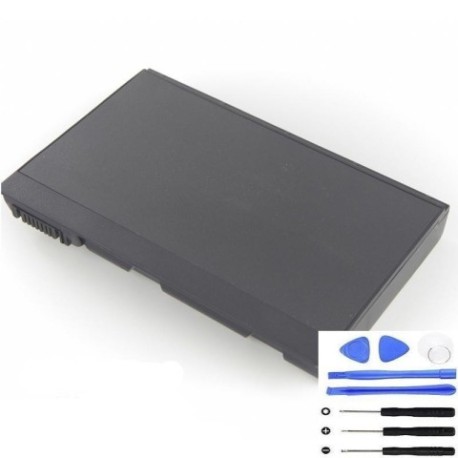
Battery models & part numbers
| Reference / P/N |
|---|
| 4UR18650F-2-CPL-25 |
| 4UR18650F-2-CPL-25A |
| Acer-Aspire9920-71Wh |
| BATBL50L8H1 |
| BATBL50L8L |
| BT.00403.014 |
| BT.00803.015 |
| BT.00803.019 |
| BT.00803.023 |
| BT.00804.012 |
| BT.00804.016 |
Compatible models
| Model |
|---|
| Acer Aspire 9920 |
| Acer Aspire 9920G |
| Acer TravelMate 2492 |
| Acer TravelMate 2493 |
| Acer TravelMate 2494 |
| Acer TravelMate 4230 |
| Acer TravelMate 4260 |
| Acer TravelMate 4280 |
| Acer TravelMate 4282 |
| Acer TravelMate 4283 |
| Acer TravelMate 5510 |
| Acer TravelMate 5512AWLMi |
| Acer TravelMate 5514WLMi |
| Acer TravelMate 5515WLMi |
Introduction
Welcome to your complete guide for Acer Aspire9920 71Wh battery replacement in Australia and New Zealand. As your laptop ages, battery performance naturally declines, but knowing when and how to replace it can save you frustration and extend your device’s life. This guide is specifically tailored for AU/NZ consumers, covering local considerations, authorised suppliers, and proper disposal methods.
Common signs you need a replacement
| Symptom | Cause | Verification | Recommendation |
|---|---|---|---|
| Rapid power drain | Battery capacity degradation | Check battery health in Windows Power Settings | Consider replacement if capacity below 60% |
| Laptop won’t hold charge | Failed battery cells | Battery drains even when powered off | Immediate replacement recommended |
| Swollen battery case | Gas buildup from chemical reactions | Visual inspection of battery compartment | Stop using immediately and replace |
| Overheating during charging | Internal resistance increase | Monitor temperature during charging cycle | Replace to prevent damage to laptop |
| Inconsistent charging | Battery management system failure | Charging stops/starts randomly | Replace battery and check charger |
How to check compatibility
Before purchasing any replacement battery for your Acer laptop, proper compatibility checking is essential. For Australian and New Zealand users, start by locating your laptop’s model number, typically found on the bottom casing or under the battery compartment. Acer models like the TravelMate series often have specific battery requirements that must match exactly.
Use Acer’s official support website by entering your serial number or model to verify compatible part numbers. Many authorised Australian retailers also offer compatibility checking tools on their websites. Remember that while physical size might appear similar, electrical specifications and connector types must match precisely to avoid damage to your laptop’s charging circuit.
For the Acer Aspire9920 71Wh battery specifically, ensure the replacement matches the voltage (typically 11.1V), capacity (71Wh), and connector configuration. Cross-reference with the part numbers listed above to guarantee compatibility with your specific Acer model.
When to replace
Timing your battery replacement correctly can save you money and prevent unexpected downtime. Most lithium-ion batteries, including those in Acer laptops, have a lifespan of 2-3 years or 300-500 charge cycles. However, Australian climate conditions, particularly in warmer regions, can accelerate battery degradation.
Consider replacement when your battery capacity drops below 70% of its original specification, when you notice significant swelling, or if the battery no longer holds sufficient charge for your daily needs. For business users in New Zealand relying on TravelMate models, proactive replacement before critical meetings or travel is wise.
Monitor your battery’s health through Windows Battery Report (powercfg /batteryreport) or third-party applications that provide detailed capacity metrics. Regular testing every 6 months can help you plan replacements before emergency situations arise.
Installation guide
Installing your new Acer Aspire9920 71Wh battery requires careful attention to safety and proper procedure. Begin by completely shutting down your laptop and disconnecting all power sources. Use the appropriate screwdriver to remove the battery compartment cover – typically Phillips #00 for Acer models.
Carefully disconnect the old battery by gently pulling the connector straight out, avoiding any side-to-side movement that could damage the port. Align the new battery precisely, ensuring the connector seats fully without forcing. Replace any securing screws and test the installation before reassembling completely.
Many Acer TravelMate and Aspire models from this compatibility list feature tool-less battery replacement designs, making the process straightforward for Australian consumers. However, if you encounter resistance or uncertainty, consider seeking professional assistance from authorised Acer service centres in major cities like Sydney, Melbourne, or Auckland.
Usage & care tips
Maximising your new battery’s lifespan requires proper usage habits. Avoid frequent full discharges – lithium-ion batteries prefer partial discharges between 20-80% capacity. In Australia’s warmer climates, never leave your laptop in direct sunlight or hot vehicles, as temperatures above 45°C can permanently damage battery cells.
For New Zealand users, particularly in cooler southern regions, allow laptops to reach room temperature before charging if they’ve been in cold environments. Use only Acer-approved chargers and avoid third-party alternatives that may not provide stable voltage regulation.
Calibrate your new battery by performing a full charge-discharge cycle monthly. Store laptops with 40-60% charge if not used for extended periods. These practices will help maintain optimal performance throughout your battery’s service life.
Safety & recycling in AU/NZ
Battery safety and proper disposal are particularly important in Australia and New Zealand. Never attempt to open or modify lithium-ion batteries, as they contain hazardous materials and can pose fire risks if damaged. If you notice any swelling, overheating, or unusual odours, discontinue use immediately and contact professional disposal services.
In Australia, most electronics retailers including Officeworks, JB Hi-Fi, and Harvey Norman accept used batteries for recycling through the B-cycle program. Many local councils also provide battery recycling drop-off points. In New Zealand, the Reclaim programme manages battery recycling through participating retailers and transfer stations.
Never dispose of laptop batteries in household waste. Proper recycling helps recover valuable materials and prevents environmental contamination. Many authorised battery suppliers in both countries offer take-back programs when you purchase replacements.
FAQ
How long does the Acer Aspire9920 71Wh battery typically last?
Under normal usage conditions in AU/NZ climates, expect 2-3 years or 300-500 charge cycles before significant capacity loss. Heavy usage or exposure to extreme temperatures may shorten this lifespan.
Can I use a higher capacity battery with my compatible Acer model?
No, using batteries with different specifications than originally designed can damage your laptop’s charging circuit and void warranties. Always match the original specifications precisely.
Where can I find authorised Acer battery suppliers in Australia?
Authorised suppliers include Acer’s official online store, major electronics retailers, and certified computer parts specialists. Always verify authenticity through Acer’s authorised dealer network.
How do I properly dispose of my old Acer battery in New Zealand?
Use the Reclaim programme drop-off locations at participating retailers or contact your local council for designated battery recycling facilities. Never place in general waste.
Will replacing my battery void my Acer warranty?
Using genuine Acer batteries installed by authorised service centres will not void warranty. However, third-party batteries or improper installation may affect remaining warranty coverage.
What should I do if my new battery isn’t recognised by my laptop?
First, ensure proper installation and connector seating. If issues persist, try resetting the EC (Embedded Controller) by disconnecting all power sources and holding the power button for 30 seconds. Contact support if problems continue.
How can I maximise battery life in Australia’s hot climate?
Avoid direct sunlight exposure, use power-saving modes during high temperatures, and consider using cooling pads. Store devices in climate-controlled environments when possible.