ASUS A42-U53 63Wh Laptop Battery Replacement Guide
If your ASUS laptop is struggling to hold a charge or won’t power on without being plugged in, you’ve come to the right place. This comprehensive guide covers everything Australian and New Zealand consumers need to know about replacing their ASUS laptop battery with the genuine A42-U53 63Wh model.
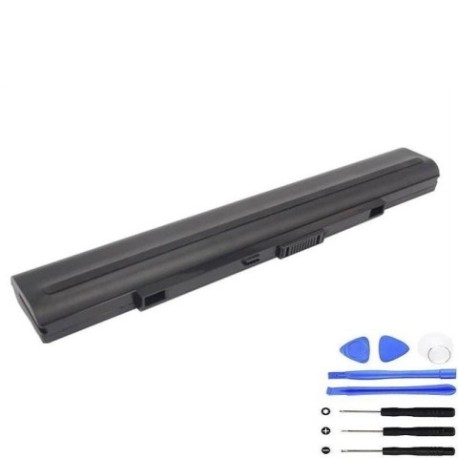
Battery models & part numbers
| Reference / P/N |
|---|
| Asus-A42-U53-63Wh |
Compatible models
| Model |
|---|
| Asus 07G016EY1875 |
| Asus 07G016G41875 |
| Asus 07G016GT1875 |
| Asus 70-N031B2000Z |
| Asus 70-NZ51B2000Z |
| Asus 90-NZ51B2000Y |
| Asus A31-U53 |
| Asus A32-U53 |
| Asus A41-U53 |
| Asus A42-U53 |
| Asus U33 |
| Asus U33J |
| Asus U33JC |
| Asus U33JT |
| Asus U43 |
| Asus U43F |
| Asus U43J |
| Asus U43JC |
| Asus U53 |
| Asus U53F |
| Asus U53J |
| Asus U53JC |
| Asus U53SD |
Introduction
ASUS U and A series laptops have been popular choices for Australian and New Zealand consumers seeking reliable performance for work and study. The A42-U53 63Wh battery serves as the power source for multiple ASUS models across different series, providing up to 6-8 hours of typical usage when new. As these laptops age, battery degradation is inevitable, but replacing with a genuine compatible battery can restore your device’s mobility and reliability.
Common signs you need a replacement
| Symptom | Cause | Verification | Recommendation |
|---|---|---|---|
| Battery drains quickly (under 1 hour) | Cell degradation from age/cycles | Check battery health in Windows | Replace if capacity below 60% |
| Laptop won’t power on without charger | Complete battery failure | Remove charger – device shuts off | Immediate replacement needed |
| Battery percentage jumps erratically | Faulty battery management system | Monitor percentage changes | Replace to prevent damage |
| Battery swelling or bulging | Gas buildup from cell failure | Visual inspection of battery compartment | Replace immediately – safety hazard |
| Overheating during charging | Internal short circuits | Feel battery temperature | Replace to prevent fire risk |
How to check compatibility
Finding your exact ASUS model number is crucial for battery compatibility. For ASUS U and A series laptops, you can locate your model information in several ways. The most reliable method is checking the label on the bottom of your laptop – look for text that begins with “ASUS” followed by the model number. You can also find it in Windows by pressing Windows Key + R, typing “msinfo32” and looking under System Model. Alternatively, check your original purchase documentation or the ASUS support website using your serial number.
ASUS uses specific naming conventions where U series typically indicates ultrabook models while A series represents standard laptops. The numbers following (U33, U43, U53, A31, A32, etc.) indicate different generations and configurations. All models listed in our compatibility table share the same physical battery compartment and electrical specifications, ensuring the A42-U53 63Wh battery will fit and function correctly.
When to replace
Most ASUS laptop batteries last 2-4 years with regular use before significant degradation occurs. The optimal replacement time is when your battery capacity drops below 70% of its original specification. You can check this in Windows by generating a battery report: open Command Prompt as administrator and type “powercfg /batteryreport”. Look for “DESIGN CAPACITY” versus “FULL CHARGE CAPACITY” – if the full charge capacity is significantly lower, replacement is recommended.
For Australian and New Zealand consumers, consider replacing before the battery becomes completely unusable. A failing battery can cause unexpected shutdowns during important work or study sessions. If you rely on your laptop for mobility, proactive replacement ensures you’re never caught without power when you need it most.
Installation guide
Replacing the battery in your ASUS U or A series laptop is straightforward with proper preparation. First, ensure you have the correct replacement battery (A42-U53 63Wh), a small Phillips screwdriver, and an anti-static wrist strap if available. Begin by shutting down your laptop completely and disconnecting the AC adapter. Turn the laptop over and locate the battery compartment – for most compatible models, you’ll find it on the bottom panel.
Remove the screws securing the battery compartment cover – typically 4-6 screws depending on your specific model. Carefully lift the cover and locate the battery connector. Gently disconnect the battery cable from the motherboard by pulling the connector straight out – never pull by the wires. Remove any screws securing the battery itself, then lift the old battery out. Place the new A42-U53 63Wh battery in position, secure with screws, reconnect the battery cable, replace the compartment cover, and screw it back in place.
After installation, connect your AC adapter and power on the laptop. The system should recognise the new battery automatically. For optimal performance, charge the battery to 100% before first use and consider calibrating it by charging to full, then discharging completely, and charging back to full again.
Usage & care tips
Proper battery maintenance extends the life of your new A42-U53 63Wh battery. Avoid extreme temperatures – ideal operating range is 10°C to 35°C. Don’t leave your laptop in hot cars or direct sunlight, especially here in Australia and New Zealand where summer temperatures can be extreme. For long-term storage, charge the battery to about 50% and store in a cool, dry place.
Modern lithium-ion batteries don’t require full discharge cycles. In fact, frequent deep discharges can shorten battery life. Instead, try to keep your battery between 20% and 80% charge for daily use. If you primarily use your laptop plugged in, consider setting a charge limit in ASUS Battery Health Charging software (if available for your model) to preserve battery health.
Safety & recycling in AU/NZ
Battery safety is paramount. Never attempt to open, puncture, or modify your laptop battery. If you notice swelling, leaking, or unusual heating, stop using the battery immediately and dispose of it properly. In Australia, take old batteries to authorised collection points at electronics retailers, council waste facilities, or battery recycling programs. In New Zealand, similar programs exist through retailers and council transfer stations.
Both countries have strict regulations about lithium-ion battery disposal. Never place laptop batteries in household rubbish bins as they can cause fires in waste facilities. Many retailers offering battery replacements also provide take-back services for old batteries. Proper recycling helps recover valuable materials and prevents environmental contamination.
FAQ
How long does the A42-U53 63Wh battery typically last?
With normal use, expect 2-4 years or 300-500 full charge cycles before capacity drops to 80% of original. Heavy users may see shorter lifespan.
Will this battery work with my ASUS laptop if it’s not exactly the same model?
Yes, as long as your laptop model appears in our compatibility table. The A42-U53 63Wh is designed as a direct replacement for all listed models.
How do I know if my replacement battery is genuine?
Genuine ASUS A42-U53 batteries will have proper branding, correct specifications (63Wh, 10.8V), and come from authorised suppliers. Be wary of significantly cheaper batteries that may lack safety certifications.
Can I replace the battery myself or should I seek professional help?
Most ASUS U and A series laptops are designed for user-replaceable batteries. If you’re comfortable with basic tools and following instructions, DIY replacement is straightforward. If unsure, any computer repair shop in AU/NZ can perform the replacement quickly.
How long does shipping take to Australia and New Zealand?
Most suppliers offer express shipping to major AU/NZ cities, typically 3-7 business days. Regional areas may take slightly longer. Check with your supplier for specific delivery timelines.
What warranty comes with the replacement battery?
Genuine replacement batteries typically include 12-month warranties covering manufacturing defects. Always retain your purchase receipt and check the specific warranty terms before buying.
My laptop still won’t hold charge after replacement – what’s wrong?
If a new battery doesn’t solve power issues, the problem might be with your charging circuit, AC adapter, or motherboard. Consult a qualified technician for diagnosis.
Is it safe to use my laptop while plugged in all the time?
Modern laptops have charging circuits that prevent overcharging, but for optimal battery health, occasional discharge cycles are recommended. Use battery conservation modes if available in your ASUS power settings.