ASUS C21N1521 38Wh Laptop Battery Replacement Guide
If your ASUS laptop is struggling to hold a charge or won’t power on without being plugged in, you’ve come to the right place. Our comprehensive guide covers everything Australian and New Zealand users need to know about replacing their ASUS laptop battery with the genuine C21N1521 38Wh model.
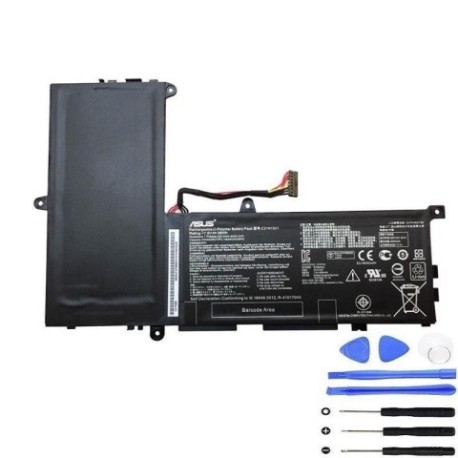
Battery models & part numbers
| Reference / P/N |
|---|
| 0B200-01870000 |
| 0B200-01870100 |
| Asus-C21N1521-38Wh |
| C21Pp95 |
Compatible models
| Model |
|---|
| Asus E200HA |
| Asus E200HA-1A |
| Asus E200HA-1B |
| Asus E200HA-1E |
| Asus E200HA-1G |
| Asus E200HA-8350W |
| Asus EeeBook E200HA |
| Asus EeeBook X206HA |
| Asus L200HA |
| Asus R209HA |
| Asus VivoBook E200HA |
| Asus VivoBook E200HA-1A |
| Asus VivoBook E200HA-1B |
| Asus VivoBook E200HA-1E |
| Asus VivoBook E200HA-1G |
| Asus VivoBook E200HA-US01-BL |
| Asus VivoBook E200HA-US01-GD |
| Asus VivoBook L200HA-BB01 |
| Asus VivoBook L200HA-BB01-BL |
| Asus VivoBook L200HA-BB01-WH |
| Asus VivoBook L200HA-EDU3 |
| Asus X206HA |
Introduction
The ASUS C21N1521 38Wh battery is specifically designed for ASUS’s popular E200HA, VivoBook, and X206HA series laptops. These compact, lightweight laptops are favoured by students, professionals, and casual users across Australia and New Zealand for their portability and reliability. However, like all lithium-ion batteries, they gradually lose capacity over time and through regular charging cycles.
When your battery starts failing, it can be incredibly frustrating – especially when you’re trying to work on the go or during power outages. The good news is that replacing your ASUS battery is straightforward and can breathe new life into your trusted laptop, saving you hundreds of dollars compared to buying a new machine.
Common signs you need a replacement
| Symptom | Cause | Verification | Recommendation |
|---|---|---|---|
| Battery drains quickly (less than 1 hour) | Reduced capacity from age/cycles | Check battery health in Windows | Replace if capacity below 50% |
| Laptop won’t power on without charger | Battery cannot hold any charge | Remove charger – immediate shutdown | Urgent replacement needed |
| Battery percentage jumps erratically | Faulty battery management system | Monitor percentage changes | Replace to prevent damage |
| Battery swelling or bulging | Gas buildup from degradation | Visual inspection of battery compartment | Immediate replacement for safety |
| Overheating during charging/use | Internal resistance increase | Check temperature with software | Replace to prevent fire risk |
| Charger light blinking abnormally | Battery communication error | Observe charger LED patterns | Replace battery and test |
How to check compatibility
Before purchasing any replacement battery, it’s crucial to verify compatibility with your specific ASUS model. Here’s how to do it properly:
Finding your model information: The easiest way is to check the label on the bottom of your laptop. For ASUS E200HA, VivoBook, and X206HA series, you’ll typically find the exact model number printed near the serial number and regulatory information. If the label is worn or missing, you can also find this information in Windows by pressing Windows Key + R, typing “msinfo32”, and looking for “System Model” in the System Information window.
Using official ASUS tools: ASUS provides excellent support resources on their Australian and New Zealand websites. You can enter your serial number or model number on the ASUS support page to access detailed specifications and compatible accessories. The official ASUS support app (available through the Microsoft Store) can also automatically detect your model and show compatible parts.
Physical compatibility check: The C21N1521 battery has specific dimensions and connector type that match the E200HA, VivoBook E200HA/L200HA, and X206HA series. If you’re unsure, compare the shape and connector of your current battery with images of the C21N1521. The connector should have the same pin configuration and orientation.
Cross-referencing part numbers: Many ASUS laptops use multiple part numbers for the same physical battery. If your current battery shows 0B200-01870000, 0B200-01870100, or C21Pp95, these are all compatible with the C21N1521 replacement.
When to replace
Timing your battery replacement correctly can save you from unexpected downtime and potential data loss. Here are the key indicators that it’s time to replace your ASUS battery:
Performance-based replacement: When your battery capacity drops below 60% of its original specification, you’ll notice significant reduction in usable time. For the 38Wh battery in these ASUS models, this typically means getting less than 2 hours of light use. You can check this in Windows by generating a battery report (open Command Prompt as administrator and type “powercfg /batteryreport”).
Age-based replacement: Lithium-ion batteries naturally degrade over time, regardless of usage. If your ASUS laptop is 2-3 years old and you use it regularly, it’s wise to consider a replacement battery as preventative maintenance. This is especially important if you rely on your laptop for work or study.
Safety-based replacement: Any signs of physical damage, swelling, or excessive heat require immediate replacement. Don’t wait until these issues become dangerous – a compromised battery can damage your laptop’s internal components or, in rare cases, pose a fire hazard.
Seasonal considerations: In Australia and New Zealand’s varying climates, battery performance can be affected by temperature extremes. If you notice your battery struggling more during summer heat or winter cold, it might be time for replacement.
Installation guide
Replacing the battery in your ASUS E200HA, VivoBook, or X206HA is a straightforward process that most users can complete in 10-15 minutes. Here’s our step-by-step guide:
Tools needed: You’ll only need a small Phillips head screwdriver (usually #00 or #0 size) and a plastic spudger or guitar pick for prying. Avoid using metal tools that could damage the laptop casing.
Step 1: Preparation
Shut down your laptop completely and disconnect the AC adapter. Turn the laptop over and place it on a soft, clean surface to prevent scratches.
Step 2: Remove the bottom cover
Locate and remove all the screws from the bottom panel. On ASUS E200HA and similar models, there are typically 8-10 screws of the same length. Use your plastic tool to gently pry open the bottom cover, starting from the corners. Work your way around the edges until the cover comes free.
Step 3: Disconnect the old battery
Locate the battery connector on the motherboard – it’s usually a white or black connector with 4-6 pins. Gently pull the connector straight up from the motherboard. Don’t pull on the wires themselves. If the connector is tight, you can gently rock it side to side while pulling.
Step 4: Remove the old battery
The battery is typically held in place by 2-4 screws. Remove these screws and lift the battery out. Some models may have adhesive strips – if so, pull slowly and evenly to avoid damaging the battery.
Step 5: Install the new battery
Place the new C21N1521 battery in position and secure it with the screws. Reconnect the battery connector to the motherboard, ensuring it clicks into place firmly.
Step 6: Reassembly and testing
Replace the bottom cover and screw it back in place. Connect your charger and power on the laptop. Check in Windows that the battery is detected and charging properly.
Professional tip: After installation, charge your new battery to 100% before first use, and consider calibrating it by letting it discharge completely then charging to full againThis helps the battery management system accurately report remaining capacity.
Usage & care tips
Proper battery care can significantly extend the life of your new ASUS C21N1521 battery. Follow these expert recommendations tailored for Australian and New Zealand conditions:
Optimal charging practices: Unlike older battery technologies, modern lithium-ion batteries don’t need to be fully discharged. In fact, it’s better to keep them between 20% and 80% charge for daily use. Avoid leaving your laptop plugged in constantly at 100% charge, as this can stress the battery over time.
Temperature management: Heat is the number one enemy of laptop batteries. Never leave your laptop in a hot car or in direct sunlight, especially during Australian summers. Ideal operating temperatures are between 10°C and 35°C. If your laptop feels hot during use, consider using a cooling pad or ensuring proper ventilation.
Storage recommendations: If you won’t be using your laptop for an extended period, store it with the battery at around 50% charge in a cool, dry place. Don’t store it fully charged or completely drained for long periods.
Power settings optimisation: Configure your power settings in Windows to maximise battery life. Use the “Battery Saver” mode when you need extended runtime, and adjust screen brightness – this is one of the biggest power drains on portable devices.
Safety & recycling in AU/NZ
Battery safety and proper disposal are crucial for protecting both your device and the environment. Here’s what Australian and New Zealand users need to know:
Safety precautions: Never attempt to open or puncture a lithium-ion battery. If you notice any swelling, leaking, or unusual heat from your battery, stop using it immediately and dispose of it properly. Only use genuine ASUS batteries or certified replacements from authorised retailers.
Australian recycling options: In Australia, you can recycle old laptop batteries through several programmes. Officeworks offers free battery recycling at all their stores nationwide. Battery World also accepts old batteries for recycling, and many local councils have e-waste collection services.
New Zealand recycling programmes: In New Zealand, the TechCollect NZ programme provides free recycling for e-waste including laptop batteries. PlaceMakers stores also have battery recycling bins, and many transfer stations accept e-waste.
Transporting old batteries: When taking your old battery for recycling, place tape over the terminals to prevent short circuits and transport it in a separate bag. Never put lithium-ion batteries in your regular household rubbish or recycling bins.
FAQ
How long does the C21N1521 battery typically last?
With normal use, you can expect 2-4 years of good performance, or approximately 500 full charge cycles. Actual lifespan depends on usage patterns, charging habits, and environmental conditions.
Will this battery work with my ASUS laptop if it’s not listed in the compatible models?
We strongly recommend only using this battery with the listed compatible models. Using an incompatible battery can damage your laptop and void your warranty.
How can I check my battery’s health in Windows?
Open Command Prompt as administrator and type “powercfg /batteryreport”. This generates a detailed HTML report showing your battery’s current capacity compared to its original design capacity.
My new battery isn’t charging to 100%. Is this normal?
Some battery management systems may stop charging at 95-99% to extend battery life. This is normal behaviour. If it’s stopping significantly below this range, try calibrating the battery as described in our installation guide.
Can I use my laptop while the new battery is charging for the first time?
Yes, modern batteries don’t require special first-charge procedures. You can use your laptop normally while it charges.
What’s the warranty on this replacement battery?
Genuine ASUS batteries typically come with a 12-month warranty. Check with your retailer for specific warranty terms and conditions.
How do I dispose of my old battery safely?
Never throw lithium-ion batteries in household waste. Use the recycling programmes mentioned in our Safety & Recycling section above. Many retailers offering new batteries will also take your old one for recycling.
Replacing your ASUS laptop battery with the genuine C21N1521 38Wh model can restore your device’s portability and reliability. Whether you’re a student needing all-day battery life for classes, a professional working remotely, or simply someone who values the freedom of cord-free computing, this replacement will get your ASUS E200HA, VivoBook, or X206HA back to peak performance. With proper installation and care, your new battery should provide years of dependable service, keeping you productive wherever your day takes you across Australia or New Zealand.