Asus C31N1704 52Wh Battery Replacement Guide for Australian & New Zealand Users
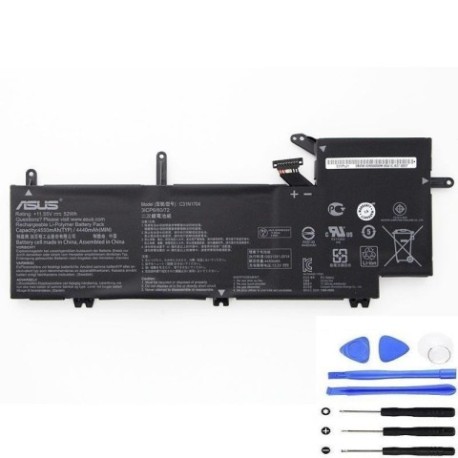
If you’re experiencing battery issues with your Asus Q535 or ZenBook Flip UX561UD series laptop, this comprehensive guide will help you understand when and how to replace your battery with the genuine Asus C31N1704 52Wh replacement.
Battery models & part numbers
| Reference / P/N |
|---|
| 0B200-02650000 |
| 3ICP6/60/72 |
| Asus-C31N1704-52Wh |
| C31PoJ1 |
Compatible models
| Model |
|---|
| Asus Q535 |
| Asus Q535U |
| Asus Q535UD |
| Asus ZenBook Flip UX561UD |
| Asus ZenBook Flip UX561UD-BO027R |
| Asus ZenBook Flip UX561UD-E2026R |
| Asus ZenBook Flip UX561UD-E2026T |
Introduction
Laptop batteries naturally degrade over time, and when your Asus Q535 or ZenBook Flip UX561UD starts showing battery issues, it can be frustrating. The Asus C31N1704 52Wh battery is the official replacement designed specifically for these models, ensuring optimal performance and safety. This guide will walk you through everything from recognising when you need a replacement to proper installation and maintenance for Australian and New Zealand conditions.
Common signs you need a replacement
| Symptom | Cause | Verification | Recommendation |
|---|---|---|---|
| Battery won’t charge past 60-80% | Battery cell degradation | Check charging status in Windows battery settings | Replace battery immediately |
| Laptop shuts down unexpectedly at 20-30% charge | Voltage regulation failure | Monitor battery percentage during use | Replace battery to prevent data loss |
| Battery swelling or bulging | Internal gas buildup | Visual inspection of battery compartment | Stop using immediately and replace |
| Reduced battery life (less than 2 hours) | Normal wear and capacity loss | Time usage on full charge | Consider replacement if under warranty period |
| Overheating during charging | Internal resistance increase | Feel battery temperature | Replace to prevent damage to laptop |
| Battery not detected by system | Connection or circuit failure | Check device manager | Replace battery and check connections |
How to check compatibility
Before purchasing any replacement battery for your Asus laptop, it’s crucial to verify compatibility. For Q535 and ZenBook Flip UX561UD series owners, here’s how to confirm you need the C31N1704 52Wh battery:
Finding Your Model Information: Turn your laptop over and locate the sticker on the bottom casing. You should see your exact model number clearly printed. For Asus Q535 series, this will be Q535, Q535U, or Q535UD. For ZenBook Flip models, look for UX561UD followed by any variant codes.
Using Asus Official Tools: Visit the Asus support website and use their compatibility checker tool. Enter your serial number or model number to get official part recommendations. The Asus C31N1704 should appear as the recommended battery replacement.
Checking Current Battery Details: In Windows, you can check your current battery details by opening Command Prompt as administrator and typing “powercfg /batteryreport”. This generates a detailed report showing your battery’s part number and specifications.
Physical Inspection: If you’re comfortable opening your laptop, the existing battery will have the part number printed directly on it. Look for C31N1704, 0B200-02650000, C31PoJ1, or 3ICP6/60/72 markings.
When to replace
Timing your battery replacement correctly can save you from unexpected downtime and potential data loss. Consider replacement when:
- Your battery health shows less than 60% of original capacity in system reports
- You experience sudden shutdowns above 20% charge
- The battery has been in use for 2-3 years with regular usage
- You notice physical swelling or deformation
- Charging takes significantly longer than when the laptop was new
- You’re planning important work or travel and need reliable battery performance
For Australian and New Zealand users, consider that our warmer climates can accelerate battery degradation, so you might need replacements slightly sooner than cooler climate users.
Installation guide
Replacing the battery in your Asus Q535 or ZenBook Flip UX561UD is a straightforward process that most users can complete in 15-30 minutes. Here’s our step-by-step guide:
Preparation: Before starting, ensure you have a clean, well-lit workspace. Gather your tools: a Phillips head screwdriver (usually #00 or #0 size), plastic spudger or guitar pick, and an anti-static wrist strap if available. Shut down your laptop completely and disconnect all cables.
Safety First: Always work on a non-conductive surface. Remove any jewellery that could cause shorts. If possible, discharge the old battery to around 25% before removal to reduce risk.
Accessing the Battery: For most Asus Q535 and ZenBook Flip UX561UD models, the battery is accessible by removing the bottom panel. Turn the laptop upside down and remove all visible screws. Some models may have hidden screws under rubber feet, so check carefully.
Removing the Old Battery: Once the bottom panel is removed, locate the battery. It will be connected to the motherboard with a cable. Gently disconnect this cable by pulling the connector straight out (don’t pull the wires). Remove any screws securing the battery to the chassis, then lift it out carefully.
Installing the New Battery: Place your new Asus C31N1704 battery in position, secure it with the screws, and reconnect the cable to the motherboard. Ensure the connection is firm but don’t force it.
Reassembly and Testing: Replace the bottom panel and all screws. Connect your charger and power on the laptop. Allow the battery to charge fully before first use. Calibrate the new battery by charging to 100%, then using until it reaches about 10%, then charging fully again.
Usage & care tips
Proper battery maintenance can significantly extend the life of your new Asus C31N1704 battery. Follow these tips for optimal performance:
- Avoid Extreme Temperatures: Don’t leave your laptop in hot cars or direct sunlight, especially during Australian summers. Ideal operating temperature is 10°C to 35°C.
- Charge Smartly: Lithium-ion batteries prefer partial discharges over full ones. Try to keep your battery between 20% and 80% for daily use.
- Storage Considerations: If storing your laptop for extended periods, charge the battery to about 50% and store in a cool, dry place.
- Power Management: Use Asus’s power management software to optimise battery usage based on your needs.
- Regular Use: Batteries perform best when used regularly. If you primarily use your laptop plugged in, unplug and run on battery at least once a week.
- Update Firmware: Keep your BIOS and battery firmware updated through Asus official updates for optimal performance and safety features.
Safety & recycling in AU/NZ
Battery safety and proper disposal are particularly important in our region. Follow these guidelines:
Safety Precautions: Never attempt to open or puncture a lithium-ion battery. If you notice any swelling, overheating, or unusual odour, stop using immediately and contact a professional. Always use genuine Asus batteries or authorised replacements to ensure safety standards are met.
Australian Recycling Options: In Australia, you can recycle old laptop batteries through Battery World stores, Officeworks, or your local council’s e-waste program. Many computer retailers also accept old batteries for recycling.
New Zealand Recycling: In NZ, take your old batteries to participating Mitre 10, Bunnings, or Noel Leeming stores. Most council transfer stations also have battery recycling facilities.
Transporting Old Batteries: When taking old batteries for recycling, tape the terminals to prevent short circuits and transport them in a separate bag from other items.
Legal Requirements: Both Australia and New Zealand have strict regulations about battery disposal. Never put laptop batteries in general waste – they contain hazardous materials and can cause fires in waste facilities.
FAQ
How long does the Asus C31N1704 52Wh battery typically last?
Under normal usage conditions, you can expect 2-4 years of reliable performance, or approximately 500-800 full charge cycles. Actual lifespan depends on usage patterns, charging habits, and environmental conditions.
Will replacing the battery void my Asus warranty?
If your laptop is still under manufacturer warranty, we recommend having the battery replaced by an authorised Asus service centre to maintain warranty coverage. For out-of-warranty devices, self-replacement is generallyacceptable. Using genuine replacement parts like the C31N1704 should not affect other components’ warranties.
How can I verify this is a genuine Asus battery and not a counterfeit?
Genuine Asus batteries have precise branding, clear and sharp printing of model numbers, and proper safety certifications. Purchase from authorised resellers and check for the official Asus hologram on the packaging. The battery should fit perfectly without modification.
My laptop is not turning on even with the new battery. What should I do?
First, try a power reset by holding the power button for 40 seconds with both battery and charger disconnected. Then reconnect just the charger and try powering on. If it works, reconnect the battery. If issues persist, check the battery connection to the motherboard is secure.
Can I use a higher capacity battery in my Asus Q535 or ZenBook Flip?
No, you should only use the specified 52Wh capacity battery. Using a higher capacity battery can cause compatibility issues, potential overheating, and damage to your laptop’s charging circuit. Stick with the designed specifications for safety and performance.
How long does it take to fully charge the new battery?
From completely empty, the C31N1704 52Wh battery typically takes 2-4 hours to reach full charge using the original Asus charger. Initial charges might take slightly longer as the battery management system calibrates.
Is it normal for the new battery to feel warm during charging?
Some warmth is normal during charging, but it should not become uncomfortably hot. If the battery becomes very hot to the touch, discontinue use and contact the supplier. Modern batteries include thermal protection, but excessive heat indicates a potential issue.
Do I need to install any drivers or software for the new battery?
Generally, no additional drivers are needed as the battery is recognised by the system hardware. However, we recommend updating your BIOS and Asus system control software to ensure optimal battery management and monitoring features work correctly with the new battery.