Lenovo 01AV443 42Wh Battery Replacement Guide
Find the perfect replacement battery for your Lenovo laptop with our comprehensive compatibility guide and expert installation advice for Australian and New Zealand users.
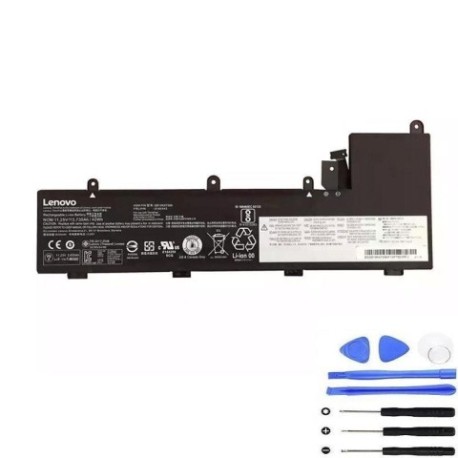
Battery models & part numbers
| Reference / P/N |
|---|
| 01AV442 |
| 01AV444 |
| Lenovo-01AV443-42Wh |
| SB10K97595 |
| SB10K97596 |
Compatible laptop models
| Model |
|---|
| Lenovo ThinkPad 11e 4th Gen (20HT/20HV) |
| Lenovo ThinkPad 11e 4th Gen (20HX/20J0) |
| Lenovo ThinkPad Yoga 11e 4th Gen (20HS/20HU) |
| Lenovo ThinkPad Yoga 11e 4th Gen (20HW/20HY) |
Introduction
The Lenovo 01AV443 42Wh battery is a high-quality replacement solution designed specifically for various Lenovo ThinkPad 11e 4th Generation models. This genuine-compatible battery offers reliable performance and extended usage time for students, professionals, and everyday users across Australia and New Zealand.
Common signs you need a replacement
| Symptoms | Causes | Verification | Recommendation |
|---|---|---|---|
| Battery drains quickly (under 1 hour) | Ageing cells, frequent charging cycles | Check battery health in system settings | Consider replacement if capacity below 60% |
| Laptop won’t hold charge | Battery memory effect, damaged cells | Test with power cord removed | Replace immediately if system shuts down |
| Battery swelling or overheating | Internal short circuit, manufacturing defect | Visual inspection, temperature check | Replace urgently – safety hazard |
| Charging indicator issues | Faulty charging circuit, battery wear | Monitor charging behaviour | Replace if charging inconsistent |
How to check compatibility
Verify your laptop’s compatibility by checking the model number on the bottom casing or in system information. Match it against our compatibility table above. You can also remove your current battery and compare the part number with our listed references.
When to replace
Replace your battery when you notice significant performance degradation, typically after 2-3 years of regular use. Immediate replacement is necessary for swollen batteries or those that no longer hold charge. For optimal performance, consider replacement when battery health drops below 70% capacity.
Installation guide (overview)
1. Power off your laptop and disconnect the charger
2. Flip the laptop and locate the battery release latch
3. Slide the latch to unlock and carefully remove the old battery
4. Align the new battery with the connectors and slide into place
5. Lock the battery in position with the latch
6. Charge fully before first use for optimal performance
Usage & care tips
• Avoid complete discharges – recharge when battery reaches 20-30%
• Store in cool, dry conditions (15-25°C ideal)
• Remove battery if storing laptop for extended periods
• Use only authorised Lenovo chargers
• Calibrate battery monthly by fully charging then discharging
Safety & recycling in AU/NZ
In Australia and New Zealand, lithium-ion batteries must be disposed of responsibly. Never dispose of batteries in household waste. Use authorised battery recycling centres available at most electronics retailers. Damaged or swollen batteries should be handled with care and recycled immediately through proper channels.
FAQ
How long does shipping take to AU/NZ?
Typically 7-14 business days depending on your location.
Is this battery genuine Lenovo?
This is a high-quality compatible battery that meets or exceeds original specifications.
What warranty is provided?
12-month warranty covering manufacturing defects.
Can I use this battery with other Lenovo models?
Only with the compatible models listed in our table above.
How do I maximise battery lifespan?
Avoid extreme temperatures and frequent full discharge cycles.
Is installation difficult?
Most users can install it themselves following our simple guide.
What if my laptop model isn’t listed?
Contact our support team with your exact model number for verification.