Battery models & part numbers
| Reference / P/N |
|---|
| Lenovo 5B11B48824 |
| Lenovo 5B11B48825 |
| Lenovo 5B11B48829 |
| Lenovo 5B11B48830 |
| Lenovo L20C4PC1 |
| Lenovo L20D4PC1 |
| Lenovo L20L4PC1 |
| Lenovo-L20M4PC1-80WhShortline |
Compatible laptop models
| Model |
|---|
| Legion 5 Pro |
| Legion 5 Pro 16ACH6H |
| Legion 5- 15ITH6H (82JH) |
| Legion 5-15ACH6 (82JW) |
| Legion 5-15ACH6A (82NW) |
| Legion 5-15ACH6H (82JU) |
| Legion 5-15ITH6 (82JK) |
| Legion 5-15ITH6H (82JH) |
| Legion 5-15ITH6H (82JH/82MH) |
| Legion 7-16ACHg6 (82N6) |
| Legion 7-16ITHg6 (82K6) |
| Legion Pro 5-16ACH6 (82JS) |
| Legion Pro 5-16ACH6 Laptop (82JS) |
| Legion Pro 5-16ACH6H (82JQ) |
| Legion Pro 5-16ITH6 (82JF) |
| Legion Pro 5-16ITH6H (82JD) |
Introduction
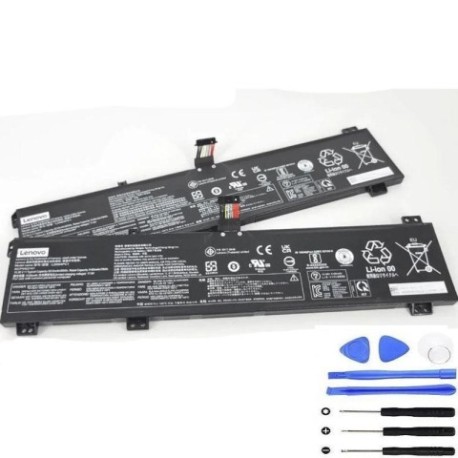
Keep your Lenovo Legion gaming laptop performing at its best with a genuine replacement battery. The L20M4PC1 80Wh battery is specifically designed for Legion series models, ensuring optimal performance and safety.
Common signs you need a replacement
| Symptom | Cause | Verification | Recommendation |
|---|---|---|---|
| Short battery life | Battery degradation over time | Check power settings & usage | Consider replacement if under 2 hours |
| Laptop won’t hold charge | Battery cells failing | Test with power adapter removed | Immediate replacement needed |
| Battery swelling | Internal damage or age | Visual inspection | Replace immediately for safety |
| Unexpected shutdowns | Power delivery issues | Monitor battery percentage | Replace to prevent data loss |
How to check compatibility
Verify your laptop model matches one in our compatibility table above. You can also check the label on your current battery or use Lenovo’s official support centre for confirmation.
When to replace
Replace your battery when you notice significant performance drops, swelling, or if it’s been 2-3 years of regular use. Gaming laptops like the Legion series benefit from fresh batteries for optimal performance.
Installation guide (overview)
1. Power off and unplug your laptop. 2. Remove the bottom panel screws. 3. Disconnect the old battery connector. 4. Remove mounting screws. 5. Install new battery and reconnect. 6. Replace panel and power on. Always refer to official Lenovo guides or seek professional help if unsure.
Usage & care tips
• Avoid extreme temperatures (ideal range 10°C to 35°C)
• Don’t leave laptop plugged in constantly
• Perform occasional full discharge cycles
• Store in cool, dry conditions when not in use
• Use only authorised chargers
Safety & recycling in AU/NZ
In Australia and New Zealand, never dispose of lithium batteries in household waste. Use dedicated battery recycling centres or return to authorised electronics retailers. Damaged or swollen batteries require special handling – contact your local council for safe disposal options.
FAQ
How long does this battery last?
The L20M4PC1 typically provides 4-6 hours of mixed use, though gaming will reduce this significantly.
Is this battery genuine Lenovo?
Yes, this is an authentic Lenovo replacement part with full compatibility.
Can I install it myself?
Yes, with basic technical skills. However, if uncomfortable, seek professional installation.
What’s the warranty?
Check with the retailer for specific warranty details, typically 12 months is standard.
Will it work with my charger?
Yes, it’s compatible with standard Lenovo Legion chargers.
How do I maximise battery life?
Avoid full discharges, keep between 20-80% charge when possible, and store in cool conditions.
What if my model isn’t listed?
Double-check your exact model number. If still not listed, this battery may not be compatible.