Acer AC14B7K 50.7Wh Battery Replacement – Complete Guide for AU/NZ Users
If your Acer laptop is struggling to hold charge or showing battery warning signs, you’ve come to the right place. This comprehensive guide covers everything Australian and New Zealand users need to know about the Acer AC14B7K 50.7Wh replacement battery, including compatible models, installation tips, and local safety standards.
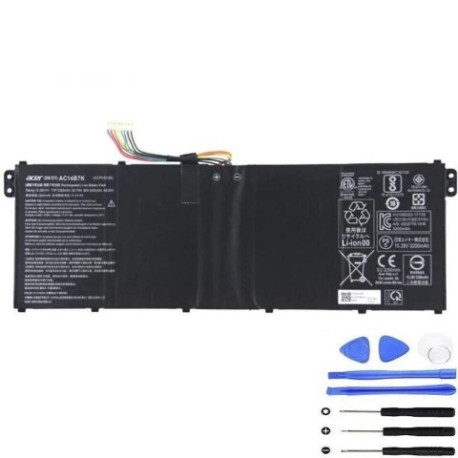
Battery models & part numbers
| Reference / P/N |
|---|
| Acer-AC14B7K-50.7Wh |
| Acer KT.00407.003 |
| Acer KT.00407.006 |
| Acer KT00407003 |
| Acer KT00407006 |
Compatible models
| Model |
|---|
| Acer Aspire 5 A517-51 |
| Acer Aspire 5 A517-51G |
| Acer Aspire 7 A717-71G |
| Acer Nitro 5 AN515-31 |
| Acer Nitro 5 AN515-41 |
| Acer Nitro 5 AN515-42 |
| Acer Nitro 5 Spin NP515-51 |
| Acer SF313-51 |
| Acer SF314-56G |
| Acer SP515-51GN-52AF |
| Acer SP515-51GN-57B1 |
| Acer SP515-51GN-82SS |
| Acer SP515-51GN-88U9 |
| Acer Spin 5 SP515-51GN |
| Acer Spin 5 SP515-51N |
| Acer Swift 3 SF313-51 |
| Acer Swift 3 SF314-52 |
| Acer Swift 3 SF314-52G |
| Acer Swift 3 SF314-53G |
| Acer Swift 3 SF314-54 |
| Acer swift 3 SF314-54G |
| Acer Swift 3 SF314-55 |
| Acer Swift 3 SF314-55G |
| Acer Swift 3 SF314-56 |
| Acer Swift 3 SF314-56G |
| Acer Swift SF314-52 |
| Acer TravelMate P2410-G2-MG |
| Acer TravelMate P2510-G2-M |
Introduction
The Acer AC14B7K 50.7Wh battery is a high-quality replacement solution designed specifically for numerous Acer laptop models popular in Australia and New Zealand. With a capacity of 50.7 watt-hours, this lithium-ion battery provides reliable power for your computing needs, whether you’re a student, professional, or casual user.
Common signs you need a replacement
| Symptom | Cause | Verification | Recommendation |
|---|---|---|---|
| Rapid battery drain | Ageing cells, reduced capacity | Check battery health in Windows | Replace if capacity below 60% |
| Laptop won’t power on without charger | Battery failure or deep discharge | Test with known good charger | Immediate replacement needed |
| Battery swelling or bulging | Internal gas buildup, safety hazard | Visual inspection, feel for bumps | Stop using immediately, replace |
| Overheating during charging | Faulty charging circuit or cells | Monitor temperature with software | Replace to prevent damage |
| Inconsistent charge percentage | Battery calibration issues | Run battery calibration tool | Replace if calibration fails |
How to check compatibility
Finding your exact Acer model number is crucial for battery compatibility. Look for the model sticker on the bottom of your laptop, typically near the serial number and regulatory information. For Acer devices, the model number usually starts with prefixes like Aspire, Swift, Nitro, or TravelMate followed by alphanumeric codes.
You can also check compatibility through Acer’s official support website by entering your serial number or using their system detection tool. Many Australian retailers and service centres can verify compatibility using Acer’s parts database. Always cross-reference with multiple sources to ensure accuracy.
When to replace
Most Acer laptop batteries last 2-4 years with regular use. Consider replacement when your battery health drops below 70% of original capacity, you experience significant runtime reduction, or receive Windows battery warnings. For business users in AU/NZ, proactive replacement during scheduled maintenance can prevent unexpected downtime.
Installation guide
Replacing your Acer battery requires careful preparation. First, ensure you have the correct tools – typically a Phillips #00 screwdriver and plastic spudger. Power down your laptop completely and disconnect all peripherals. For most Acer models compatible with the AC14B7K, you’ll need to remove the bottom panel by unscrewing the appropriate fasteners.
Carefully disconnect the battery connector from the motherboard, noting the orientation for reassembly. Remove any securing brackets or tape, then lift the old battery out. Install the new AC14B7K battery, reconnect the connector, and reassemble your laptop. Allow the battery to charge fully before first use for optimal calibration.
Usage & care tips
To maximise your new battery’s lifespan, avoid frequent full discharges and instead maintain charge between 20-80% for daily use. Store your laptop in temperatures between 10-35°C and avoid leaving it in hot cars or direct sunlight. For Australian conditions, be particularly mindful of heat management during summer months.
Calibrate your battery monthly by allowing it to discharge to about 10% then charging fully. Use Acer’s built-in power management software to optimise settings for your usage patterns. For gaming models like the Nitro series, consider using performance modes only when necessary to reduce battery stress.
Safety & recycling in AU/NZ
In Australia and New Zealand, lithium-ion batteries must be disposed of properly through authorised recycling centres. Never dispose of batteries in household waste due to fire risk. Major retailers like Officeworks and JB Hi-Fi offer free battery recycling services. Check with your local council for specific disposal guidelines in your area.
When handling batteries, avoid puncturing or damaging the casing. Store spare batteries in cool, dry places away from metal objects. Only use genuine or high-quality replacement batteries that meet Australian safety standards to ensure proper protection circuits are in place.
FAQ
How long does the AC14B7K battery typically last?
The AC14B7K 50.7Wh battery typically provides 4-8 hours of usage depending on your laptop model and usage patterns. Gaming and intensive applications will reduce runtime, while light browsing and document work will extend it.
Is this battery compatible with my Acer laptop sold in New Zealand?
Yes, Acer laptops sold in New Zealand use the same battery specifications as Australian models. The AC14B7K is designed for international compatibility and works with all region variants of the supported models.
Do I need to calibrate the new battery?
Yes, we recommend performing a full charge-discharge cycle when you first install the battery. Charge to 100%, use until about 10% remaining, then recharge fully. This helps the battery management system accurately gauge capacity.
What warranty comes with this battery?
Quality replacement batteries typically come with 12-24 month warranties. Check with your supplier for specific warranty terms and ensure you keep your purchase receipt for any potential claims.
Can I use my laptop while charging the new battery?
Yes, you can use your laptop while charging. Modern charging circuits are designed to handle simultaneous use and charging without damaging the battery or affecting performance.
How do I know if my battery is genuine?
Genuine Acer batteries feature proper branding, clear labelling with capacity and model information, and come in professional packaging. Purchase from authorised retailers or reputable suppliers to ensure authenticity.
What should I do with my old battery?
Take your old battery to an authorised recycling centre. Many electronics retailers in Australia and New Zealand offer free battery recycling services. Never dispose of lithium-ion batteries in regular household waste.