Acer AL15B32 56Wh Battery Replacement Guide for Australian & New Zealand Users
If your Acer Aspire V5-591G laptop is struggling to hold charge or won’t power on without being plugged in, you’ve come to the right place. This comprehensive guide covers everything Australian and New Zealand consumers need to know about replacing their laptop battery with genuine Acer AL15B32 56Wh compatible parts.
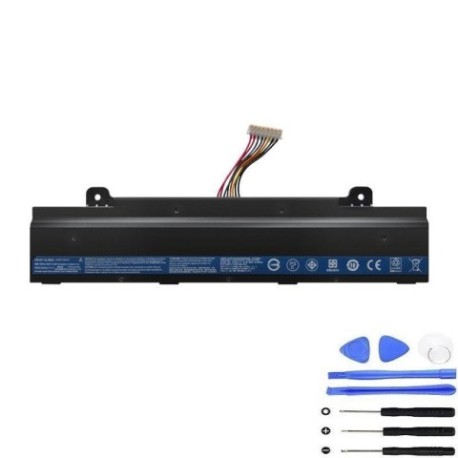
Battery models & part numbers
| Reference / P/N |
|---|
| Acer-AL15B32-56Wh |
| Acer KT.00603.011 |
Compatible models
| Model |
|---|
| Acer Aspire V5-591G |
| Acer Aspire V5-591G-50BA |
| Acer Aspire V5-591G-52AL |
| Acer Aspire V5-591G-54XY |
| Acer Aspire V5-591G-71K2 |
| Acer Aspire V5-591G-76R6 |
Introduction
Laptop batteries don’t last forever – typically they provide reliable performance for 2-4 years before showing signs of wear. For Acer Aspire V5-591G users across Australia and New Zealand, finding the right replacement battery is crucial for maintaining your laptop’s mobility and performance. The Acer AL15B32 56Wh battery is specifically designed for your model, ensuring perfect compatibility and optimal performance.
Common signs you need a replacement
| Symptoms | Possible Causes | How to Verify | Recommended Action |
|---|---|---|---|
| Battery drains quickly (less than 1 hour) | Ageing battery cells, reduced capacity | Check battery health in Windows Power Settings | Consider replacement if under 50% original capacity |
| Laptop shuts down unexpectedly | Voltage drops, battery can’t maintain load | Monitor battery percentage during use | Replace battery if occurring regularly |
| Battery won’t charge past certain percentage | Damaged charging circuit, worn cells | Check charging status over several hours | Replace if stuck below 80% consistently |
| Laptop only works when plugged in | Complete battery failure | Remove power cord – if laptop turns off immediately | Immediate replacement needed |
| Battery swelling or physical damage | Internal short circuits, overheating | Visual inspection, check for bulging | Stop using immediately and replace |
How to check compatibility
Finding your exact Acer model number is the first step to ensuring battery compatibility. For Aspire V5-591G series laptops, you can locate this information in several ways:
Physical Inspection: Turn your laptop over and look for the model sticker on the bottom case. It should clearly state “Acer Aspire V5-591G” followed by the specific variant code (like -50BA or -52AL). The sticker also includes serial numbers and regulatory information.
System Information: Press Windows Key + R, type “msinfo32” and press Enter. Look for “System Model” in the system summary. This should display your complete model number.
Acer Care Centre: If installed, this official Acer software provides detailed system information including battery specifications and compatibility data.
Original Battery Check: Remove your current battery (if possible) and note the part number printed on it. The Acer-AL15B32-56Wh or Acer KT.00603.011 should be clearly marked.
Remember that all Aspire V5-591G variants use the same battery design, so any model from our compatibility list will work perfectly with the AL15B32 replacement.
When to replace your battery
Timing your battery replacement correctly can save you from unexpected downtime. Consider replacing when:
- Battery capacity drops below 60% of original (check via Windows battery report)
- You experience sudden shutdowns during normal use
- The battery has been in service for over 3 years with regular use
- You notice physical swelling or deformation
- The battery takes significantly longer to charge than when new
- Your laptop usage patterns change (more mobile work, travel requirements)
For Australian and New Zealand users, consider seasonal factors too – extreme summer heat can accelerate battery degradation, so pre-emptive replacement before peak summer months might be wise.
Installation guide
Replacing the battery in your Acer Aspire V5-591G is straightforward with the right approach. Follow these steps for a safe, successful installation:
Preparation: Power down your laptop completely and unplug the AC adapter. Work on a clean, static-free surface with good lighting. Have a small Phillips screwdriver ready.
Removing the Old Battery: Turn the laptop upside down. Locate the battery release latch – it’s usually near the battery compartment. Slide the latch to the unlock position. The battery should release slightly. Gently lift the battery out of its compartment.
Installing the New Battery: Take your new Acer AL15B32 battery and align it with the compartment, ensuring the connectors match up. Press firmly until you hear a click, indicating it’s securely in place. Slide the locking latch back to the locked position.
Initial Charge: Before first use, connect your AC adapter and charge the battery completely without interruption. This helps calibrate the new battery with your laptop’s power management system.
Common Installation Issues: If the battery doesn’t seem to fit, don’t force it. Double-check the orientation and ensure you have the correct AL15B32 model. If the laptop doesn’t recognise the new battery, try resetting the EC (Embedded Controller) by holding the power button for 30 seconds with both battery and AC adapter removed.
Usage & care tips
Maximise your new battery’s lifespan with these evidence-based practices:
- Optimal Charging: Keep battery between 20-80% for daily use. Avoid frequent full discharges
- Temperature Management: Never leave laptop in hot cars (common in Australian summers). Ideal operating temperature is 15-25°C
- Storage Advice: If storing long-term, charge to 50-60% and store in cool, dry place
- Calibration: Perform full charge-discharge cycle monthly to maintain accurate battery reporting
- Power Settings: Use Acer’s power management software to optimise battery life for your usage patterns
- Avoid Deep Discharge: Don’t let battery completely drain to 0% regularly as this stresses lithium-ion cells
For New Zealand users, be mindful of humidity levels which can affect battery performance over time.
Safety & recycling in AU/NZ
Battery safety and proper disposal are regulated in both Australia and New Zealand. Follow these guidelines:
Safety Precautions:
- Never attempt to open or modify the battery casing
- Avoid exposing batteries to temperatures above 45°C
- Don’t puncture, crush, or subject batteries to physical shock
- Use only genuine Acer chargers and compatible accessories
Australian Recycling: Take old batteries to any BatteryWorld, Officeworks, or participating council recycling centres. Under the Australian Battery Stewardship Scheme, many retailers offer free take-back services.
New Zealand Recycling: Most council transfer stations accept e-waste including laptop batteries. Retailers like Noel Leeming and PB Technologies also provide recycling services.
Legal Requirements: Both countries prohibit disposing of lithium-ion batteries in household waste due to fire risk and environmental concerns.
FAQ
How long does the Acer AL15B32 battery typically last?
With normal use, expect 2-4 years of reliable performance. Heavy users might see reduced lifespan, while light users could get 4+ years. The 56Wh capacity provides approximately 4-6 hours of typical usage.
Will this battery work with all Acer Aspire V5-591G models?
Yes, the AL15B32 is compatible with all variants of the Aspire V5-591G series, including the specific models listed in our compatibility table. The physical design and electrical specifications are identical across all these models.
How can I verify I’m getting a genuine Acer battery?
Look for proper Acer branding, correct part numbers (Acer-AL15B32-56Wh or KT.00603.011), and purchase from authorised retailers. Genuine batteries include proper safety certifications and typically come in official packaging.
What’s the warranty period for these batteries?
Genuine Acer batteries usually carry a 12-month warranty in Australia and New Zealand. Third-party replacements may have different warranty terms, so check with your supplier.
Can I use my laptop while charging the new battery?
Yes, modern laptops are designed for simultaneous use and charging. However, for the first full charge cycle, it’s recommended to charge without heavy usage to ensure proper calibration.
What should I do if my new battery isn’t recognised?
Try a full power reset: remove both battery and AC adapter, hold power button for 30 seconds, then reconnect. If issues persist, check for BIOS updates or contact the supplier for warranty support.
Are there any software updates needed after battery replacement?
Generally no, but checking for Acer BIOS and power management updates is good practice. These can improve battery performance and compatibility with newer power management features.
Remember that proper battery care starts with choosing the right replacement. The Acer AL15B32 56Wh battery is specifically engineered for your Aspire V5-591G, ensuring optimal performance and safety for Australian and New Zealand conditions.