Acer AP13F3N 47Wh Battery Replacement: Complete Guide for Australian & New Zealand Users
Is your Acer Aspire S7 showing signs of battery fatigue? As a premium ultrabook designed for mobility, maintaining optimal battery health is crucial for your device’s performance. This comprehensive guide covers everything AU/NZ users need to know about the Acer AP13F3N 47Wh replacement battery, including compatible models, installation tips, and local recycling information.
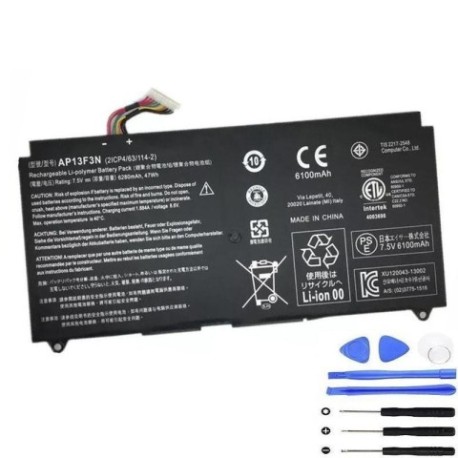
Battery models & part numbers
| Reference / P/N |
|---|
| Acer-AP13F3N-47Wh |
| Acer KT.00403.017 |
Compatible models
| Model |
|---|
| Acer Aspire S7-392 |
| Acer Aspire S7-393 |
Introduction
The Acer Aspire S7 series represents premium ultrabook engineering, designed for professionals and students who demand both performance and portability. However, like all lithium-ion batteries, the AP13F3N 47Wh battery has a finite lifespan. Understanding when and how to replace it ensures your device continues to deliver the mobility and reliability you purchased it for.
Common signs you need a replacement
| Symptom | Cause | Verification | Recommendation |
|---|---|---|---|
| Rapid power drain | Reduced battery capacity | Check battery health in Windows | Consider replacement if below 60% capacity |
| Laptop shuts down unexpectedly | Voltage instability | Monitor shutdown percentages | Replace immediately for data safety |
| Battery won’t charge fully | Charging circuit degradation | Check charging indicator behaviour | Test with different charger first |
| Physical swelling | Internal chemical breakdown | Visual inspection | Replace urgently – safety hazard |
| Overheating during use | Increased internal resistance | Temperature monitoring | Replace to prevent damage to other components |
How to check compatibility
Before purchasing any replacement battery, verifying compatibility is essential. For Acer Aspire S7 users, start by locating your model number on the bottom casing or under the battery compartment. The S7-392 and S7-393 models specifically require the AP13F3N 47Wh battery or its equivalent KT.00403.017. You can also use Acer’s official support website by entering your serial number for precise part verification. Many Australian computer repair centres offer free compatibility checks if you’re uncertain.
When to replace
Most Acer Aspire S7 batteries last 2-3 years with regular use before showing significant degradation. However, your replacement timing depends on usage patterns. Heavy users who frequently drain their battery may need replacement sooner, while occasional users might extend battery life. Monitor your battery’s health through Windows Battery Report (generate via Command Prompt: powercfg /batteryreport) and consider replacement when capacity drops below 70% of original.
Installation guide
Replacing the battery in your Acer Aspire S7 requires careful attention to detail. Begin by powering down the laptop completely and disconnecting all peripherals. You’ll need a Phillips #00 screwdriver and a plastic spudger for safe disassembly. Remove the bottom cover by unscrewing the 10 screws (note their varying lengths for reassembly). Locate the battery connector near the centre of the motherboard and gently disconnect it. The battery is secured with additional screws – remove these before lifting the battery out. When installing the new AP13F3N battery, ensure the connector is firmly seated and reassemble in reverse order. Many Australian users find video tutorials helpful for visual guidance.
Usage & care tips
Maximise your new battery’s lifespan with proper care. Avoid frequent full discharges – lithium-ion batteries prefer partial discharges between 20-80%. Store your laptop in temperatures between 15-25°C when possible, as extreme heat accelerates degradation. If using your Aspire S7 primarily plugged in, consider setting maximum charge level to 80% in Acer Care Centre software. For extended storage, charge the battery to around 50% and power down completely.
Safety & recycling in AU/NZ
Battery safety is paramount in Australia and New Zealand. Never attempt to open or modify lithium-ion batteries, and avoid exposing them to temperatures above 60°C. If your battery shows signs of swelling, leaking, or overheating, discontinue use immediately and contact a professional. For recycling, most Australian states offer free battery recycling through programs like B-cycle, while New Zealand residents can use designated recycling centres. Never dispose of lithium batteries in household waste due to fire risk and environmental concerns.
FAQ
How long does the AP13F3N battery typically last on a full charge?
Under normal usage conditions, the 47Wh battery provides 4-6 hours of productivity use. Actual runtime varies based on screen brightness, applications running, and wireless connectivity usage.
Is this battery compatible with other Acer Aspire models?
No, the AP13F3N is specifically designed for the Aspire S7-392 and S7-393 models. Using incompatible batteries can damage your device and void warranties.
Can I replace the battery myself without voiding warranty?
For newer devices under manufacturer warranty, we recommend authorised service centres. For out-of-warranty devices, self-replacement is generally acceptable if performed carefully.
How do I know if I’m buying a genuine Acer battery?
Look for proper branding, correct model numbering, and purchase from authorised resellers. Genuine batteries include proper safety certifications and typically come with warranty coverage.
What’s the difference between AP13F3N and KT.00403.017?
These are identical batteries with different part numbering systems. Both are fully compatible with your Aspire S7 and offer the same performance specifications.
My new battery isn’t charging – what should I check?
First, ensure the battery connector is properly seated. Try resetting the EC (Embedded Controller) by holding the power button for 30 seconds with the battery and charger disconnected. If issues persist, consult a professional.
Are there any software calibration steps after installation?
Yes, we recommend fully charging your new battery, then allowing it to discharge to around 10% before recharging. Repeat this cycle 2-3 times to help the battery monitoring system accurately calibrate.