Acer AP14A4M 21.5Wh Battery Replacement & Compatibility Guide
If you’re experiencing battery issues with your Acer tablet or 2-in-1 device, you’ve come to the right place. This comprehensive guide covers everything Australian and New Zealand consumers need to know about the Acer AP14A4M 21.5Wh replacement battery, including compatible models, installation tips, and local recycling information.
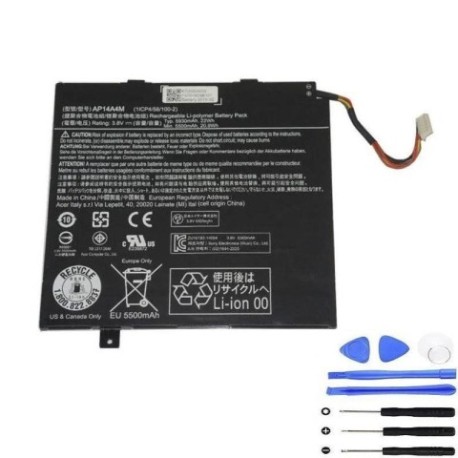
Battery models & part numbers
| Reference / P/N |
|---|
| Acer AP14A4M |
| Acer AP14A8M |
| Acer KT.00204.002 |
| Acer KT.0020G.004 |
| Acer KT00204002 |
| Acer KT0020G004 |
Compatible models
| Model |
|---|
| Acer Iconia Tab 10 (A3-A20) |
| Acer Iconia Tab 10 (A3-A20FHD) |
| Acer Iconia Tab 10 (A3-A20HD) |
| Acer Iconia Tab 10 (A3-A30) |
| Acer Iconia Tab 10 (A3-A30FHD) |
| Acer Switch 10 (SW5-011) |
| Acer Switch 10 (SW5-012) |
| Acer Switch 10 FHD (SW5-012) |
| Acer Switch 10 FHD (SW5-015) |
| Acer Switch 10 HD (SW5-012) |
| Acer Switch 10 Pro (SW5-012P) |
Introduction
The Acer AP14A4M 21.5Wh battery is a genuine replacement power source designed specifically for Acer’s popular Iconia Tab 10 and Switch 10 series devices. These tablets and 2-in-1 computers were widely used across Australia and New Zealand for both personal and professional applications. As these devices age, battery performance naturally degrades, but you don’t need to replace the entire device – a simple battery swap can restore your tablet to its former glory.
Many Aussie and Kiwi consumers are surprised to learn that their Acer device’s battery life can be dramatically improved with a proper replacement. The AP14A4M battery maintains the original specifications and safety standards, ensuring your device operates as intended without compromising on performance or safety.
Common signs you need a replacement
| Symptom | Cause | Verification | Recommendation |
|---|---|---|---|
| Rapid battery drain | Reduced capacity from age/cycles | Check battery health in settings | Replace if under 2 hours runtime |
| Device shuts down unexpectedly | Voltage drops under load | Monitor shutdown at 15-20% charge | Immediate replacement needed |
| Battery won’t charge fully | Cell degradation/charger circuit | Stops at same percentage repeatedly | Replace battery and test charger |
| Device feels warm/hot | Internal resistance increase | Heat during charging/use | Replace to prevent damage |
| Battery swelling | Gas buildup from chemical breakdown | Visible bulge or case separation | Replace immediately – safety risk |
| Inaccurate charge percentage | Battery management system errors | Jumps from high to low percentage | Replace and recalibrate |
How to check compatibility
Before purchasing any replacement battery, it’s crucial to verify compatibility with your specific Acer device. Here’s how Australian and New Zealand consumers can ensure they’re getting the right battery:
Finding Your Model Number: For Acer Iconia Tab 10 and Switch 10 devices, the model number is typically found on the back cover or in the system settings. Navigate to Settings > About tablet/device > Model number. The exact model designation (like A3-A20 or SW5-012) is what you need to match against our compatibility list.
Physical Verification: If you’re replacing an existing battery, carefully remove it (following proper safety procedures) and check the part number printed on the battery itself. The AP14A4M battery measures approximately 120mm x 70mm x 5mm and features a standard 3-pin connector that’s compatible across all listed models.
Using Official Resources: Acer’s Australian and New Zealand support centres can verify compatibility through their serial number lookup tools. You can also use the Acer Support website by entering your device’s serial number to confirm the original battery part number.
Cross-Reference Checking: Note that some Acer devices may have multiple compatible part numbers. For example, both AP14A4M and AP14A8M batteries work interchangeably with the same devices, as do the various KT-series part numbers listed in our table.
When to replace
Understanding when to replace your Acer battery can save you from unexpected downtime and potential data loss. Most lithium-ion batteries, including the AP14A4M, have a typical lifespan of 2-3 years with regular use, or 300-500 full charge cycles.
Performance Indicators: When your tablet’s battery life drops below 50% of its original runtime, it’s time to consider replacement. For the Iconia Tab 10 and Switch 10 devices, this typically means getting less than 3-4 hours of mixed usage instead of the original 6-8 hours.
Seasonal Considerations: Australian summers and New Zealand’s varying climates can accelerate battery degradation. High temperatures (above 35°C) are particularly damaging to lithium-ion batteries. If you’ve noticed performance drops after hot summer months, your battery may need replacement sooner than expected.
Age-Based Replacement: Even if performance seems acceptable, consider proactive replacement after 3 years of use. This prevents the inconvenience of sudden failure and reduces the risk of swelling or other safety issues.
Installation guide
Replacing the battery in your Acer Iconia Tab 10 or Switch 10 requires careful attention to detail but is achievable for most technically inclined consumers. Always power off the device completely before beginning any disassembly.
Tools Required: You’ll need a small Phillips screwdriver, plastic spudger or guitar pick, and an anti-static wrist strap (recommended). The Switch 10 series may require additional prying tools due to their 2-in-1 design.
Step-by-Step Process:
- Backup Your Data: Always backup important files before opening any electronic device.
- Power Down: Turn off the device completely and disconnect any cables.
- Remove Back Cover: For Iconia Tab 10 models, carefully pry the plastic back cover starting from the edges. Use even pressure to avoid cracking the plastic.
- Locate Battery: The battery is typically secured with screws and a connector cable. Note the orientation before disconnecting.
- Disconnect Battery: Gently unplug the battery connector using a plastic tool – never metal.
- Remove Old Battery: Unscrew any mounting brackets and carefully lift the battery out.
- Install New Battery: Place the new AP14A4M battery in position, reconnect the cable, and secure with screws.
- Reassemble: Replace the back cover and power on the device.
Acer-Specific Considerations: The Switch 10 models have more complex disassembly due to their keyboard attachment mechanism. If you’re uncomfortable with this process, consider using an authorised Acer service centre in Australia or New Zealand.
Usage & care tips
Proper battery maintenance can extend the life of your new AP14A4M replacement battery and keep your Acer device performing optimally.
Charging Best Practices: Avoid letting your battery drain completely to 0% regularly. Instead, try to keep it between 20-80% for daily use. Lithium-ion batteries experience less stress when maintained in this range. For occasional calibration, a full 0-100% cycle once every 1-2 months is sufficient.
Temperature Management: Australian and New Zealand consumers should be particularly mindful of temperature extremes. Never leave your device in a hot car or in direct sunlight for extended periods. Ideal operating temperatures are between 10°C and 35°C.
Storage Guidelines: If storing your device for extended periods, charge the battery to approximately 50% and power down completely. Store in a cool, dry place away from direct sunlight.
Performance Optimisation: Adjust your device’s power settings to maximise battery life. Lower screen brightness, disable unnecessary background apps, and use Wi-Fi instead of mobile data when possible to extend runtime between charges.
Safety & recycling in AU/NZ
Battery safety and proper disposal are critical considerations for Australian and New Zealand consumers.
Safety Precautions: Never attempt to puncture, crush, or modify the battery. If you notice any swelling, overheating, or unusual odours, discontinue use immediately and contact a professional. Only use authorised chargers and accessories designed for your Acer device.
Australian Recycling Options: In Australia, used batteries can be recycled through Battery World stores, Officeworks, or council e-waste collection points
New Zealand Recycling Options: In New Zealand, most electronic retailers including Noel Leeming and Harvey Norman accept e-waste for recycling. The Mate Act requires proper disposal of electronic waste, and many councils offer specific battery recycling services.
Transportation Guidelines: When shipping or transporting spare batteries within Australia or New Zealand, ensure they are properly packaged to prevent short circuits. Tape the terminals or keep batteries in their original packaging.
FAQ
How long does the AP14A4M battery typically last?
The Acer AP14A4M 21.5Wh battery typically provides 6-8 hours of mixed usage depending on screen brightness, applications running, and wireless connectivity usage. With conservative use (lower brightness, limited video streaming), some users report up to 9 hours.
Is this battery compatible with both Australian and New Zealand voltage standards?
Yes, the battery itself operates at the same voltage regardless of region. The charger that comes with your Acer device is designed for both Australian (230V) and New Zealand (230V) power standards, so you can safely use and charge your device in both countries.
How do I know if my battery is genuine?
Genuine Acer batteries feature precise branding, clear model number printing, and proper safety certifications. Purchase from authorised retailers or reputable suppliers who provide warranty support. Counterfeit batteries often have blurry printing, incorrect logos, or missing safety marks.
What warranty comes with this replacement battery?
Most reputable suppliers offer a 12-month warranty on replacement batteries. The AP14A4M battery should be covered against manufacturing defects and premature failure. Always retain your purchase receipt and check the specific warranty terms from your supplier.
Can I replace the battery myself without voiding warranty?
For older Acer devices typically requiring battery replacement, the original manufacturer warranty has usually expired. Self-replacement doesn’t void additional warranties on the replacement battery itself. However, if your device is still under Acer’s original warranty, consider using an authorised service centre to maintain coverage.
How should I dispose of my old Acer battery in Australia/New Zealand?
Never dispose of lithium-ion batteries in regular household waste. Use the recycling options mentioned earlier in this guide. Many battery retailers and electronics stores offer free recycling services for used batteries regardless of where they were purchased.
What’s the difference between AP14A4M and AP14A8M batteries?
Both batteries are functionally identical and compatible with the same Acer devices. The different part numbers typically represent different manufacturing batches or regional variations, but the specifications, performance, and physical dimensions are the same.
Replacing your Acer Iconia Tab 10 or Switch 10 battery with the genuine AP14A4M model can breathe new life into your trusted device. With proper installation and care, you can enjoy extended usage times and reliable performance whether you’re at home in Sydney, exploring the Outback, or working remotely in Auckland. Remember to recycle your old battery responsibly through approved channels in Australia or New Zealand.