Acer AP15A3R 30Wh Battery Replacement Guide for Australian & New Zealand Users
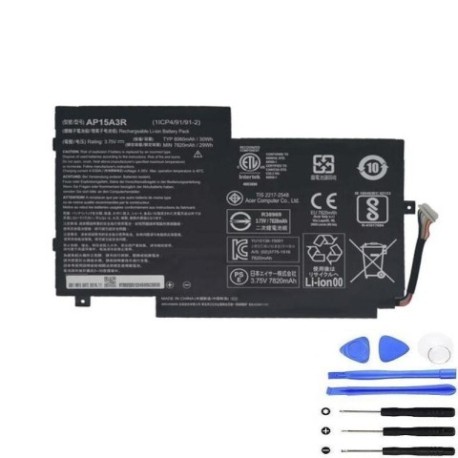
If your Acer Switch 10 is struggling to hold a charge or shutting down unexpectedly, you’re not alone. Many Australian and New Zealand users find their trusty 2-in-1 devices need battery replacement after 2-3 years of regular use. This comprehensive guide covers everything you need to know about the Acer AP15A3R 30Wh replacement battery, including compatible models, installation tips, and local recycling options.
Battery models & part numbers
| Reference / P/N |
|---|
| Acer-AP15A3R-30Wh |
| KT.00203.009 |
| KT.00203.012 |
| KT.0020G.006 |
Compatible models
| Model |
|---|
| Acer Switch 10 E (SW3-013) |
| Acer Switch 10 E (SW3-013P) |
| Acer Switch 10 E (SW3-016) |
| Acer Switch 10 E (SW3-016P) |
| Acer Switch 10 V (SW5-014) |
| Acer Switch 10 V Pro (SW5-014P) |
Introduction
The Acer Switch 10 series has been a popular choice for Australian students, professionals, and families seeking versatile 2-in-1 computing. These devices combine tablet convenience with laptop functionality, but like all portable electronics, their lithium-ion batteries degrade over time. The AP15A3R 30Wh battery is the genuine replacement that restores your device’s mobility and reliability.
Common signs you need a replacement
| Symptom | Cause | Verification | Recommendation |
|---|---|---|---|
| Battery drains in under 2 hours | Normal wear after 500+ charge cycles | Check battery health in Windows settings | Consider replacement if capacity below 60% |
| Device shuts down at 20-30% charge | Battery calibration issues or cell failure | Run battery report via command prompt | Replace battery to prevent data loss |
| Battery won’t charge past 80% | Protection circuit limiting charge | Monitor charging behaviour over 24 hours | Replace to restore full capacity |
| Device gets unusually warm during use | Battery working harder due to degradation | Check temperature with monitoring software | Replace for safety and performance |
| Battery percentage fluctuates rapidly | Failing battery cells or connection issues | Observe percentage changes during light use | Replace to stabilise power delivery |
How to check compatibility
Before purchasing any replacement battery for your Acer Switch 10, it’s crucial to verify compatibility. Start by locating your device’s model number, which is typically found on a label on the back cover or in the battery compartment. For Acer devices, you can also check through Windows by going to Settings > System > About, where the model information is displayed.
Many Australian users find the Acer Care Centre application helpful for identifying their exact device specifications. This free software provides detailed information about your hardware, including battery specifications and compatibility. Alternatively, you can visit the official Acer support website and enter your serial number to access precise compatibility information.
For the Switch 10 series specifically, pay attention to the model suffix (like SW3-013 or SW5-014P) as these indicate different configurations that may have varying battery requirements. The AP15A3R 30Wh battery is designed to work with all the models listed in our compatibility table, but always double-check against your specific device.
When to replace
Timing your battery replacement correctly can save you from unexpected downtime. Most Acer Switch 10 batteries last 2-3 years with regular use, or approximately 500 full charge cycles. If you notice your battery life has dropped to less than 50% of its original runtime, it’s time to consider replacement.
Seasonal considerations are particularly relevant in Australia and New Zealand. The summer heat can accelerate battery degradation, so if you’re heading into the warmer months with a struggling battery, replacement becomes more urgent. Similarly, if you rely on your device for work or study and can’t afford unexpected shutdowns, proactive replacement is wise.
Watch for physical signs too – if your device’s back cover is bulging or the battery feels unusually warm during charging, these are urgent indicators that replacement is needed immediately for safety reasons.
Installation guide
Replacing the battery in your Acer Switch 10 requires careful attention but is achievable for most users with basic technical skills. Begin by powering off the device completely and disconnecting any cables. You’ll need a small Phillips screwdriver and a plastic spudger or guitar pick to safely open the case.
For Switch 10 E models (SW3 series), start by removing the kickstand if present, then carefully pry open the back cover starting from the bottom edge. The battery is secured with several screws and a connector cable. Gently disconnect the battery cable before removing the screws holding the battery in place.
Switch 10 V and V Pro models (SW5 series) have a slightly different internal layout. The battery is accessible after removing the back cover, but you may need to disconnect additional cables to safely access the battery compartment. Take photos during disassembly to help with reassembly.
When installing the new AP15A3R battery, ensure the connector is firmly seated and the battery sits flat in the compartment. Reassemble in reverse order, taking care not to overtighten screws. Once reassembled, connect the charger and allow the device to charge for at least 4 hours before first use to calibrate the new battery.
Usage & care tips
Proper battery maintenance can extend the life of your new AP15A3R battery significantly. Avoid exposing your device to extreme temperatures – don’t leave it in a hot car during Australian summers or in direct sunlight for extended periods. Ideal operating temperatures are between 10°C and 35°C.
For daily usage, partial discharges are better than full discharges. Try to keep your battery between 20% and 80% charge rather than constantly draining to 0% or charging to 100%. If you plan to store your device for an extended period, charge the battery to around 50% and store in a cool, dry place.
Modern lithium-ion batteries don’t require “calibration” through full discharge cycles, despite common myths. In fact, frequent full discharges can actually reduce battery lifespan. Use your device normally and charge as needed without worrying about battery memory effects.
Safety & recycling in AU/NZ
Battery safety is paramount, especially in our climate. Never attempt to open, puncture, or modify the battery casing. If you notice any swelling, leakage, or unusual odours, stop using the device immediately and contact a professional.
In Australia, most council waste facilities accept lithium-ion batteries for recycling free of charge. Many electronics retailers including Officeworks, JB Hi-Fi, and Harvey Norman also provide battery recycling bins. In New Zealand, the Recycle-more programme coordinates battery recycling through various drop-off locations nationwide.
Never dispose of lithium-ion batteries in household rubbish bins as they pose fire risks in waste facilities. Proper recycling ensures valuable materials are recovered and hazardous components are handled safely.
FAQ
How long does the AP15A3R battery typically last?
The AP15A3R 30Wh battery typically provides 6-8 hours of mixed usage on a full charge, depending on your specific Switch 10 model and usage patterns. With normal use, the battery itself should last 2-3 years before significant degradation occurs.
Will replacing the battery void my Acer warranty?
If your device is still under manufacturer warranty, having the battery replaced by an authorised Acer service centre maintains your warranty coverage. Self-installation may void remaining warranty, so check your warranty status before proceeding.
Can I use a higher capacity battery in my Switch 10?
No, the AP15A3R is specifically designed for the Switch 10 series and using incompatible batteries can damage your device. The physical dimensions and electrical specifications are precisely matched to your device’s requirements.
How do I know if my battery replacement was successful?
After installation, your device should boot normally and show accurate battery percentage readings. Check Windows battery settings to confirm the system recognises the new battery. Allow a few full charge cycles for the battery management system to calibrate properly.
What should I do with my old battery?
Take your old battery to an approved recycling facility. Many Australian councils offer household chemical collection services, and most electronics retailers provide battery recycling bins. Never dispose of lithium-ion batteries in general waste.
Can I replace the battery myself or should I seek professional help?
While the process is straightforward for technically confident users, if you’re uncomfortable with electronics disassembly, seek help from a professional repair service. Many local computer repair shops in Australia and New Zealand offer battery replacement services at reasonable rates.
How can I maximise my new battery’s lifespan?
Avoid extreme temperatures, don’t leave your device plugged in constantly at 100% charge, and try to keep the battery between 20-80% charge for daily use. Also, use the original Acer charger or a high-quality compatible charger to ensure proper charging behaviour.