Acer AS16A5K 40.8Wh Laptop Battery Replacement Guide
If your Acer laptop is struggling to hold charge or won’t power on without being plugged in, you likely need a battery replacement. This comprehensive guide covers everything Australian and New Zealand consumers need to know about the Acer AS16A5K 40.8Wh battery replacement, including compatible models, installation steps, and local recycling options.
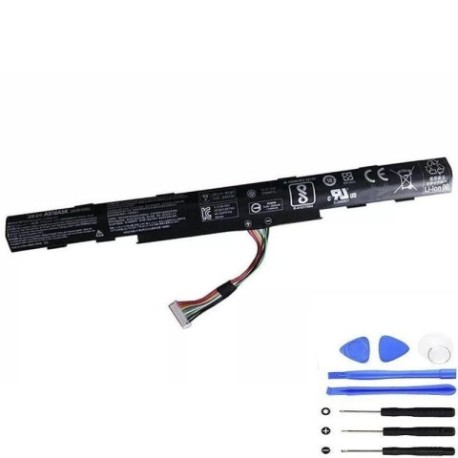
Battery models & part numbers
| Reference / P/N |
|---|
| Acer AS16A5K |
| Acer AS16A8K |
| Acer AS16B5J |
| Acer AS16B8J |
| Acer KT.00405.001 |
| Acer KT.00407.004 |
| Acer KT.0040G.007 |
| Acer KT.00605.002 |
| Acer KT.0060G.001 |
| Acer KT.00805.002 |
Compatible models
| Model |
|---|
| Acer Aspire E5-475 |
| Acer Aspire E5-475G |
| Acer Aspire E5-476 |
| Acer Aspire E5-523 |
| Acer Aspire E5-523G |
| Acer Aspire E5-553 |
| Acer Aspire E5-553G |
| Acer Aspire E5-575 |
| Acer Aspire E5-575G |
| Acer Aspire E5-575T |
| Acer Aspire E5-575TG |
| Acer Aspire E5-576 |
| Acer Aspire E5-576G |
| Acer Aspire E5-774 |
| Acer Aspire E5-774G |
| Acer Aspire ES1-432 |
| Acer Aspire F15 (F5-522) |
| Acer Aspire F15 (F5-573) |
| Acer Aspire F15 (F5-573G) |
| Acer Aspire F15 (F5-573T) |
| Acer Aspire F17 (F5-771) |
| Acer Aspire F17 (F5-771G) |
| Acer Aspire K50-20 |
| Acer Aspire K50-20-575N |
| Acer TravelMate P2 (P259-G2-M) |
| Acer TravelMate P2 (P259-M) |
| Acer TravelMate P249-G2-M |
| Acer TravelMate P249-G2-MG |
| Acer TravelMate P249-M |
| Acer TravelMate P259-G2-M |
| Acer TravelMate P259-G2-MG |
| Acer TravelMate P259-M |
| Acer TravelMate P259-MG |
Common signs you need a replacement
| Symptom | Cause | Verification | Recommendation |
|---|---|---|---|
| Battery drains quickly (less than 1 hour) | Ageing cells, reduced capacity | Check battery health in Windows Power Options | Replace if capacity below 60% |
| Laptop won’t start without power adapter | Battery completely dead or disconnected | Remove power cord – if no power, battery failed | Immediate replacement needed |
| Battery percentage jumps erratically | Faulty battery management system | Monitor percentage changes while using | Replace to prevent sudden shutdowns |
| Battery swelling or bulging | Gas buildup from cell degradation | Visual inspection, laptop won’t sit flat | Replace immediately – safety hazard |
| Overheating during charging | Internal short circuits or aged cells | Touch test – unusually hot during charge | Replace to prevent damage to laptop |
How to check compatibility
Before purchasing any replacement battery, it’s crucial to verify compatibility with your specific Acer model. Here’s how Australian and New Zealand users can confirm they’re getting the right battery:
Finding your model number: Look on the bottom of your laptop for a white sticker containing the model information. For Acer Aspire and TravelMate models, this is typically formatted as “Acer Aspire E5-575” or similar. Some models may have the number printed near the keyboard or on the screen bezel.
Using Acer’s official tools: Visit the Acer Australia support website and use their “Identify Your Product” tool. You can enter your serial number or let the system detect your model automatically. This ensures you get precise compatibility information.
Cross-referencing part numbers: If you have access to your original battery, remove it carefully and note the part number printed on it. Compare this with the AS16A5K and related part numbers listed above.
Physical compatibility check: The AS16A5K battery measures approximately 205mm x 60mm x 20mm. If your current battery matches these dimensions and has the same connector type, it’s likely compatible.
When to replace your battery
Most Acer laptop batteries last 2-4 years with regular use. Consider replacement when:
- Battery capacity drops below 60% of original
- You experience sudden shutdowns at 20-30% charge
- The battery won’t charge beyond 80%
- Your laptop is 3+ years old and battery performance is declining
- You notice physical swelling or damage
For business users with TravelMate models, replacing proactively before important meetings or travel can prevent embarrassing situations.
Installation guide
Replacing your Acer battery is straightforward with these steps:
- Power down completely – Shut down your laptop and disconnect the power adapter
- Remove the old battery – Turn the laptop over and locate the battery release latches. Slide them to the unlock position and lift the battery out
- Clean the contacts – Use a dry cloth to clean the battery connector area on the laptop
- Insert new battery – Align the new AS16A5K battery with the connector and slide it into place until it clicks
- Charge fully – Connect the power adapter and charge the battery to 100% before first use
Important notes for AU/NZ users: Always purchase from authorised retailers to ensure you get genuine batteries that meet Australian safety standards. Counterfeit batteries can be dangerous and may damage your laptop.
Usage & care tips
Extend your new battery’s lifespan with these practices:
- Avoid extreme temperatures – Don’t leave your laptop in hot cars or direct sunlight. Ideal operating range is 10°C to 35°C
- Partial discharges are better – Unlike older batteries, lithium-ion prefers partial rather than full discharges. Charge between 20-80% for optimal life
- Store properly – If storing long-term, charge to 50-60% and store in a cool, dry place
- Use power saving modes – Enable Acer’s power management features to reduce unnecessary battery drain
- Keep contacts clean – Periodically check and clean battery contacts with a dry cloth
Safety & recycling in AU/NZ
Battery safety and proper disposal are crucial in Australia and New Zealand:
Safety precautions:
- Only use the original Acer power adapter or certified replacements
- Don’t puncture or expose batteries to fire
- If battery swells, stop using immediately and dispose of properly
- Keep away from children and pets
Recycling options:
- In Australia: Use Battery World, Officeworks, or council e-waste collection points
- In New Zealand: Drop at PB Tech, Noel Leeming, or council transfer stations
- Never dispose of lithium batteries in household rubbish – fire risk
- Many retailers offer free battery recycling services
FAQ
How long does the AS16A5K battery last on a single charge?
With normal use (web browsing, document editing), expect 4-6 hours. Intensive tasks like gaming may reduce this to 1-2 hours.
Is this battery compatible with my Acer Aspire E5-575G?
Yes, the E5-575G is specifically listed in our compatibility table above.
How do I check my current battery’s health in Windows?
Open Command Prompt as administrator and type “powercfg /batteryreport”. This generates a detailed HTML report showing battery health.
Will replacing the battery void my Acer warranty?
In Australia and New Zealand, replacing the battery yourself shouldn’t void your laptop warranty, but check your specific warranty terms. The battery itself will have its own warranty.
How long does delivery take within Australia?
Most suppliers offer 3-7 business day delivery across Australia, with express options available.
Can I use this battery if my original had a different part number?
Yes, as long as your model appears in our compatibility list and the physical dimensions match.
What should I do with my old battery?
Recycle it responsibly at any of the locations mentioned in our recycling section above.
Don’t let a failing battery disrupt your work or studies. With this comprehensive guide and our compatible AS16A5K replacement, you can restore your Acer laptop to full mobility and productivity. Order today and enjoy reliable power for your compatible Acer model.