ASUS A41N1501 48Wh Laptop Battery Replacement Guide
If your ASUS laptop is struggling to hold a charge or won’t power on without being plugged in, you likely need a replacement battery. Our comprehensive guide covers everything Australian and New Zealand users need to know about the ASUS A41N1501 48Wh battery replacement.
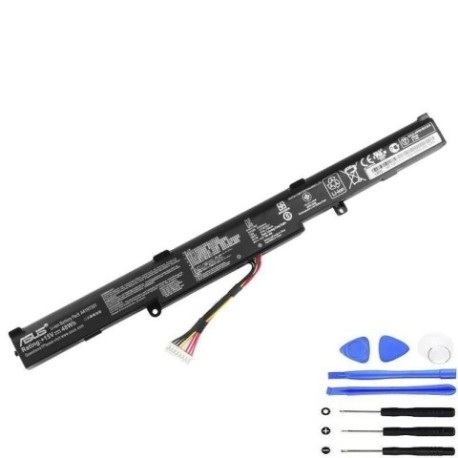
Battery models & part numbers
| Reference / P/N |
|---|
| 0B110-00360000 |
| 0B110-00360100 |
| A41Lk9H |
| Asus-A41N1501-48Wh |
Compatible models
| Model |
|---|
| Asus GL752VL |
| Asus GL752VL-1A |
| Asus GL752VL-2B |
| Asus GL752VW |
| Asus GL752VW-1A |
| Asus GL752VW-2B |
| Asus GL752VW-3B |
| Asus N552VW |
| Asus N552VW-1A |
| Asus N552VW-1B |
| Asus N552VW-2A |
| Asus N552VX |
| Asus N552VX-1A |
| Asus N552VX-2A |
| Asus N752VX |
| Asus N752VX-1A |
| Asus ROG N552 N552V N552VW N752V N752VX GL752VW |
Introduction
Laptop batteries are consumable components with a finite lifespan, typically lasting 2-4 years with regular use. The ASUS A41N1501 48Wh battery serves multiple ASUS gaming and multimedia laptop models from the popular ROG and standard series. Understanding when and how to replace your battery can save you from unexpected downtime and extend your laptop’s useful life.
Common signs you need a replacement
| Symptom | Cause | Verification | Recommendation |
|---|---|---|---|
| Rapid power drain | Reduced battery capacity | Check Windows battery report | Replace if capacity below 60% |
| Laptop won’t charge | Battery protection circuit failure | Try different power outlet | Immediate replacement needed |
| Battery swelling | Internal gas buildup | Visual inspection | Stop using immediately |
| Overheating during charging | Internal short circuits | Touch test (be careful) | Replace to prevent damage |
| Inaccurate battery percentage | Battery calibration issues | Run battery calibration | Replace if calibration fails |
| Random shutdowns | Voltage drops under load | Monitor during heavy use | Replace for stable performance |
How to check compatibility
Before purchasing any replacement battery, verifying compatibility is crucial. For ASUS laptops, you have several reliable methods to confirm your model needs the A41N1501 battery.
Finding your laptop model: The easiest way is to check the label on the bottom of your laptop. Look for text like “ASUS GL752VW” or “ASUS N552VX” – this is your exact model number. If the label is worn, you can also find this information in Windows by pressing Windows Key + R, typing “msinfo32”, and looking under “System Model”.
Using ASUS official resources: Visit the ASUS support website and enter your serial number or model number. The official compatibility checker will show you the correct battery part number. For Australian and New Zealand users, you can contact authorised ASUS service centres for verification.
Physical battery inspection: If you can safely remove your current battery, the part number should be printed on the battery itself. Look for numbers like “A41N1501”, “0B110-00360000”, or similar codes matching our compatibility list.
When to replace
Timing your battery replacement correctly can prevent data loss and hardware damage. Consider replacement when:
- Your battery lasts less than 1 hour on a full charge during normal use
- Windows shows “Consider replacing your battery” in power settings
- The battery is over 3 years old with regular use
- You notice physical swelling or deformation
- The laptop randomly shuts down even with 20-30% charge remaining
- Charging takes significantly longer than when the laptop was new
For gaming laptops like the ROG series, battery degradation often accelerates due to high power demands during gaming sessions. Don’t wait until complete failure – proactive replacement ensures uninterrupted productivity and entertainment.
Installation guide
Replacing your ASUS laptop battery is generally straightforward, but requires care and proper preparation. Follow these steps for a successful installation:
Preparation: Power down your laptop completely and unplug the AC adapter. Work on a clean, static-free surface. Gather a small Phillips head screwdriver and an anti-static wrist strap if available.
Removal process: Turn the laptop upside down. Locate the battery release latch or locks – most ASUS models have sliding locks near the battery compartment. Slide the locks to the unlock position. Gently lift the battery out, being careful not to force it if it feels stuck.
Installation: Align the new A41N1501 battery with the connector, ensuring the orientation matches the original. Press firmly until you hear a click or feel it securely in place. Slide the locking mechanisms back to the locked position.
Initial setup: Plug in your AC adapter and power on the laptop. Allow the battery to charge fully before first use. Windows may need a few minutes to recognise the new battery and install appropriate drivers.
Troubleshooting: If the laptop doesn’t recognise the new battery, try a hard reset by holding the power button for 30 seconds with the AC adapter unplugged and battery removed. Then reinstall and try again.
Usage & care tips
Proper battery maintenance can significantly extend the lifespan of your new A41N1501 battery. Follow these Australian-tested practices:
- Avoid extreme temperatures: Don’t leave your laptop in hot cars or direct sunlight. Ideal operating temperature is 10°C to 35°C.
- Partial charging cycles: Lithium-ion batteries prefer partial discharges between 20-80% rather than full 0-100% cycles.
- Storage guidelines: If storing long-term, charge to about 50% and store in a cool, dry place away from direct sunlight.
- Regular use: Use your battery at least once every two weeks to keep cells active.
- Power settings optimisation: Use Windows power saving modes when on battery to extend runtime.
- Avoid deep discharges: Don’t regularly run your battery down to 0% – this stresses lithium-ion cells.
Remember that all batteries have a finite lifespan, typically 300-500 charge cycles before capacity drops to about 80% of original.
Safety & recycling in AU/NZ
Battery safety and proper disposal are critical responsibilities for Australian and New Zealand consumers.
Safety precautions: Never attempt to open or puncture a lithium-ion battery. If you notice swelling, overheating, or strange odours, stop using immediately and place the battery in a fire-proof container. Contact your local waste management facility for proper disposal instructions.
Australian recycling options: Most office supply stores like Officeworks accept laptop batteries for recycling. Many council waste transfer stations have dedicated battery recycling bins. Some electronics retailers offer take-back programs.
New Zealand recycling: The RCN eDay programme and various retail partners provide battery recycling services. Check with your local council for specific battery disposal guidelines.
Legal requirements: In both Australia and New Zealand, it’s illegal to dispose of lithium-ion batteries in regular household waste due to fire risk and environmental concerns.
Always transport old batteries in their original packaging or in separate plastic bags to prevent short circuits during transport to recycling centres.
How long does the ASUS A41N1501 battery last on a single charge?
Under normal usage conditions (web browsing, document editing), the 48Wh capacity typically provides 2-4 hours of runtime. For gaming or intensive tasks, expect 1-2 hours. Actual runtime varies based on screen brightness, background applications, and power settings.
Is this battery compatible with my ASUS ROG laptop purchased in Australia?
Yes, the A41N1501 is designed for multiple ASUS ROG models including N552VW, N552VX, N752VX, and GL752VW series commonly sold in AU/NZ markets. Always verify your specific model number against our compatibility list before purchasing.
How do I know if my battery needs replacement or if it’s another issue?
Run Windows Battery Report by opening Command Prompt as administrator and typing “powercfg /batteryreport”. This generates a detailed HTML report showing battery health, capacity history, and usage statistics. If designed capacity significantly exceeds full charge capacity, replacement is recommended.
Can I replace the battery myself or should I visit a service centre?
Most ASUS laptops in this compatibility list feature user-replaceable batteries that don’t require technical expertise. However, if your laptop is still under warranty, consider using an authorised ASUS service centre in Australia or New Zealand to maintain warranty coverage.
What’s the warranty on replacement batteries?
Quality replacement batteries typically come with 12-24 month warranties. Always purchase from reputable suppliers who provide AU/NZ consumer guarantee protections. Keep your receipt and warranty documentation safe.
Why does my new battery show less than 100% capacity when fully charged?
This is normal behaviour. Battery management systems reserve a small buffer (typically 2-5%) to prevent overcharging and extend battery lifespan. Your system may show 95-98% as “fully charged” even when charging completes.
How should I dispose of my old laptop battery in New Zealand?
In NZ, take old batteries to designated recycling centres, participating retailers, or e-waste collection events. Never place lithium-ion batteries in household rubbish due to fire risk and environmental hazards. Many council transfer stations accept them free of charge.
Replacing your ASUS laptop battery restores mobility and peace of mind. With proper installation and care, your new A41N1501 48Wh battery will keep your compatible ASUS laptop running reliably for years. Always purchase from trusted suppliers and follow local recycling guidelines when disposing of old batteries.