ASUS B21N1505 32Wh A Battery Replacement Guide for Australian & New Zealand Users
If your ASUS VivoBook is struggling to hold a charge or showing battery warning signs, you’ve come to the right place. This comprehensive guide covers everything Australian and New Zealand users need to know about replacing their laptop battery with the genuine ASUS B21N1505 32Wh A model.
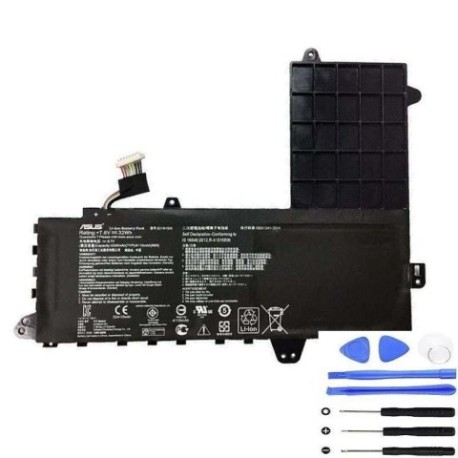
Battery models & part numbers
| Reference / P/N |
|---|
| 0B200-01400200 |
| 0B200-01400300 |
| Asus-B21N1505-32Wh-A |
| B21Bn91 |
Compatible models
| Model |
|---|
| Asus E402M E402S E502S |
| Asus VivoBook E402MA E402NA |
| Asus VivoBook E402SA E402WA E402YA |
| Asus VivoBook F402NA F402WA |
| Asus VivoBook L402NA L402SA |
| Asus VivoBook R147SA R417MA |
| Asus VivoBook X402MA X402NA X402SA X402YA |
Introduction
Laptop batteries are consumable components that naturally degrade over time. For ASUS VivoBook users across Australia and New Zealand, understanding when and how to replace your battery can significantly extend your laptop’s lifespan and maintain optimal performance. The ASUS B21N1505 32Wh A battery is specifically designed for various VivoBook models, providing reliable power for work, study, and entertainment.
Common signs you need a replacement
| Symptom | Cause | Verification | Recommendation |
|---|---|---|---|
| Rapid battery drain | Reduced capacity from age/cycles | Check battery health in Windows | Consider replacement if below 60% capacity |
| Laptop shuts down unexpectedly | Battery can’t maintain voltage | Monitor shutdown at specific percentages | Replace immediately for data safety |
| Battery won’t charge fully | Charging circuit or cell failure | Check charging percentage over time | Replace if stuck below 80% regularly |
| Battery swelling or bulging | Gas buildup from chemical breakdown | Visual inspection of battery compartment | Replace immediately – safety hazard |
| Overheating during use | Inefficient battery operation | Monitor temperature with software | Replace if consistently hot |
How to check compatibility
Before purchasing any replacement battery for your ASUS VivoBook, proper compatibility verification is essential. Start by locating your laptop’s model number, typically found on the bottom case, under the battery compartment, or in the original packaging. For ASUS devices, you can also check through the MyASUS app or by pressing F2 during boot to access BIOS information.
For VivoBook models, compatibility extends across multiple series including E402, E502, F402, L402, R147, R417, and X402 variants. The B21N1505 battery is designed as a direct replacement for these specific models, ensuring perfect fit and electrical compatibility. Always cross-reference your exact model number with our compatibility table above.
Australian and New Zealand users should note that while third-party batteries might be available, genuine ASUS-compatible batteries like the B21N1505 ensure optimal performance and safety compliance with local standards. Check for Australian regulatory compliance marks and ensure the supplier provides proper warranty coverage.
When to replace
Battery replacement timing depends on usage patterns and environmental factors. Most laptop batteries last 2-4 years with regular use. Consider replacement when your battery health drops below 70% of original capacity, when you experience consistent performance issues, or if your laptop is over three years old and showing reduced runtime.
For Australian climates, particularly in warmer regions, battery degradation may accelerate due to higher average temperatures. Similarly, New Zealand users in humid coastal areas should monitor for corrosion and performance changes. Regular battery health checks every six months can help you plan replacements proactively rather than reactively.
Installation guide
Installing your new ASUS B21N1505 battery is straightforward with proper preparation. Begin by completely shutting down your laptop and disconnecting all peripherals. Place the laptop on a clean, static-free surface. For most VivoBook models, you’ll need to remove the bottom panel using a Phillips screwdriver – typically 8-10 screws around the edges.
Once inside, locate the battery connector near the centre or side of the motherboard. Gently disconnect the old battery by pulling the connector straight out, avoiding any side-to-side movement that could damage the port. Remove any screws securing the battery in place, then lift the old battery out carefully.
Position your new B21N1505 battery in the same orientation as the original, reconnect the power connector firmly, and secure with any mounting screws. Replace the bottom panel, ensuring all clips engage properly before tightening screws. Power on your laptop – the system should recognise the new battery automatically. Allow a full charge cycle before relying on battery power for extended use.
Usage & care tips
Proper battery maintenance can significantly extend the lifespan of your new ASUS B21N1505 battery. Avoid frequent full discharges – instead, try to keep your battery between 20-80% charge for daily use. Complete discharge cycles (0-100%) should only be performed occasionally to recalibrate the battery meter.
Temperature management is crucial in Australian and New Zealand conditions. Never leave your laptop in direct sunlight or in hot vehicles, as temperatures above 35°C can permanently damage battery cells. Similarly, avoid using your laptop on soft surfaces like beds or couches that can block ventilation and cause overheating.
For long-term storage, charge the battery to approximately 50-60% and store in a cool, dry place. If you primarily use your laptop plugged in, consider enabling ASUS Battery Health Charging in the MyASUS app to limit maximum charge to 80%, reducing stress on the battery during extended AC power use.
Safety & recycling in AU/NZ
Battery safety is paramount for Australian and New Zealand users. Never attempt to open, puncture, or modify your laptop battery. If you notice any swelling, leakage, or unusual odours, discontinue use immediately and contact a qualified technician. Always use the original ASUS charger or authorised replacements to ensure proper charging voltage and current.
When your old battery reaches end-of-life, proper disposal is essential. In Australia, most electronics retailers offer free battery recycling services through programs like B-cycle. New Zealand users can utilise the e-waste recycling schemes available at most council transfer stations or through specialised e-waste collectors. Never dispose of lithium-ion batteries in household rubbish due to fire risk and environmental concerns.
FAQ
How long does the ASUS B21N1505 battery typically last?
With normal use, expect 2-4 years of reliable performance. Heavy users might see reduced lifespan, while light users could extend beyond four years with proper care.
Will replacing my battery void my ASUS warranty?
In Australia and New Zealand, replacing the battery yourself typically doesn’t void your overall laptop warranty, though any damage caused during installation wouldn’t be covered. For warranty concerns, consult ASUS Australia or ASUS New Zealand directly.
How do I check my current battery health?
In Windows, open Command Prompt as administrator and type “powercfg /batteryreport” to generate a detailed battery health report showing capacity history and wear level.
Can I use a higher capacity battery than the original?
No, the B21N1505 is specifically designed for your VivoBook’s power requirements and physical dimensions. Using incompatible batteries can cause damage and safety issues.
How long should the first charge take?
Allow 3-4 hours for the initial full charge. Modern lithium-ion batteries don’t require extended initial charging like older battery technologies.
What if my laptop doesn’t recognise the new battery?
Try a hard reset by disconnecting AC power, removing the battery, holding the power button for 30 seconds, then reconnecting everything. If issues persist, contact the supplier.
Are there any specific settings I should change after installation?
Consider adjusting your power plan settings in Windows to optimise for battery life or performance based on your usage needs. The ASUS Battery Health Charging feature in MyASUS can also help extend battery lifespan.