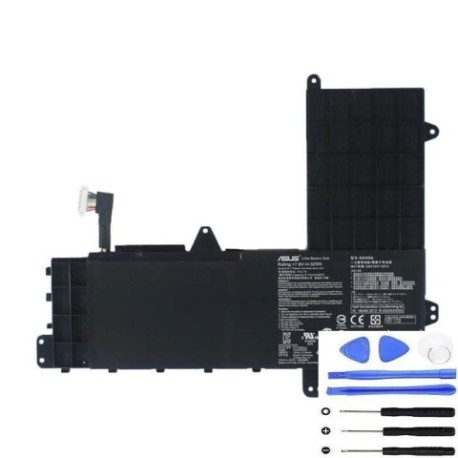
ASUS B21N1506 32Wh Laptop Battery Replacement Guide
If your ASUS laptop is struggling to hold a charge or won’t power on without being plugged in, you’ve come to the right place. This comprehensive guide covers everything Australian and New Zealand consumers need to know about replacing their ASUS B21N1506 32Wh battery, including compatible models, installation steps, and local safety standards.
Battery models & part numbers
| Reference / P/N |
|---|
| Asus B21N1506 |
| Asus-B21N1506-32Wh |
Compatible models
| Model |
|---|
| Asus 0B200-01430000 |
| Asus 0B200-01430600 |
| Asus 0B200-01430700 |
| Asus 0B200-01430800 |
| Asus B21Bn91 |
| Asus E502MA-2A |
| Asus E502MA-2B |
| Asus E502NA |
| Asus E502SA-2A |
| Asus E502SA-2B |
| Asus EeeBook E502MA |
| Asus EeeBook E502MA-XX0016D |
| Asus EeeBook E502MA-XX0020H |
| Asus VivoBook E502NA |
Introduction
Laptop batteries don’t last forever – typically they need replacement every 2-4 years with regular use. The ASUS B21N1506 32Wh battery is a common replacement for many ASUS EeeBook and VivoBook models popular in Australia and New Zealand. Understanding when and how to replace your battery can save you from unexpected downtime and extend your laptop’s useful life.
Common signs you need a replacement
| Symptom | Cause | Verification | Recommendation |
|---|---|---|---|
| Battery drains quickly | Reduced capacity from age/cycles | Check battery health in Windows | Consider replacement if under 50% capacity |
| Laptop won’t power on without charger | Battery completely dead | Remove charger – device shuts off | Immediate replacement needed |
| Battery percentage jumps erratically | Faulty battery management system | Monitor percentage changes | Replace to prevent damage |
| Laptop shuts down unexpectedly | Voltage drops under load | Note shutdowns during heavy use | Replace before data loss occurs |
| Battery swelling or overheating | Internal damage or short circuit | Visual inspection, feel for heat | Stop using immediately and replace |
How to check compatibility
Finding your exact laptop model is crucial for battery compatibility. For ASUS devices, check these locations:
On the laptop itself: Look for a sticker on the bottom case with the model number. For ASUS EeeBook and VivoBook models, this is typically near the battery compartment or on the palm rest area.
In Windows System Information: Press Windows Key + R, type “msinfo32” and check System Model. This works for most ASUS laptops running Windows 10 or 11.
Using ASUS official tools: Download ASUS Battery Health Charging from the Microsoft Store or ASUS official website. This utility not only helps manage battery health but can also display your exact device information.
Check original documentation: Your purchase receipt, original box, or user manual will have the precise model number. ASUS model numbers are case-sensitive, so ensure you match exactly.
If you’re still unsure, contact ASUS Australia support or visit an authorised service centre with your device for professional verification.
When to replace
Most laptop batteries need replacement when they reach 300-500 charge cycles or show significant capacity loss. For ASUS B21N1506 compatible models, consider replacement when:
- Battery lasts less than 1 hour with normal use
- Windows reports “Consider replacing your battery”
- Device is 2+ years old with daily use
- You notice physical swelling or deformation
- Battery no longer charges to 100%
Proactive replacement is better than waiting for complete failure, which can leave you without your device when you need it most.
Installation guide
Replacing the battery in ASUS EeeBook and VivoBook models is generally straightforward. Always power off the device and disconnect the charger before beginning.
Step 1: Preparation
Work on a clean, static-free surface. Have a small Phillips head screwdriver ready. Ground yourself by touching a metal object to discharge static electricity.
Step 2: Access the battery compartment
For most compatible ASUS models, turn the laptop upside down. Locate the battery release latch or screws securing the bottom panel. Some models have a dedicated battery compartment, while others require removing the entire bottom cover.
Step 3: Remove old battery
Disconnect the battery connector from the motherboard by gently pulling the connector, not the wires. Remove any screws securing the battery, then lift it out carefully.
Step 4: Install new battery
Place the new ASUS B21N1506 battery in position, secure with screws if applicable, and reconnect the battery connector firmly.
Step 5: Reassembly and testing
Replace any covers and screws. Connect the charger and power on the device. Allow the battery to charge fully before first use.
If you’re uncomfortable with DIY installation, visit an authorised ASUS service centre in Australia or New Zealand for professional assistance.
Usage & care tips
Proper battery maintenance can extend the life of your new ASUS B21N1506 replacement:
- Avoid extreme temperatures: Don’t leave your laptop in hot cars (above 45°C) or in direct sunlight
- Optimal charging: Keep battery between 20-80% for daily use; occasional full discharges are okay
- Storage advice: If storing long-term, charge to 50% and store in cool, dry place (15-25°C)
- Power management: Use ASUS Battery Health Charging software to optimise charging patterns
- Regular use: Use your battery regularly rather than keeping it constantly plugged in
Safety & recycling in AU/NZ
Battery safety and proper disposal are regulated in both Australia and New Zealand:
Australian Standards: All replacement batteries must meet Australian safety standards. Look for RCM mark indicating compliance with Australian communications and media authority requirements.
New Zealand Regulations: Batteries must comply with NZ electrical safety standards. Check for appropriate certification marks.
Proper Disposal: Never dispose of lithium-ion batteries in household rubbish. In Australia, use Batteryback or similar programs. In New Zealand, take to authorised e-waste collection points. Many electronics retailers offer free battery recycling.
Transportation: When shipping batteries within AU/NZ, follow dangerous goods regulations for lithium batteries.
FAQ
How long does the ASUS B21N1506 battery typically last?
With normal use, expect 2-4 years or 300-500 charge cycles. Heavy users may need replacement sooner.
Will this battery work with my ASUS laptop if it’s not listed in compatible models?
Only use with listed compatible models. Using incompatible batteries can damage your device and void warranties.
How do I calibrate my new battery?
Charge to 100%, use until it shuts down (about 5%), then charge uninterrupted to 100% again. Repeat monthly for optimal accuracy.
Is installation difficult for beginners?
Most ASUS models have user-replaceable batteries. If you’re comfortable with basic tools and following instructions, it’s manageable. Otherwise, seek professional help.
What warranty comes with replacement batteries?
Quality replacements typically offer 12-24 month warranties. Check specific product details for warranty terms.
Can I use my laptop while charging the new battery?
Yes, modern laptops are designed for this. However, for the first charge cycle, allow it to charge fully before heavy use.
Where can I get genuine ASUS batteries in Australia?
Authorised ASUS retailers, service centres, or reputable online suppliers with Australian consumer guarantees.
Remember, a healthy battery means a reliable laptop. Don’t wait until you’re stuck without power – replace your ASUS B21N1506 battery at the first signs of deterioration and enjoy uninterrupted productivity.