Asus C22 UX31 50Wh Battery Replacement Guide for Australian & New Zealand Users
Is your Asus ZenBook UX31 series laptop not holding charge like it used to? You’re not alone. Many Australian and New Zealand users of these premium ultrabooks experience battery degradation over time. This comprehensive guide covers everything you need to know about replacing your battery with the genuine Asus C22 UX31 50Wh model.
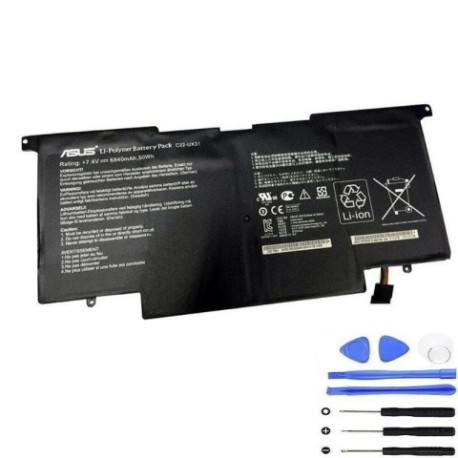
Battery models & part numbers
| Reference / P/N |
|---|
| 0B200-00020000 |
| 0B200-00020000M |
| 0B200-00020100 |
| 0B23-002G0AS |
| Asus-C22-UX31-50Wh |
Compatible models
| Model |
|---|
| Asus UX3 PR91 |
| Asus UX31 UX31A UX31E |
| Asus ZenBook Touch UX31A |
| Asus ZenBook Touch UX31A-C4027H |
| Asus ZenBook Touch UX31A-C4029H |
| Asus ZenBook Touch UX31A-C4032H |
| Asus ZenBook Touch UX31A-C4033H |
| Asus ZenBook Touch UX31A-R4002H |
| Asus ZenBook Touch UX31A-R4002V |
| Asus ZenBook Touch UX31A-R4003H |
| Asus ZenBook Touch UX31A-R4003P |
| Asus ZenBook Touch UX31A-R4003V |
| Asus ZenBook Touch UX31A-R4003X |
| Asus ZenBook Touch UX31A-R4004H |
| Asus ZenBook Touch UX31A-R4004V |
| Asus ZenBook Touch UX31A-R4005H |
| Asus ZenBook Touch UX31A-R4005V |
| Asus ZenBook UX31E |
| Asus ZenBook UX31E-RY008V |
| Asus ZenBook UX31E-RY009V |
| Asus ZenBook UX31E-RY010V |
| Asus ZenBook UX31E-RY012V |
| Asus ZenBook UX31E-RY029V |
Introduction
The Asus ZenBook UX31 series represents some of the finest ultrabook engineering available in the Australian and New Zealand markets. These sleek, powerful machines were designed for professionals and students who demand both performance and portability. However, like all lithium-ion batteries, the original 50Wh power source has a finite lifespan. After 2-3 years of regular use, many users notice significant degradation in battery performance.
This comprehensive guide is specifically tailored for AU/NZ consumers, addressing local climate considerations, warranty options, and recycling programmes. We’ll walk you through identifying when you need a replacement, ensuring compatibility with your specific ZenBook model, and provide step-by-step installation guidance that even novice users can follow safely.
Common signs you need a replacement
| Symptom | Cause | Verification | Recommendation |
|---|---|---|---|
| Battery drains quickly (under 2 hours) | Natural cell degradation over 300+ cycles | Check Windows Battery Report or macOS System Information | Replace if capacity below 60% of original |
| Laptop shuts down unexpectedly at 20-30% | Voltage regulation failure in battery management system | Monitor shutdown patterns and battery percentage | Immediate replacement recommended |
| Battery won’t charge past 80-90% | Charging circuit protection triggered by aged cells | Observe charging patterns over multiple sessions | Replace to restore full charging capability |
| Laptop feels unusually hot during charging | Increased internal resistance in battery cells | Use temperature monitoring software | Safety concern – replace immediately |
| Battery swelling or case deformation | Gas buildup from chemical breakdown | Visual inspection and trackpad/touchpad responsiveness | Critical safety issue – stop using and replace |
How to check compatibility
Before purchasing any replacement battery for your Asus ZenBook, proper compatibility verification is essential. The UX31 series includes multiple variants with subtle differences that affect battery compatibility.
Finding Your Exact Model Number: Locate the model sticker on the bottom casing of your laptop. For UX31 series devices, this is typically found near the hinge area or battery compartment. The model number will be something like “UX31A-R4003V” or “UX31E-RY008V”. If the sticker is worn, you can find this information in Windows by pressing Windows Key + R, typing “msinfo32”, and looking under “System Model”. On macOS, click the Apple menu > About This Mac > System Report.
Cross-Reference with Official Sources: Visit the Asus Australia support website and use their compatibility checker tool. Enter your exact model number to verify which replacement parts are authorised for your device. The C22 UX31 50Wh battery is compatible with all models listed in our compatibility table above.
Physical Verification: Remove your current battery (if possible) and compare the part number printed on it with our reference list. The original Asus batteries for these models typically show part numbers like 0B200-00020000 or similar variations.
When to replace
Timing your battery replacement correctly can save you both money and potential data loss. For most Australian and New Zealand users, consider replacement when:
- Your battery health shows less than 60% of original capacity in system diagnostics
- You experience unexpected shutdowns during normal use
- The battery has completed 500+ charge cycles (visible in system information)
- Your laptop is 3+ years old with regular daily use
- You notice physical swelling or case deformation
- Performance during travel or meetings becomes unreliable
Proactive replacement is often better than waiting for complete failure, especially if you rely on your ZenBook for work or study.
Installation guide
Replacing the battery in your Asus ZenBook UX31 series is a straightforward process that most users can complete in 15-30 minutes. However, if you’re uncomfortable with DIY repairs, consider visiting an authorised Asus service centre in Australia or New Zealand.
Tools Required: Phillips #00 screwdriver, plastic spudger or guitar pick, anti-static wrist strap (recommended), clean workspace
Step-by-Step Installation:
- Power Down & Prepare: Shut down your laptop completely and disconnect the AC adapter. Ground yourself to prevent static discharge.
- Access Battery Compartment: Turn the laptop upside down. Remove the 10-12 screws securing the bottom case. These are typically Phillips #00 and may vary in length, so keep them organised.
- Remove Bottom Cover: Use a plastic spudger to carefully separate the bottom cover from the main chassis. Start from the rear edge and work your way around. The clips are delicate, so apply even pressure.
- Disconnect Old Battery: Locate the battery connector near the centre of the motherboard. Gently pull the connector straight up to disconnect. Avoid pulling on the wires.
- Remove Mounting Screws: Remove the 4-6 screws securing the battery to the chassis. These are typically shorter than the case screws.
- Install New Battery: Position the new C22 UX31 50Wh battery in place, secure with mounting screws, and reconnect the battery connector firmly.
- Reassemble: Replace the bottom cover, ensuring all clips engage properly. Reinstall all screws in their original positions.
- Initial Charge: Connect the AC adapter and charge the new battery completely before first use. This helps calibrate the battery management system.
Common Installation Challenges: Some UX31 models have adhesive securing the battery. If present, carefully peel it away using a plastic tool. If you encounter resistance during disassembly, double-check for hidden screws under rubber feet or warranty stickers.
Usage & care tips
Proper battery maintenance can significantly extend the lifespan of your new C22 UX31 50Wh battery. Follow these AU/NZ specific recommendations:
- Optimal Charging: Keep your battery between 20-80% for daily use. Avoid frequent full discharges to 0%.
- Temperature Management: Australian summers can be harsh on electronics. Never leave your laptop in a hot car or direct sunlight. Ideal operating temperature is 10-35°C.
- Storage Guidelines: If storing your laptop for extended periods, charge the battery to 50-60% and store in a cool, dry place.
- Power Settings: Use Asus Power4Gear Hybrid or Windows Battery Saver mode to optimise power consumption during mobile use.
- Regular Calibration: Every 2-3 months, allow the battery to discharge to about 10% then charge fully to recalibrthe battery indicator.
Safety & recycling in AU/NZ
Battery safety and proper disposal are particularly important in Australia and New Zealand’s environmentally conscious markets.
Safety Precautions:
- Never attempt to puncture, crush, or disassemble the battery
- Avoid exposing the battery to temperatures above 45°C or below 0°C
- Use only the original Asus AC adapter or a certified replacement
- If the battery becomes damaged, swollen, or excessively hot, discontinue use immediately
AU/NZ Recycling Programs:
- In Australia, use Batteryback.org.au to find your nearest drop-off location
- New Zealand residents can visit eanz.org.nz for e-waste recycling centres
- Many Officeworks, JB Hi-Fi, and Harvey Norman stores offer free battery recycling
- Never dispose of lithium-ion batteries in household rubbish – they pose fire risks in landfill
FAQ
How long does the C22 UX31 50Wh battery typically last?
With normal use, expect 2-3 years of optimal performance or approximately 500 full charge cycles before capacity begins to noticeably degrade. Heavy users may see reduced lifespan.
Will this battery work with my ZenBook purchased in New Zealand?
Yes, the C22 UX31 50Wh battery is compatible with all regional variants of the supported models, regardless of where the laptop was originally purchased.
How can I verify this is a genuine Asus battery?
Genuine Asus batteries feature precise branding, proper serial numbers, and come in official packaging. Purchase from authorised retailers and check for the Asus hologram on the battery casing.
My laptop won’t turn on after battery replacement – what should I do?
First, ensure the battery connector is firmly seated. Try holding the power button for 30 seconds with the AC adapter connected. If issues persist, contact the retailer or an authorised service centre.
Does replacing the battery void my Asus warranty?
In Australia and New Zealand, replacing the battery yourself typically doesn’t void the overall laptop warranty, but any damage caused during installation may not be covered. Check your specific warranty terms.
How do I maximise battery life in hot Australian climates?
Avoid direct sunlight exposure, use in air-conditioned environments when possible, and consider removing the battery if using AC power exclusively for extended periods.
Can I use a higher capacity battery with my UX31?
No, the C22 UX31 50Wh is the maximum capacity designed for these models. Using incompatible batteries can damage your laptop and poses safety risks.
Replacing your Asus ZenBook UX31 series battery with the genuine C22 UX31 50Wh model will restore the portability and reliability that made you choose this premium ultrabook. With proper installation and care, your replacement battery should provide years of dependable service, keeping you productive whether you’re working from a Sydney café or a Wellington co-working space.