ASUS C32N1838 95Wh Battery Replacement Guide for Australian & New Zealand Users
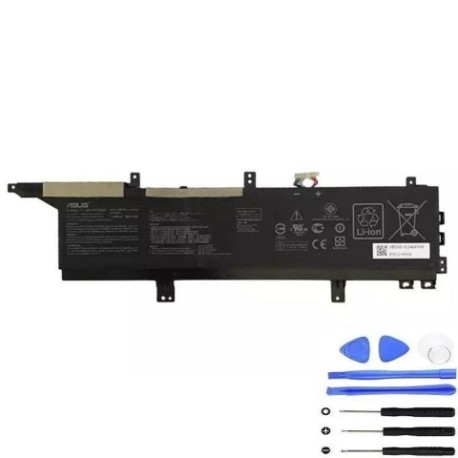
Battery models & part numbers
| Reference / P/N |
|---|
| Asus-C32N1838-95Wh |
Compatible models
| Model |
|---|
| Asus B200-03460100 |
| Asus ProArt StudiBook Pro X W730G2T |
| Asus ProArt StudioBook Pro X W730G1T |
| Asus ProArt StudioBook Pro X W730G1T-H8004R |
| Asus ProArt StudioBook Pro X W730G1T-H8021R |
| Asus ProArt StudioBook Pro X W730G2T-H8007R |
| Asus ProArt StudioBook Pro X W730G2T-H8016R |
| Asus ProArt StudioBook Pro X W730G5T |
| Asus ProArt StudioBook Pro X W730G5T-AV034R |
| Asus ProArt StudioBook Pro X W730G5T-H8050T |
| Asus ProArt StudioBook Pro X W730G5T-H8067T |
| Asus ProArt StudioBook Pro X W730G5T-H8093R |
| Asus ProArt StudioBook Pro X W730G5T-H8098R |
| Asus ProArt StudioBook Pro X W730G5T-H8103T |
| Asus ProArt StudioBook Pro X W730G5T-XH99 |
| Asus ProArt StudioBook Pro X W730G5T-XS99 |
| Asus W730G1T |
Introduction
If you’re a creative professional or power user relying on your ASUS ProArt StudioBook in Australia or New Zealand, battery performance is crucial for your workflow. The ASUS C32N1838 95Wh battery replacement ensures your high-performance laptop maintains its mobility and reliability. This comprehensive guide covers everything from recognising when you need a replacement to proper installation and maintenance for AU/NZ conditions.
Common signs you need a replacement
| Symptom | Cause | Verification | Recommendation |
|---|---|---|---|
| Rapid power drain | Battery degradation after 300-500 cycles | Check battery health in Windows Power Settings | Replace if capacity drops below 60% |
| Laptop won’t hold charge | Failed battery cells or circuitry | Test with different power adapter | Immediate replacement required |
| Battery swelling | Internal chemical breakdown | Visual inspection of battery compartment | Safety hazard – replace immediately |
| Overheating during charging | Internal resistance increase | Monitor temperature with HWMonitor | Replace if consistently over 45°C |
| Random shutdowns | Voltage instability | Check Event Viewer for power events | Replace to prevent data loss |
How to check compatibility
Before purchasing your ASUS C32N1838 replacement battery, verify compatibility with your specific ProArt StudioBook model. Locate your laptop’s model number on the bottom label, typically near the serial number and regulatory markings. For ASUS devices, you can also check through MyASUS app or BIOS system information. Cross-reference with our compatibility table above – all listed models are confirmed compatible with the C32N1838 95Wh battery. If your exact model isn’t listed, contact ASUS Australia support or your local authorised service centre for verification.
When to replace
Most ASUS ProArt StudioBook batteries last 2-3 years with regular use. Consider replacement when your battery health drops below 70% capacity, you experience significant runtime reduction, or encounter any safety concerns like swelling. In Australia’s varied climate conditions, batteries may degrade faster in hotter regions like Queensland compared to cooler southern states. Regular monitoring through Windows Battery Report (powercfg /batteryreport) helps track degradation patterns.
Installation guide
Replacing your ASUS ProArt StudioBook battery requires careful handling. First, power down completely and disconnect all cables. Place the laptop on a clean, static-free surface. Remove the bottom panel screws – typically Torx T5 or Phillips #1 screws. Gently lift the panel, being mindful of any clips. Locate the battery connector near the centre and carefully disconnect it. Remove the battery mounting screws and lift the battery out. Install the new C32N1838 battery, reconnect the connector, and reassemble. For W730 series models, the battery is centrally located and easily accessible once the bottom panel is removed.
Usage & care tips
Maximise your new battery’s lifespan with proper care. Avoid frequent full discharges – lithium-ion batteries prefer partial discharges between 20-80%. Store your laptop in temperatures between 10-35°C, avoiding direct sunlight in Australian summers. If storing long-term, charge to 50-60% and power down completely. Use ASUS Battery Health Charging in MyASUS app to optimise charging patterns based on your usage. For creative professionals running intensive applications, consider performance mode only when plugged in to reduce battery strain.
Safety & recycling in AU/NZ
Battery safety is paramount. Never attempt to open or modify lithium-ion batteries. If you notice swelling, overheating, or leakage, immediately power down and contact professionals. In Australia, dispose of old batteries through Batteryback.org.au or at designated collection points at Officeworks, Bunnings, or ALDI stores. In New Zealand, use the RecycleMate app to find local recycling centres. Many councils offer e-waste collection services. Never dispose of batteries in household rubbish due to fire risk and environmental concerns.
FAQ
How long does the C32N1838 95Wh battery typically last?
The ASUS C32N1838 provides 4-8 hours of typical usage depending on your ProArt StudioBook configuration and workload. Under heavy creative applications, expect 2-4 hours, while light productivity tasks may achieve 6-8 hours.
Is this battery compatible with all ProArt StudioBook models?
The C32N1838 is specifically designed for the compatible models listed above. While many ProArt StudioBooks share similar designs, always verify your exact model number before purchase.
Can I use my laptop while the battery is charging?
Yes, ASUS ProArt StudioBooks support pass-through charging, allowing full performance while charging. However, for optimal battery health, avoid keeping the laptop plugged in constantly at 100% charge.
How do I calibrate my new battery?
After installation, charge to 100%, use until about 10%, then recharge fully. Repeat this cycle 2-3 times to help the battery management system accurately gauge capacity.
What warranty comes with replacement batteries?
Authorised ASUS batteries typically carry 12-month warranties in Australia and New Zealand. Third-party replacements may vary – always check warranty terms before purchase.
My battery isn’t charging – what should I check?
First, verify your power adapter is functioning. Check the charging port for debris. Try a hard reset (hold power button 40 seconds). If issues persist, the battery may need replacement.
Can I replace the battery myself without voiding warranty?
For newer ASUS laptops, self-replacement may void warranty. Check your specific warranty terms. If under warranty, consider using ASUS Australia’s authorised service centres.