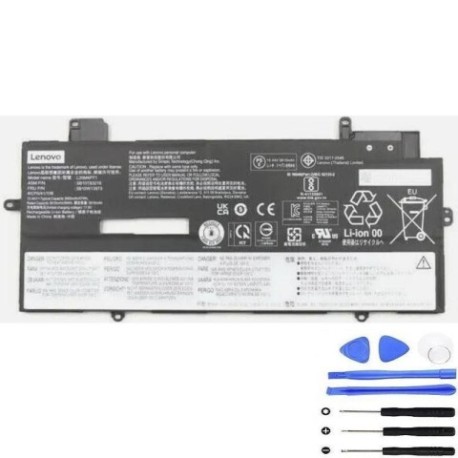
Battery models & part numbers
| Reference / P/N |
|---|
| 4ICP5/41/108 |
| 5B10W13972 |
| 5B10W13973 |
| 5B10W13974 |
| 5B10W13975 |
| 5B11M90057 |
| L20C4P71 |
| L20D4P71 |
| Lenovo-L20M4P71-57Wh |
| SB10T83216 |
| SB10T83217 |
| SB10T83218 |
| SB11M89859 |
Compatible laptop models
| Model |
|---|
| Lenovo ThinkPad X1 Carbon 9th Gen (20XW/20XX) |
| Lenovo ThinkPad X1 Carbon G10 (21CB) |
| Lenovo ThinkPad X1 Carbon G10 (21CC) |
| Lenovo ThinkPad X1 Carbon Gen 11 (21HM/21HN) |
| Lenovo ThinkPad X1 Yoga 6th Gen (20XY/20Y0) |
| Lenovo ThinkPad X1 Yoga 7th Gen (21CD) |
| Lenovo ThinkPad X1 Yoga 7th Gen (21CD/21CE) |
| Lenovo ThinkPad X1 Yoga 8th Gen (21HQ/21HR) |
| Lenovo X1 ThinkPad Yoga Gen 6 (20XY/20Y0) |
Introduction
Keep your Lenovo ThinkPad X1 series laptop performing at its best with our genuine replacement battery. The L20M4P71 57Wh battery is specifically designed for multiple ThinkPad X1 Carbon and Yoga models, ensuring optimal performance and reliability for Australian and New Zealand users.
Common signs you need a replacement
| Symptoms | Causes | Verification | Recommendation |
|---|---|---|---|
| Battery drains quickly (less than 1 hour) | Ageing cells, frequent charging cycles | Check battery health in Windows settings | Replace if capacity below 60% |
| Laptop won’t hold charge | Battery degradation, faulty cells | Test with power cord removed | Immediate replacement needed |
| Battery swelling or bulging | Overheating, manufacturing defect | Visual inspection, uneven surface | Replace immediately for safety |
| Overheating during use | Inefficient battery, poor ventilation | Monitor temperature with software | Replace if consistently over 45°C |
| Charging indicator issues | Battery communication failure | Check LED behaviour, system reports | Replace if charging inconsistent |
How to check compatibility
Verify your laptop model matches our compatibility list above. Check your current battery part number (usually printed on the battery) or use Lenovo’s official support website with your laptop’s serial number. All compatible models are listed in alphabetical order for easy reference.
When to replace
Replace your battery when it no longer holds sufficient charge for your needs, shows physical damage, or reaches 2-3 years of regular use. Most lithium-ion batteries maintain optimal performance for 300-500 charge cycles before noticeable degradation occurs.
Installation guide (overview)
1. Power off your laptop and disconnect all cables
2. Remove the bottom cover (consult your model’s service manual)
3. Disconnect the battery connector from the motherboard
4. Remove any screws securing the battery (typically 4-6)
5. Install the new battery and reconnect all components
6. Allow the battery to charge fully before first use
Usage & care tips
• Avoid frequent full discharges – charge between 20-80% for optimal lifespan
• Store in cool, dry conditions (15-25°C ideal)
• Use only authorised Lenovo chargers
• Calibrate battery monthly by fully charging then discharging to 5%
• Avoid exposing to extreme temperatures or direct sunlight
Safety & recycling in AU/NZ
In Australia and New Zealand, lithium-ion batteries must be recycled responsibly. Do not dispose of in household waste. Use designated battery recycling centres available at most electronics retailers, council waste facilities, or Batteryback programme collection points. Damaged or swollen batteries should be handled with care and recycled immediately.
FAQ
How long does this battery last on a full charge?
Up to 8-10 hours depending on usage, settings, and laptop model.
Is this battery genuine Lenovo?
Yes, this is an authentic Lenovo replacement part with full compatibility.
What warranty is provided?
12-month warranty covering manufacturing defects.
How do I recycle my old battery in Australia?
Take to any Officeworks, JB Hi-Fi, or council recycling centre free of charge.
Will this battery work with my specific ThinkPad model?
Check the compatibility table above – all supported models are listed.
How long does shipping take to NZ?
Typically 5-7 business days with tracking provided.
Can I install this battery myself?
Yes, with basic technical skills and proper tools – follow our installation guide.